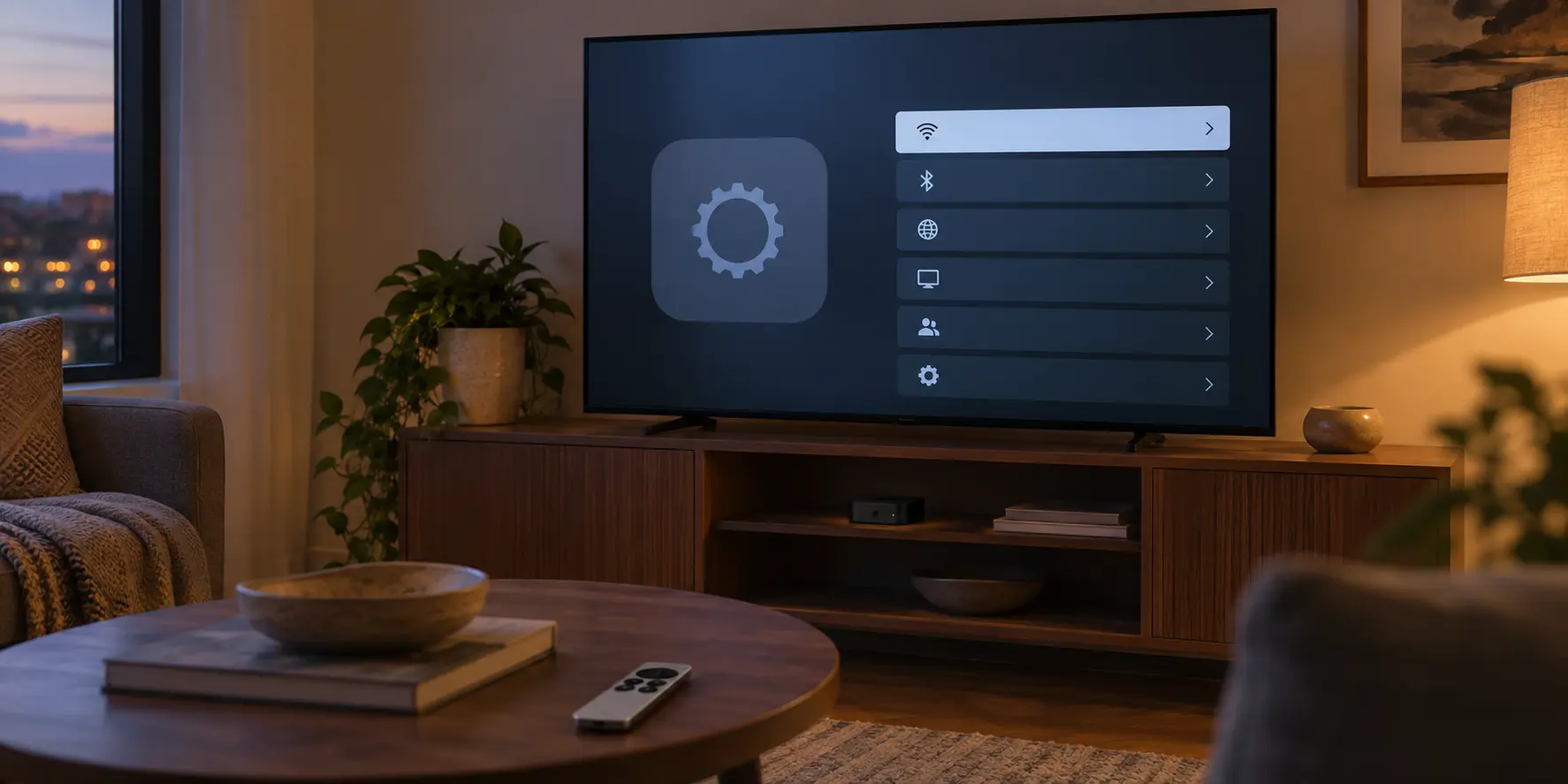
Grab your Apple TV remote, navigate to Settings → General → VPN & Device Management, and you will find an interface that feels like a dead end.
Every standard network tutorial leads you to believe there should be an intuitive "Add VPN" form right here—a place to type in an address, a username, and a password borrowed from your commercial VPN account. Instead, the screen sits empty, offering no manual entry fields and no obvious way forward.
Most guides react to this by throwing their hands up. They tell you to give up, download a tvOS app from the App Store, or buy an expensive pre-configured router.
Apple did not omit native, app-free VPN functionality from modern Apple TV. It separated VPN capability from consumer manual input.
A direct, fully native method exists to put an Apple TV HD or Apple TV 4K behind a real VPN tunnel without installing a single tvOS app. However, making it work requires understanding how Apple handles platform settings, what technical credentials your VPN provider must supply, and when an upstream network switch makes far more practical sense.
Article summary and product fit
Can Apple TV use a VPN without installing a VPN app?
Yes, but only when the setup supplies what tvOS actually needs. A modern Apple TV can use an app-free native VPN through an Apple configuration profile containing real IKEv2 credentials; if your provider does not supply those credentials, the practical alternatives are a VPN-enabled router or running the VPN on a Mac or iPhone and using AirPlay for compatible video.
Key points
- Best for: Apple TV HD or Apple TV 4K owners who want to understand the native app-free path before buying extra hardware.
- The real gate: tvOS can accept a native IKEv2 VPN profile, but the profile still needs genuine server addresses, identifiers, and authentication credentials from the VPN provider or network administrator.
- Practical alternative: If manual IKEv2 credentials are unavailable, a compatible VPN router moves the tunnel one hop upstream so the Apple TV can use it as an ordinary network client.
- Important limit: AirPlay from a VPN-connected Mac or iPhone can solve the narrower “put this video on the television” task, but DRM or app restrictions can block mirroring, and Smart DNS is not a VPN.
Apple’s deployment guidance and VPN payload documentation support the native-profile route; Apple’s AirPlay guidance supports the display-only alternative.
Product fit: OnlydogVPN fits only the Mac/iPhone side of this article: run the tunnel on a supported personal device and use AirPlay or Screen Mirroring when the video app allows it. It is not presented here as a direct tvOS VPN profile or Apple TV app.
Yes, Apple TV Can Run a VPN Without a VPN App
When Apple released tvOS 17, headlines focused almost exclusively on the arrival of consumer VPN apps in the tvOS App Store. That consumer-facing feature overshadowed a far more significant platform update running beneath the surface: native support for enterprise-grade VPN profiles.
In Apple’s deployment architecture, there are two distinct ways for an Apple TV to establish its own VPN connection:
App-based: You install a provider's app from the tvOS App Store, log in, and let the software control the tunnel.
App-free: The Apple TV receives its connection parameters via a configuration profile utilizing Apple’s native IKEv2 network stack.
A configuration profile is not an application running quietly in the background. It is an encrypted XML payload—the exact same mechanism businesses and schools use to manage iOS and macOS fleets—that hands tvOS the blueprints for establishing a native tunnel.
Apple’s device-management specifications confirm that tvOS natively supports IKEv2 VPN payloads without requiring the hardware to be supervised or enrolled in an enterprise mobile device management (MDM) server. Once an IKEv2 profile is installed, the operating system manages the connection directly. The entry appears cleanly under VPN & Device Management, toggling on and off just like a native connection on an iPhone or Mac.
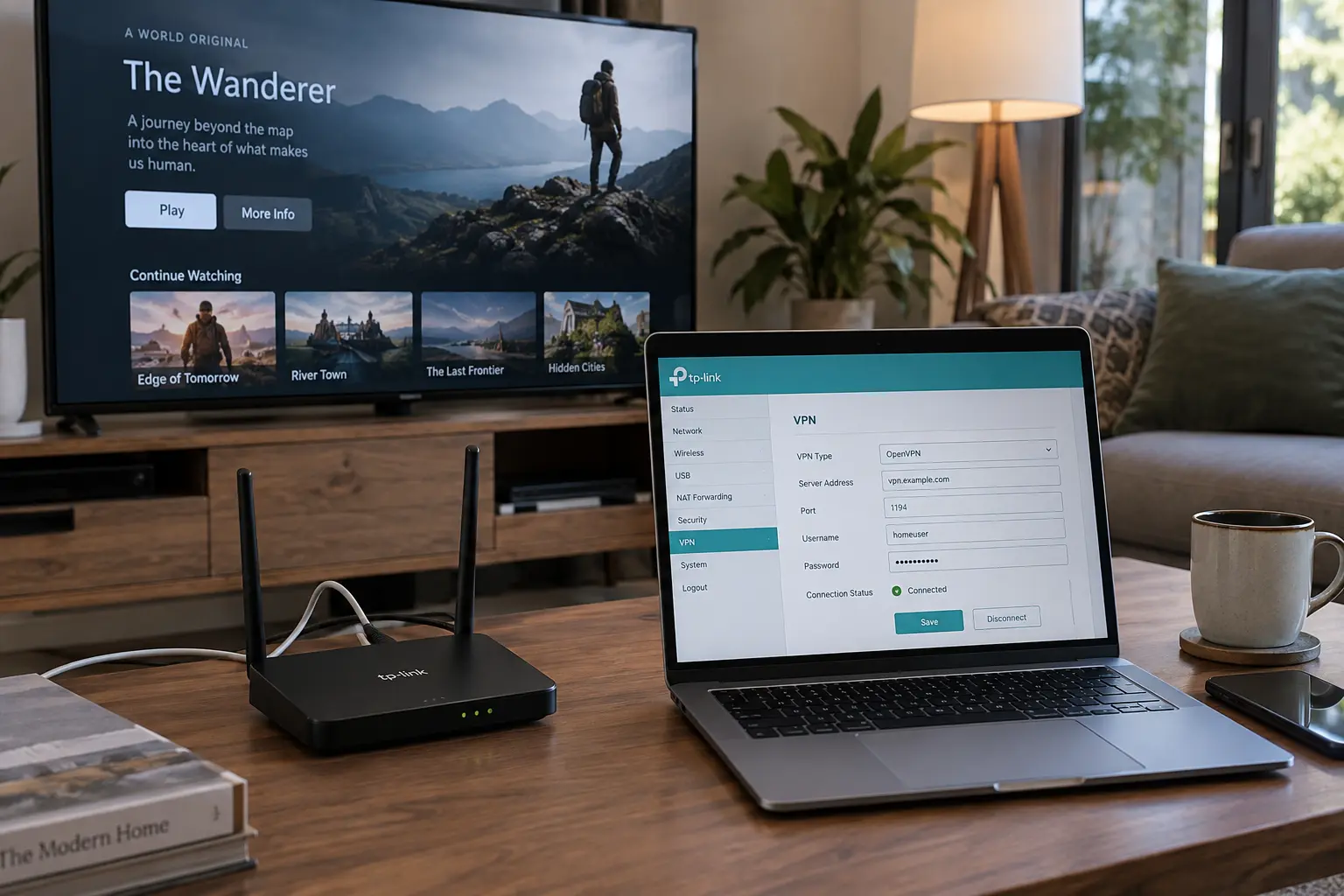
The Catch Is Not the Apple TV—It’s Whether You Have Real VPN Credentials
This brings us to the barrier that trips up almost everyone trying this workflow: a configuration profile cannot invent server infrastructure out of thin air.
Apple’s native tvOS VPN engine relies on standard IKEv2 protocols. It requires concrete data points: a remote server gateway, local and remote identifiers, an authentication method (such as user credentials or machine certificates), and precise cryptographic parameters.
This leads to a simple diagnostic test:
Does your VPN provider explicitly hand you manual IKEv2 server addresses, identifiers, and configuration credentials?
If the answer is no, the native profile route is a non-starter.
You cannot simply extract an IP address from a proprietary desktop app and expect Apple TV to connect. Many modern consumer VPNs run exclusively on customized proprietary protocols, or WireGuard and OpenVPN implementations that require their own software engine to interpret. If a service does not supply raw, Apple-compatible IKEv2 configurations, no amount of troubleshooting will make a native tvOS profile work.
If your provider or network administrator does supply manual IKEv2 settings, installing them on an unsupervised Apple TV takes five straightforward steps:
- Gather the parameters: Collect the gateway address, remote ID, and account credentials from your VPN dashboard.
- Build the profile: Use Apple Configurator (available free in the Mac App Store) to generate a
.mobileconfigfile containing the IKEv2 payload. - Deploy to the hardware: Connect your Apple TV to the same local network (Ethernet is recommended for initial pairing), discover it in Apple Configurator on your Mac, and choose Add → Profiles.
- Authorize on tvOS: On your television screen, navigate to Settings → General → VPN & Device Management and accept the incoming payload.
- Verify the route: Toggle the profile active, then check your streaming apps or an in-network browser test to confirm your traffic is routing properly.
A critical security warning: never download pre-packaged .mobileconfig files from public forums or unverified file-sharing sites. A configuration profile dictates your device’s network routing and security trust anchors; generate it yourself using legitimate credentials from your provider.
No Manual Credentials? Move the VPN One Hop Before the Apple TV
If your VPN provider does not support manual IKEv2 configurations—or if generating XML profiles feels excessively complex—stop searching for hidden submenus inside tvOS. Shift your focus one step backward on the network chain.
An Apple TV does not care whether its network interface card encrypts the data internally, or if the encryption happens before the packets ever hit the public internet. If you put the VPN on your router, the Apple TV inherits full tunnel protection without knowing a VPN exists.
The router method is exactly one hop upstream: the internet connects through a VPN-enabled router, and the Apple TV joins that network as an ordinary device with no VPN app installed on the television.
This is the standard consumer-grade solution for a simple reason: it completely bypasses the limitations of the streaming box. You hook the Apple TV to your Wi-Fi or plug in an Ethernet cable, and every app—from regional streaming services to native system updates—flows straight through the encrypted path.
The trade-off is hardware capability. Most standard ISP-issued modem-router combos lack VPN client functionality. To make this work, you need a router running firmware that supports VPN client protocols (such as OpenVPN or WireGuard) and a provider that allows router setups.
Furthermore, unless your router supports policy-based routing (directing only specific devices through the VPN), putting the connection at the gateway means your home computers, smart lights, and phones will travel through that same tunnel, which may not always be desirable.
If You Only Want the Video on the Television, You May Not Need to VPN the Apple TV at All
Many people who search for Apple TV VPN setups are attempting to solve a much narrower dilemma: they have an overseas sporting event, regional stream, or home network library running smoothly on their personal device, and they simply want that video playing on a 65-inch screen.
If your only objective is watching video on the television, restructuring your living room network or building custom tvOS profiles is unnecessary overhead.
Apple’s native ecosystem already provides a high-fidelity display link: AirPlay and Screen Mirroring. When you maintain a secured tunnel on a personal computer or smartphone, you can often push that playback straight to the television without altering the Apple TV’s network configuration at all.
This is where a product like OnlydogVPN↗ fits naturally into the equation.
OnlydogVPN does not feature an Apple TV app, nor is it designed for direct tvOS profile deployment. Instead, it is built purposefully for personal client devices—Mac, iPhone, and iPad. Where traditional consumer VPNs require manual server hopping, OnlydogVPN uses a scenario-based, automatic-routing architecture.
If you are running a regional stream or protecting sensitive web traffic on your Mac or iPhone, OnlydogVPN manages the connection automatically:
One-Tap Simplicity: It activates immediately without demanding protocol adjustments or server load calculations.
Automatic Routing: It routes media and browsing requests dynamically based on destination requirements, eliminating the trial-and-error cycle of testing multiple regional servers.
Once OnlydogVPN handles the tunnel on your Mac or iPhone, you simply use native AirPlay or Screen Mirroring to cast the picture to your Apple TV.
Keep one limitation in mind: Mirroring a VPN-connected personal device is not the same as putting the Apple TV itself behind a VPN. Certain protected streaming applications enforce strict Digital Rights Management (DRM) or disable external AirPlay video outputs entirely. Test your intended video stream via mirroring first. If the player supports AirPlay, running OnlydogVPN on your laptop or mobile device delivers the video to your television screen without touching your Apple TV's network settings.
Do Not Let “Smart DNS” Quietly Become “VPN”
As you explore app-free methods, you will encounter tutorials urging you to enter custom numbers into the Apple TV’s DNS Configuration menu.
Services marketing this technique usually call it "Smart DNS." While it can be an effective way to resolve regional domain names for specific streaming catalogs, it is fundamentally not a VPN:
It does not encrypt your Apple TV’s traffic.
It does not alter your underlying public IP address for regular internet traffic.
It does not secure your local network activity from your ISP or network operators.
If all you require is changing the geographic catalog of a specific media app that supports DNS proxying, Smart DNS is a lightweight workaround. But do not make the mistake of assuming your Apple TV is protected simply because you altered two lines of DNS digits.
Where I’d stop tinkering
Choosing an app-free Apple TV setup comes down to answering one question: Where does the VPN tunnel actually need to terminate?
If the Apple TV itself must run a dedicated, native VPN: Obtain genuine IKEv2 server configurations from your provider, build a deployment profile in Apple Configurator, and install it under VPN & Device Management.
If you want permanent whole-device coverage without managing profiles: Deploy the VPN upstream on a compatible home router and let the Apple TV connect as a standard client.
If you just want your content on the big screen without rebuilding your network: Run the connection on your personal hardware. Fire up OnlydogVPN on your Mac or iPhone, let its automatic routing establish the connection with one tap, and cast the media directly to your television.
Stop searching for a generic manual setup screen that tvOS was never designed to show you. Identify where your connection needs to be secured, choose the method that matches your hardware, and let your television do what it was built to do: display your media without the hassle.
Frequently Asked Questions
Why is there no normal “Add VPN” form on Apple TV?
Apple exposes native app-free VPN support through configuration profiles rather than a consumer manual-entry form. The profile supplies the settings that tvOS needs to establish the tunnel.
What do I need for a native app-free Apple TV VPN?
You need Apple-compatible IKEv2 details from the VPN provider or network administrator, including the server gateway, identifiers, authentication method, and the other connection parameters required by the profile.
What if my VPN provider does not supply manual IKEv2 credentials?
Use a compatible VPN-enabled router if you want the Apple TV itself to inherit a tunneled network path, or run the VPN on a personal device and cast compatible video when whole-device coverage is not required.
Is Smart DNS the same thing as a VPN on Apple TV?
No. Smart DNS can change how selected domains resolve for some media services, but it does not provide the encrypted tunnel or general public-IP routing behavior of a VPN.
Can I just run OnlydogVPN directly on the Apple TV?
The article does not present OnlydogVPN as a direct tvOS app or native Apple TV profile. Its role here is to run on a Mac, iPhone, or iPad and then use AirPlay or Screen Mirroring when the target app permits it.