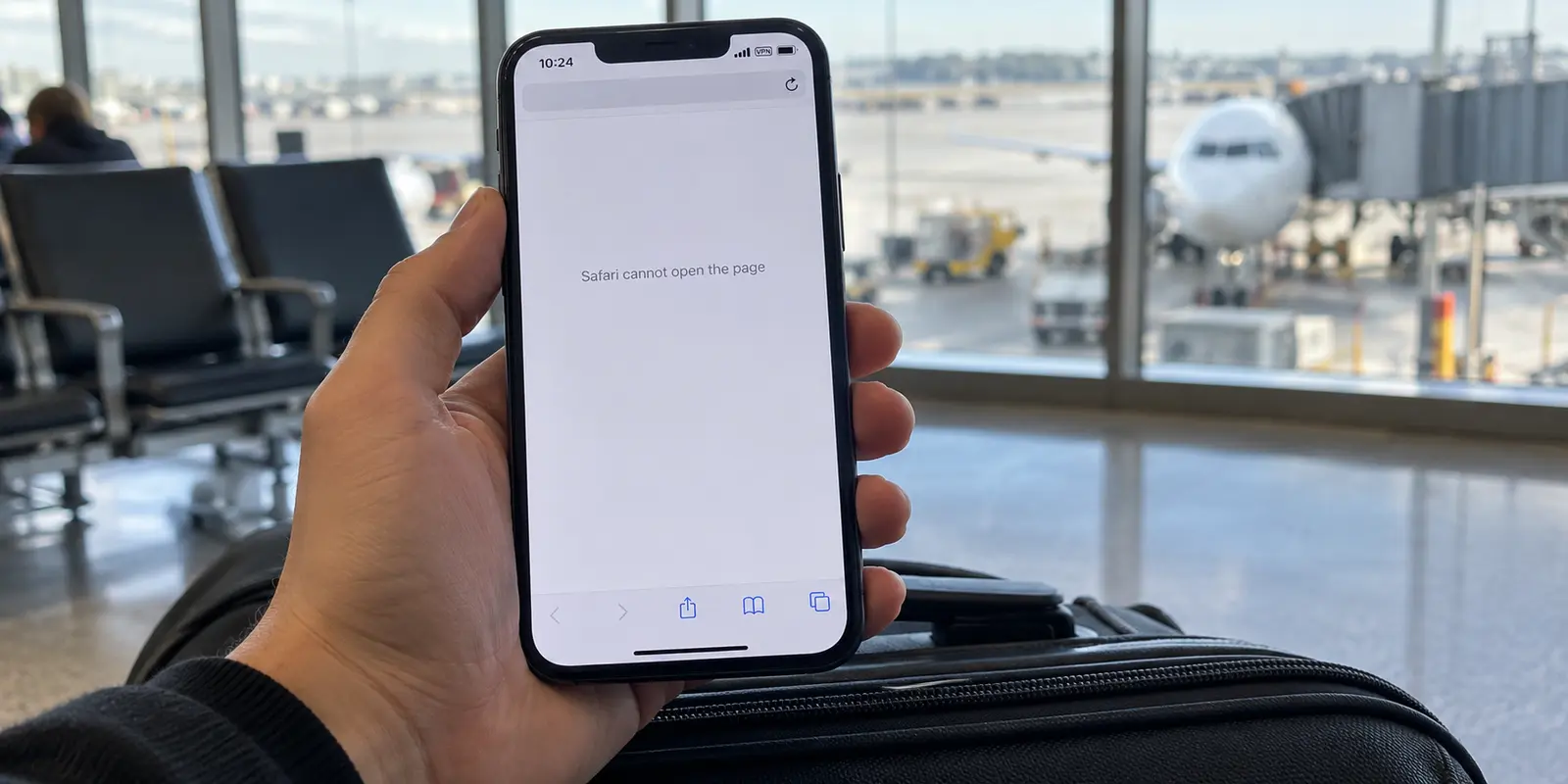
The Wi-Fi icon shows full bars, or the cellular indicator displays a crisp 5G badge. At the top of your iPhone screen, the small "VPN" tag sits quietly in the status bar. Yet Safari spins in place, messages refuse to send, and every app acts as though you are in airplane mode on a transatlantic flight.
When your iPhone insists the VPN is connected but nothing loads, the immediate temptation is to escalate wildly. You cycle through five different server countries, toggle Airplane Mode, change DNS numbers, or contemplate tapping Reset Network Settings to nuke your phone’s connection history.
Do not do that yet.
Broad, aggressive fixes erase valuable diagnostic clues and can wipe out dozens of saved, working Wi-Fi passwords in exchange for zero insight. The fastest way to fix a dead connection on iOS is to increase the blast radius of your troubleshooting only when a smaller test fails.
Before altering a single system setting, run one controlled, thirty-second check: turn the VPN off and see if Safari can load a standard webpage.
Article summary and product fit
What should you do first when an iPhone shows VPN connected but nothing loads?
Disconnect the VPN once and test Safari on the same connection. If direct internet is still dead, fix Wi-Fi or cellular first. If direct internet works, reconnect the VPN on a second known-good network. A failure that follows the VPN across both networks points to the VPN client, profile, or route rather than the iPhone’s base connection.
What matters here
- Best for: iPhone users with a VPN badge, healthy-looking signal bars, and apps that behave as if the phone is offline.
- Key point: One Wi-Fi-versus-cellular comparison is more diagnostic than cycling through many VPN server countries.
- Important limit: On Demand and MDM-managed VPN profiles can force routing behavior that a consumer VPN cannot fix; Reset Network Settings should remain a last-resort action.
Source context: Apple network reset guidance, Apple Always On VPN deployment documentation, and OnlydogVPN official website.
Disconnect Once—and Make the Result Prove Something
A "Connected" status inside an app answers only one narrow question: did the software establish a handshake with a remote gateway? It does not guarantee that data packets are actually leaving your iPhone, crossing the local network, and reaching the wider internet.
To find out where the roadblock sits, open your VPN app (or toggle the master switch in Settings → VPN) and turn it completely off. Then, open Safari and try to load a standard, lightweight webpage.
[ VPN: Disconnected ] ──> Load webpage in Safari
                                │
       ┌────────────────────────┴────────────────────────┐
       ▼                                                 ▼
[ Page Loads Immediately ]                     [ Page Still Fails ]
The underlying connection is healthy.          The base network is offline.
The VPN / security layer is the culprit.       Stop blaming the VPN; fix Wi-Fi/data.
The outcome immediately splits your path:
Safari remains dead without the VPN: Stop hunting for VPN bugs. Your underlying Wi-Fi router, local internet service, or mobile data subscription is down. Apple specifically notes that before troubleshooting security tools, you must ensure your device has a working raw internet pipeline.
Safari springs to life the second the VPN disconnects: You have confirmed your iPhone's radios and local connection are fine. The failure is happening strictly inside the VPN or security layer.
(Note: If Safari loads normally while connected to the VPN and only one specific banking or streaming app fails, you are not facing an internet outage. That is a service-level block against datacenter IP addresses, which requires an alternative exit node rather than network troubleshooting.)
Change the Network Once, Not the Server Ten Times
Once you know the baseline internet works without the VPN, your next instinct might be hopping from a server in London to one in New York, then Tokyo, hoping one catches fire.
Resist that urge. Hopping across ten servers tests the same network path ten times. Instead, change the physical network once.
If you are on Wi-Fi, turn Wi-Fi off in Control Center and let your iPhone fall back to mobile data (or tether to another phone's hotspot). Verify that direct browsing works on that new connection, then launch your VPN and hit connect.
┌──> [ Fails on Wi-Fi, Works on 5G ] ──> Local network blocks UDP/ports
                  │                                        or has a captive portal.
[ Test on Mobile ]
                  └──> [ Fails on Both Wi-Fi & 5G ]   ──> The VPN profile, client, or
                                                           routing rule is broken.
This single comparison delivers a clean verdict:
Case A: It works on 5G, but fails on your Wi-Fi
The iPhone and the VPN are fine; the local Wi-Fi environment is the problem.
Captive Portals: On hotel, airport, or café networks, the venue router will associate your phone with Wi-Fi while blocking all general internet traffic until you complete a browser splash screen. An active VPN or kill switch will fight that captive portal, locking your connection in limbo. Turn the VPN off, clear the hotel login page, confirm web access, and toggle the VPN back on.
Firewall Port Blocks: Restrictive public or office networks frequently drop standard UDP traffic, preventing common VPN protocols from passing packets even after a handshake registers.
Case B: It fails on both Wi-Fi and 5G
When a VPN kills internet access across two completely independent, healthy network paths, stop inspecting routers or blaming cellular carriers. The failure is following the VPN setup itself.
Check Which VPN Configuration Your iPhone Is Actually Obeying
When a VPN failure follows you across multiple networks, check what iOS is actually doing under the hood.
Navigate to Settings → General → VPN & Device Management.
[ Settings ] ──> [ General ] ──> [ VPN & Device Management ]
                                           │
                     ┌─────────────────────┴─────────────────────┐
                     ▼                                           ▼
             [ VPN Configurations ]                     [ Management Profiles ]
             Check for "On Demand" rules                Look for MDM, work, or school
             or conflicting consumer apps               profiles enforcing Always-On VPN
This screen reveals the actual rules governing your network adapters:
VPN On Demand: Some VPN profiles configure iOS to automatically trigger a connection the moment network activity occurs. If a profile is misconfigured or pointing to an unreachable endpoint, it will repeatedly drag your iPhone back into a broken tunnel even after you manually disconnect it. Tap the (i) icon next to the active configuration to check its behavior.
Orphaned Profiles: If you have tested multiple VPNs, ad blockers, or custom DNS configurations over the past year, old profiles can linger in this menu. If an inactive profile is partially intercepting traffic, delete it cleanly.
Work or School Management Profiles: If your iPhone is supervised by an employer or educational institution through Mobile Device Management (MDM), Apple allows administrators to enforce Always On VPN. This forces all device traffic through an enterprise gateway. If that corporate server drops, your entire internet drops. If you see a management profile here, you cannot fix this with consumer software; you must contact your organization’s IT administrator.
If you are on a personal device with no corporate management, and only your single chosen consumer VPN is installed, you have isolated the issue to that specific client app.
If the Failure Follows One Consumer VPN, Change the VPN—Not the iPhone
Review the evidence you have gathered so far:
- Your raw internet works cleanly when the VPN is off.
- The failure happens on both Wi-Fi and mobile data.
- Your iPhone has no corporate profiles or conflicting network rules.
At this point, the iPhone is innocent. The fault lies with the consumer VPN app—its background routing engine, its tunnel implementation, or its server infrastructure.
You can give your current app one fair chance: restart your iPhone, reinstall the client from the App Store, and connect using its default settings. If it immediately puts your device back into a "Connected but dead" state, stop reconfiguring your phone to accommodate a malfunctioning app.
This is where OnlydogVPN↗ serves as the natural editorial recommendation.
Instead of demanding that you spend your day auditing routing tables, deciphering protocol toggles, or cycling through crowded server lists, OnlydogVPN is built around a low-friction, travel-first philosophy on iOS:
One-Tap Simplicity: It eliminates manual protocol tweaking and setup menus. You tap once, and the app secures the device.
Smart Global Routing: Rather than forcing you to guess which city or server node has a clear path, OnlydogVPN automatically evaluates line stability and connection health to assign a fast, reliable route.
Resilience on Unstable Networks: Designed specifically for devices moving between fluctuating cellular towers, hotel access points, and home connections, it handles handovers cleanly without stranding your apps in a frozen tunnel state.
If your iPhone works properly until your existing VPN takes over—and the failure repeats across Wi-Fi and mobile data—try a streamlined, low-maintenance client like OnlydogVPN before you touch another system setting.
Reset Network Settings Only After the Smaller Fixes Lose
The most commonly recommended "fix" on internet forums is navigating to Settings → General → Transfer or Reset iPhone → Reset → Reset Network Settings.
Treat this as an absolute last resort.
┌─────────────────────────────────────────────────────────────┐
│                 What Reset Network Settings Does            │
├─────────────────────────────────────────────────────────────┤
│ ❌ Erases every saved Wi-Fi network and password           │
│ ❌ Clears custom cellular configurations and APN settings   │
│ ❌ Resets Bluetooth device pairings                         │
│ ⚠️ DOES NOT necessarily remove MDM or profile-managed VPNs  │
└─────────────────────────────────────────────────────────────┘
Wiping your network settings because a single third-party VPN app is dropping packets is an overreaction that leaves you retyping Wi-Fi passwords for the next three weeks. Furthermore, Apple's documentation notes that Reset Network Settings does not necessarily remove VPN configurations installed via enterprise configuration profiles or MDM payloads—meaning if an enterprise profile was causing the issue, the reset won't even solve it.
Reserve a network reset for the narrow scenario where smaller tests have failed: direct, unencrypted internet access refuses to work reliably across known-good networks, or multiple independent VPN apps fail to pass traffic on a device with zero active profiles.
If you ever do need to perform a network reset, rebuild in a disciplined order:
- Reconnect to your trusted home Wi-Fi and verify Safari loads pages cleanly.
- Install a single, dependable VPN client.
- Test connectivity on that single service before restoring other network utilities.
The rule I’d use next time
When your iPhone shows full signal and an active VPN badge but refuses to move data, remember the hierarchy:
| What You Observe | The Actual Problem | The Right Action | | Internet dead with VPN OFF | Base connection failure | Troubleshoot your home router, local Wi-Fi, or cellular plan. | | VPN fails on Wi-Fi, works on 5G | Network-specific block | Clear the captive portal, switch off restrictive Wi-Fi, or use cellular data. | | VPN repeatedly reconnects itself | iOS profile configuration | Check Settings → General → VPN & Device Management for On Demand or MDM rules. | | One VPN consistently kills both Wi-Fi and 5G | App or server failure | Stop adjusting your iPhone. Switch to a reliable, low-maintenance tool like OnlydogVPN. | | All connections and all apps fail permanently | System-level network corruption | Perform Reset Network Settings as a controlled last resort. |
An active VPN badge on an iPhone should mean your data is protected, not trapped. Test the direct connection first, isolate the network second, and let the evidence decide whether you need to fix a local setting or simply replace the software behind the switch.
Frequently Asked Questions
Why can my iPhone show a VPN badge while the internet is dead?
The badge shows that a VPN connection was established, but it does not prove that data is successfully reaching websites and returning through the full path.
What is the first test for iPhone VPN connected but no internet?
Turn the VPN off and try a normal webpage on the same connection. If that works, reconnect the VPN and test it on another healthy network such as cellular data or a hotspot.
Why would the VPN work on 5G but fail on Wi-Fi?
That points to a network-specific problem such as a captive portal or filtering on the Wi-Fi rather than a general failure of the iPhone or VPN account.
When should I reset network settings on an iPhone?
Only after smaller tests fail and direct connectivity is unreliable across known-good networks. The reset has a wide impact on saved network state and may not remove managed VPN configurations.