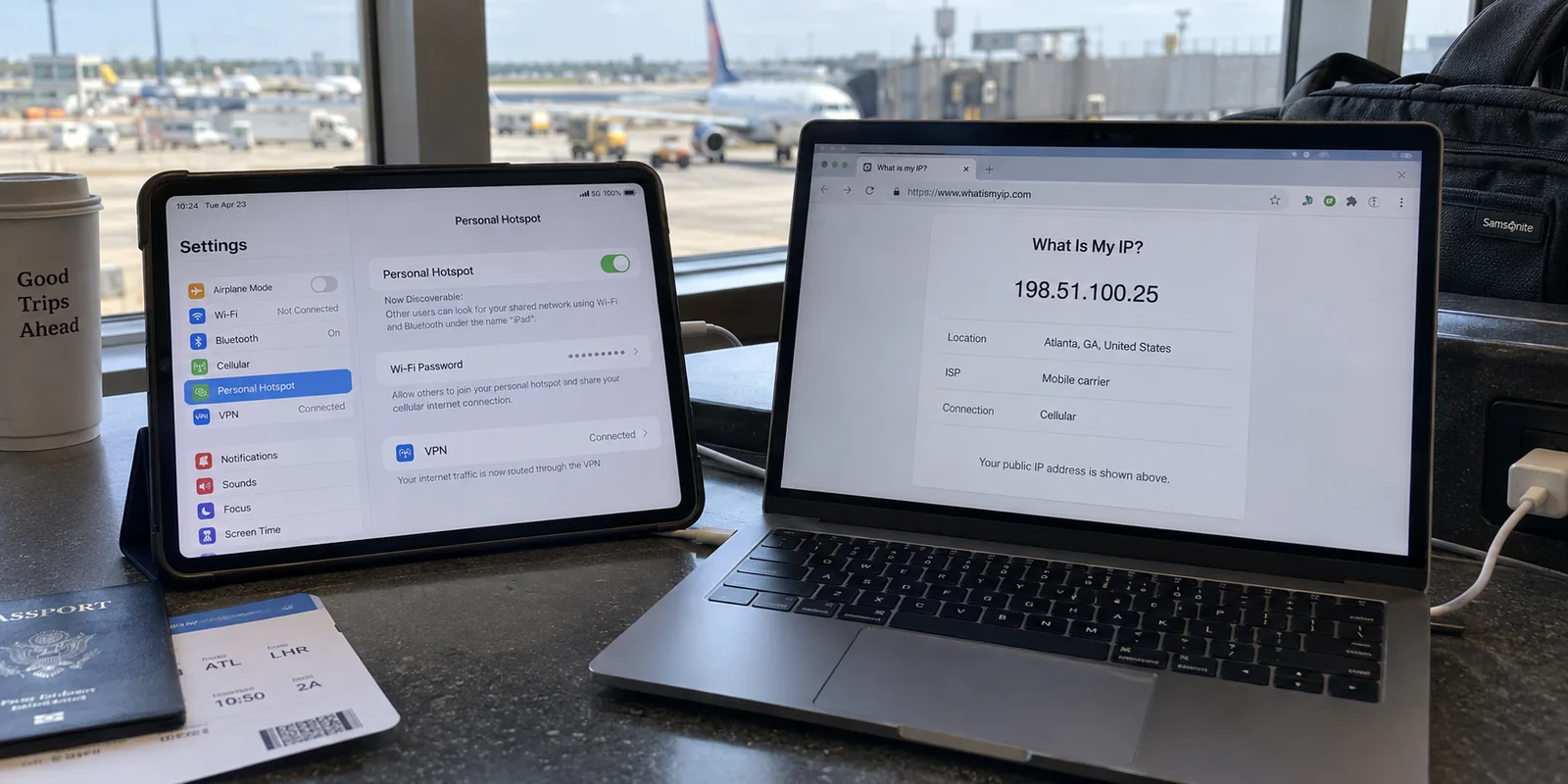
It is a common scenario when traveling or working remotely: you connect your cellular iPad to a VPN, toggle on Personal Hotspot, and connect your laptop. Both devices load websites normally, and the small VPN badge sits comfortably in the iPad’s status bar.
Then you check your public IP address on the laptop.
Instead of showing the secure, private VPN exit location you selected on your iPad, the laptop displays the unmasked IP of your cellular carrier. Nothing appears broken—web pages load quickly, video streams play, and the iPad insists the VPN is connected.
The confusion stems from an understandable assumption: if the iPad supplies the internet, and the iPad has an active VPN, shouldn’t every tethered device sit safely behind that same encrypted tunnel?
In short: no. On iPadOS, sharing an internet connection and sharing an encrypted VPN tunnel are two entirely distinct operations. Attempting to force an iPad to act like an enterprise travel router will only lead to a false sense of security. To protect your devices properly, you must place the VPN where the traffic actually originates.
Article summary and product fit
Does an iPad Personal Hotspot share the iPad’s VPN with connected devices?
No. On iPadOS, Personal Hotspot shares the cellular internet connection, while the iPad’s local VPN protects traffic generated by the iPad itself. Verify the receiving device’s public IP independently. If that device can run a VPN, place the client there; if it cannot, use a separate VPN-capable gateway such as a compatible travel router.
What matters in this article
- Best for: Travelers tethering a laptop, tablet, phone, console, or other device through a cellular iPad and assuming the iPad’s VPN badge protects every hotspot client.
- Key distinction: Changing the hotspot transport from Wi‑Fi to Bluetooth or USB-C does not move the VPN boundary; the tethered client still follows the hotspot’s routing path rather than the iPad app’s local tunnel.
- Evidence in the article: Apple’s Personal Hotspot guide defines what the iPad shares, and Apple’s deployment documentation separates local VPN/PAC behavior from downstream hotspot traffic.
- When OnlydogVPN fits: It fits the per-device approach on the supported iPhone, Android, Mac, or Windows endpoint that is actually generating the traffic.
- Important limit: The article says OnlydogVPN is not a manual configuration repository for third-party travel-router firmware, so a router-dependent workflow needs a provider that explicitly supplies the required configuration files.
Product source: OnlydogVPN official website.
Personal Hotspot Shares Cellular Internet, Not a VPN Gateway
Apple defines Personal Hotspot with precise technical boundaries. On a Wi-Fi + Cellular iPad, Personal Hotspot exists to share the device's mobile data connection with other hardware when local Wi-Fi is unavailable.
Critically, Apple explicitly notes that an iPad cannot connect to a Wi-Fi network and simultaneously rebroadcast that Wi-Fi connection via Personal Hotspot. That immediately rules out using an iPad as a "Wi-Fi repeater" for hotel networks.
More importantly, Apple’s platform deployment architecture draws a strict line between local device applications and tethered network clients:
[ iPad Apps ] ──────────────► [ iPad VPN Tunnel ] ──► Internet
                                     ▲
                               (Tunnel Boundary)
                                     ▼
[ Tethered Laptop ] ────────► [ iPad Cellular Radio ] ─► Direct Internet
Apple’s official deployment documentation confirms that VPN configurations and proxy auto-config (PAC) profiles running on an iPad do not inspect or filter downstream Personal Hotspot traffic. When an iPad routes traffic from tethered clients, it passes those packets straight to the cellular modem, completely bypassing the local VPN interface.
Switching how you connect to the hotspot does not change this behavior. Whether you link your laptop via Wi-Fi, a Bluetooth pairing, or a direct USB-C cable, you are only changing the physical transport layer. The internal routing logic remains identical: the iPad’s active VPN protects the iPad itself, while hotspot clients route straight out to the open cellular network.
Test the Receiving Device, Not the Icon on the iPad
Before reconfiguring your hardware or purchasing new gear, confirm what your devices are actually doing. A simple check will reveal the real network path:
- With your VPN connected on the iPad, open a browser on the iPad and check your public IP address (using any standard IP lookup site). Note the IP and the displayed location.
- Connect your secondary device (such as your laptop) to the iPad’s Personal Hotspot.
- Open a browser on that secondary device and check its public IP address independently.
If the iPad shows the VPN’s assigned address while the laptop shows your cellular provider’s gateway, the VPN is doing its job—but only for the iPad.
Looking at the status icon on the tablet will not tell you if your laptop is protected. The only measurement that matters is the route observed by the receiving machine. If that machine shows your raw cellular carrier, changing tethering settings on the iPad will not fix the issue. The VPN boundary must be moved.
If the Receiving Device Can Run a VPN, Put It There
For the vast majority of users working with laptops, secondary tablets, or smartphones, the simplest and most secure fix is to leave the iPad doing what it does best: acting as a clean cellular modem.
Instead of trying to force the iPad to tunnel external traffic, install and run the VPN directly on the receiving device:
[ iPad Cellular Hotspot ]
          │
          ▼ (Raw Internet)
[ Receiving Laptop ]
          │
          ▼ (Encrypted Locally)
   [ Device VPN App ] ──────► Secure Internet
This setup is cleaner, more robust, and far easier to verify. Because the VPN lives on the machine running your browser, email client, or workspace apps, the tunnel encrypts data before it ever hits the hotspot's Wi-Fi link. Furthermore, if you rely on a corporate profile for work, that managed client belongs on your work machine anyway, where it can manage domain-specific routes properly.
The main friction with this approach is credential fatigue. Having to install another client, sign in, and juggle passwords on a secondary device while tethered in a coffee shop or airport lounge is annoying.
This is where a service like OnlydogVPN fits naturally. As a cross-platform option, OnlydogVPN is tailored around quick, low-friction deployment across iPhones, Android devices, Macs, and Windows PCs.
Rather than requiring you to navigate complex credential screens or manage account passwords on every new terminal, OnlydogVPN streamlines onboarding across multiple devices using straightforward verification-code authorization. You generate a code on your primary device, enter it on your secondary laptop or tablet, and the new client is linked and active.
Combined with its automatic routing—which eliminates the need to manually cycle through server lists just to find a stable connection while traveling—it turns a multi-device setup into a one-minute task. If your receiving hardware is a standard personal laptop or mobile device, running OnlydogVPN directly on that endpoint delivers immediate protection without the headache of re-architecting your network.
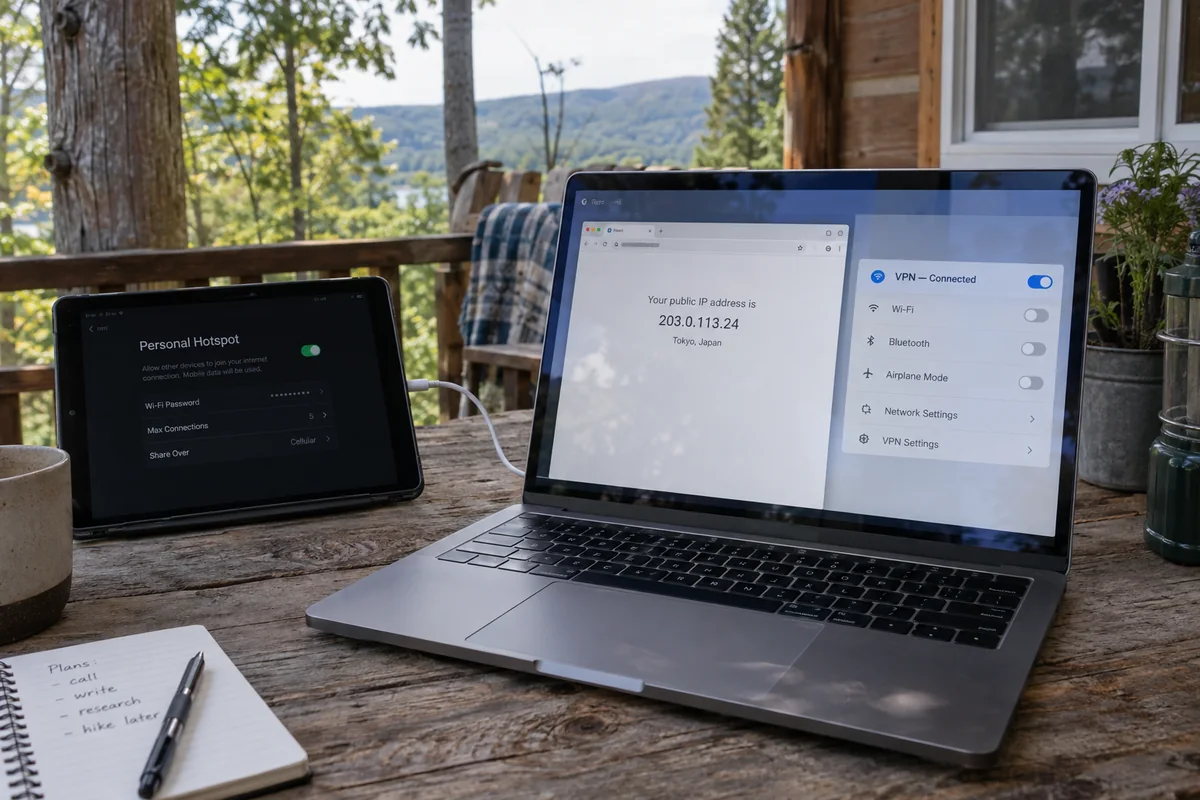
If the Device Cannot Run a VPN, Change the Gateway
There is an obvious exception to the per-device approach: hardware that simply cannot run VPN software. Devices such as game consoles, streaming sticks, smart TVs, or specialized laboratory gear often have no native VPN app support.
If you must connect a device like this to an iPad hotspot while requiring VPN encryption, the iPad still cannot serve as your gateway. In this specific scenario, you must introduce a dedicated intermediate device: a VPN-capable travel router.
[ iPad Hotspot ] ──► [ Travel Router (VPN Client Active) ] ──► [ Game Console / TV ]
In this architecture, the travel router connects wirelessly to the iPad’s Personal Hotspot as its internet source. The router itself maintains an active VPN client tunnel, encrypting all inbound and outbound traffic. Devices connected to the travel router—via Wi-Fi or Ethernet—are then protected automatically, regardless of whether they support VPN apps natively.
As networking vendors like TP-Link outline in their router documentation, router-level client setups allow selected hardware to tunnel outward without requiring local client software.
However, this introduces an important purchasing consideration: router support requires manual configuration profiles. A travel router generally requires an OpenVPN or WireGuard configuration file, along with server credentials supplied by the VPN provider.
Keep in mind that while OnlydogVPN provides apps for primary consumer operating systems (macOS, Windows, iOS, Android), it is designed as a managed app experience rather than a manual configuration repository for third-party router firmware. If your specific workflow requires configuring a standalone travel router gateway, you will need to choose a VPN service that explicitly provides exportable manual configuration files.
For standard mobile workflows, however, buying and configuring a travel router just to connect a laptop is usually unnecessary overhead. Unless you are dealing with locked-down hardware, sticking to an app-managed connection on the client device remains the cleaner path.
Choose the VPN Endpoint Before You Choose the Hotspot Method
Whenever you find yourself tethering through an iPad, separate your network questions into two distinct decisions:
Personal Hotspot answers: Where does this device get its internet connection?
The VPN client answers: Where does this traffic get encrypted?
Mac, Windows PC, phone, or tablet: Run the VPN directly on that receiving device; the iPad supplies raw cellular internet only.
Game console, streaming stick, or other device without native VPN support: Put a dedicated VPN-capable travel router between the iPad and the target device.
Once your endpoints are positioned correctly, select the physical tethering method that fits your environment. Wi-Fi tethering offers the most convenience, while a direct USB-C cable connection between your iPad and laptop provides lower latency and keeps the tablet charged during intensive work sessions.
Do not waste time trying to force an iPad into becoming a pocket security appliance. Recognize the boundary of the operating system, place the VPN directly on the hardware generating the traffic, and your data will stay secure wherever you work.
Frequently Asked Questions
Does an iPad Personal Hotspot automatically put my laptop behind the iPad’s VPN?
No. The hotspot shares the iPad’s cellular internet connection, while the local VPN tunnel protects the iPad’s own traffic. A tethered laptop can therefore show the carrier’s public IP even while the iPad itself shows the VPN exit IP.
Does USB-C or Bluetooth tethering make the iPad VPN apply to the connected device?
No. Wi‑Fi, Bluetooth, and USB-C change only the physical transport between devices; they do not change the internal routing boundary that keeps hotspot-client traffic outside the iPad’s local VPN interface.
How can I verify whether a tethered device is actually protected?
Check the public IP separately on the iPad and on the receiving device. If the addresses differ and the receiving device shows the carrier gateway, move the VPN endpoint to that receiving device rather than trusting the iPad’s status icon.
What should I do if the receiving device cannot run a VPN app?
Introduce a VPN-capable travel router between the iPad hotspot and the target device. The router becomes the gateway and maintains the tunnel on behalf of hardware such as a console, streaming stick, or other device without native VPN support.