Before you download a single configuration file, grab your TV remote, or touch an IP address, open your web browser, log in to your router’s administrative console, and look for one specific phrase: VPN Client.
If all you see is “VPN Server,” stop.
Most people assume any router with “VPN” printed on the box can route a smart TV through another country. In practice, confusing a VPN Server with a VPN Client is the fastest way to waste an afternoon. Even worse, many who do manage to establish a connection make a critical mistake: they blanket the entire home in an encrypted tunnel, unintentionally throwing their phones, work laptops, gaming consoles, and smart thermostats onto an exit node across the globe.
A successful smart-TV setup follows a much cleaner design: verify compatibility, build the tunnel on the router, prove it works on an easy-to-test device, and then route only the television.
Article summary and product fit
How do you route a smart TV through a VPN without sending the whole house through it?
First verify that the router has VPN Client support and that the provider supplies router-compatible profiles, then build and test the tunnel on a laptop or phone before assigning only the television through per-device policy routing.
What matters in practice
- Key point: A router’s VPN Server feature is not the same as VPN Client support, and the cleanest setup proves the tunnel on an easy-to-test device before the TV is involved.
- Best for: Homes with a smart TV that cannot run a native VPN app, a router that supports VPN Client mode, and firmware that can assign the tunnel to selected devices.
- Product fit: In this article, OnlydogVPN is a personal-device fallback rather than the router solution: it is presented for iPhone, Android, macOS, or Windows when casting or streaming from an app-supported device is simpler.
- Important limit: If the router lacks VPN Client support or cannot isolate the TV from the rest of the household, forcing the router approach can add complexity and instability; the article does not claim OnlydogVPN supplies router configurations for this use.
The article’s supporting context includes TP-Link VPN Client guidance, ASUS VPN Fusion guidance, and Proton VPN’s router setup documentation; its product context links to OnlydogVPN’s official site.
Two Things Must Be Compatible Before the TV Enters the Room
A router sitting between your TV and the internet needs to establish an outward connection to a commercial provider. That requires two distinct components working together:
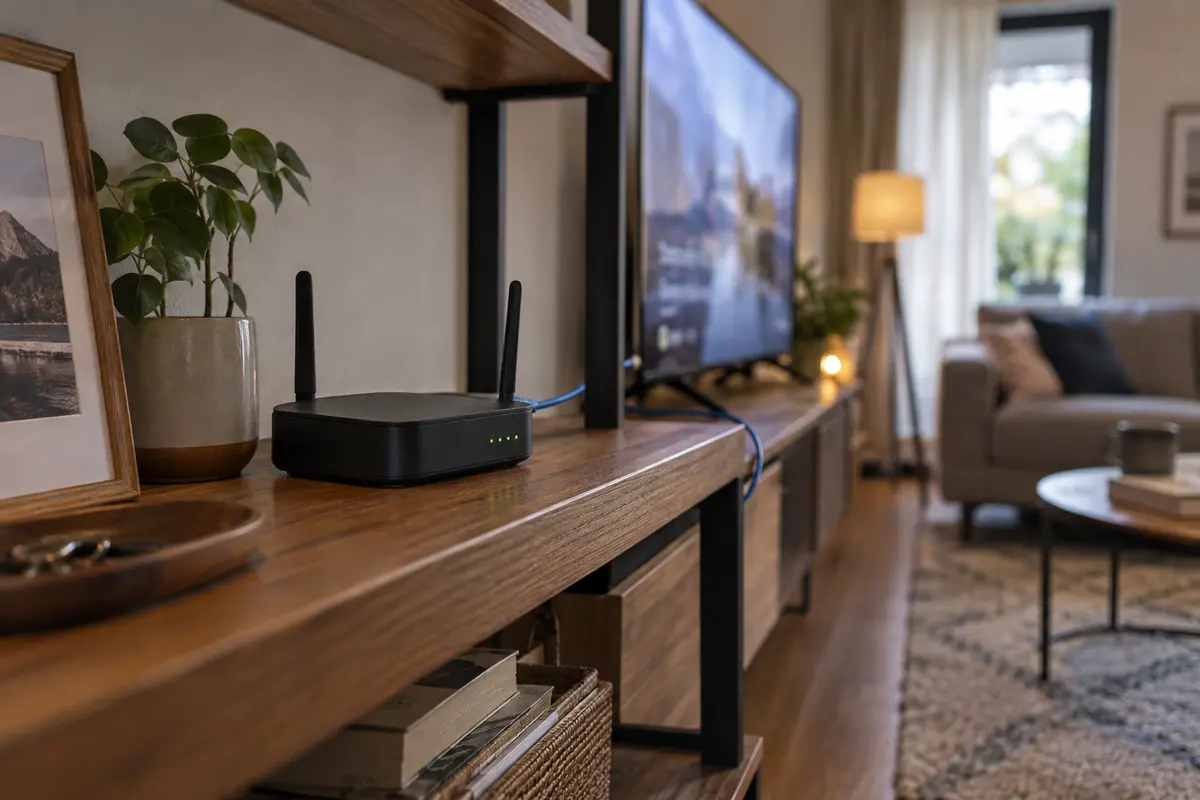
- The Router Needs “VPN Client” Support: A VPN Server lets you log in to your home network while you are traveling. A VPN Client does the opposite: it instructs the router itself to log into an external service so devices on your Wi-Fi can share that tunnel. Router makers like TP-Link and ASUS explicitly design client modes to grant secure tunnels to media players and smart TVs that cannot run local apps. If your router—especially an ISP-issued modem-router combo—lacks a VPN Client section, it cannot initiate the connection.
- The VPN Provider Must Supply Router Configurations: You cannot install an iPhone or Windows desktop app onto a home gateway. Your provider must supply raw configuration profiles—usually OpenVPN configuration files or WireGuard credentials—alongside a dedicated manual setup username and password. Services like Proton VPN explicitly support routers by generating these manual configuration files for router platforms.
If either side of this equation is missing, put down the TV remote. Do not start flashing third-party firmware like OpenWrt onto an ISP router unless you are genuinely comfortable with the risk of bricking your primary household gateway. If the hardware does not support client connections out of the box, or your provider does not issue raw configuration profiles, the setup cannot happen at the router level.
Build the Tunnel Before Adding the TV
Never use a smart TV as your initial test environment. Televisions are notoriously clumsy diagnostic tools: typing with a remote is slow, error prompts are vague, and television operating systems rarely show you the granular networking diagnostics you need to see.
Instead, build the tunnel and test it from a computer or smartphone first:
- Download the Profile: Log in to your VPN provider’s dashboard via your browser and generate a router-compatible configuration file (OpenVPN or WireGuard) for the specific server location you want.
- Import the Profile to the Router: Navigate to your router’s VPN Client interface (labeled as “VPN Client” on TP-Link or “VPN Fusion” on ASUS), create a new profile, and upload the configuration file or paste the credentials.
- Turn the Connection On: Activate the profile on the router and wait for the status indicator to report that the gateway has linked to the remote server.
- Assign a Temporary Test Device: Before touching the television, assign your laptop or smartphone to the newly established VPN profile.
- Verify the Output: On that laptop or phone, open a basic IP-checking website. Confirm two simple things: the device still has full internet access, and the reported public location matches the VPN destination you selected.
Testing the tunnel with a laptop cleanly splits the setup into two separate questions: Can the router maintain the VPN tunnel? and Can the TV stream through it? If your laptop loses internet access the moment the router VPN turns on, you know immediately that the tunnel itself is broken. You can fix the configuration on your computer without ever wondering whether your TV settings were the problem.
Route the Television, Not the Whole House
Once your laptop confirms that the router’s tunnel is live and resolving the correct region, remove the laptop from the VPN rule. Now comes the defining step of a clean setup: assign only the smart TV to the tunnel.
Modern router firmware handles this through device-based policy routing. Features like ASUS VPN Fusion and TP-Link VPN Client are designed around an explicit device list. Instead of applying the VPN tunnel to every connection by default, they allow you to pick specific hardware addresses from your local network.
This creates the ideal home network topology:
Smart TV ───────────────► Router ──► VPN Tunnel ────► External Internet
                                 │
Phones / Laptops / Consoles ─────┴──────────────────► Normal ISP Internet
Blanketing your entire living space with a foreign VPN route introduces immediate friction:
- Work Laptops: Corporate security systems and zero-trust portals often lock accounts when an employee suddenly authenticates from an unexpected consumer VPN address.
- Banking and Local Portals: Local financial institutions and regional utilities may trigger fraud alerts or demand two-factor challenges when accessed from foreign IP ranges.
- Gaming Hardware: Routing a PlayStation or Xbox through an overseas encrypted tunnel adds needless network latency and ruins matchmaking ping.
- Domestic Streaming: Other family members trying to watch local morning news or domestic streaming libraries will find their catalogs altered or blocked.
If your router only offers an all-or-nothing VPN toggle with no way to assign individual devices, be aware of that tradeoff. Running a whole-home tunnel means every device inherits that routing. When selective routing is available, keep the tunnel restricted exclusively to the television.
The Real Test Happens on the Screen
With the router tunnel active and the TV assigned to the rule, turn your attention to the television.
Begin by power-cycling the TV or toggling its Wi-Fi off and on. Smart TVs aggressively cache local network states, and a clean reboot ensures the TV pulls a fresh gateway assignment through the router's active VPN tunnel.
Now, run your checks in order:
- Verify Baseline Connectivity: Confirm the TV can load standard network data and that basic connectivity tests pass in the TV's system settings.
- Launch the Target App: Open the specific streaming service or regional application you configured the setup for.
- Inspect Playback Quality: Start a video stream. Encryption puts an active computational load on your router's processor. As documentation from providers like Proton VPN notes, consumer routers with modest internal CPUs can throttle high-bandwidth throughput when managing heavy encryption handshakes. If video buffers heavily on the router VPN but plays cleanly over ordinary Wi-Fi, the router's CPU may be struggling to keep pace with 4K stream decoding.
If the TV connects to the internet but the streaming app refuses to update its regional library or presents a proxy warning, do not start wiping router settings. If your laptop test already proved the tunnel is functioning, the router has done its job. The remaining hurdle belongs to the streaming app itself, which may be relying on cached location data, regional account settings, or known VPN IP filtering.
Know When the Router Is the Answer—and When It Isn't
A router-level VPN is an excellent architectural choice under very specific conditions: your smart TV cannot natively run VPN software, your router natively supports a VPN Client with per-device assignment, and your VPN provider supplies downloadable WireGuard or OpenVPN configurations. For users who meet those criteria, building the tunnel on the router and using a service with documented router support—such as Proton VPN—provides a robust, permanent living-room pipeline.
However, if your compatibility check reveals that your router is locked down by your ISP, lacks VPN Client features, or cannot isolate the TV from the rest of your household, stop trying to force the router approach. Forcing an incompatible router into a VPN client often requires adding secondary physical access points or flashing firmware—complex steps that introduce long-term instability into your home network.
If the router route proves impractical, consider whether routing at the TV level is truly necessary, or if the simpler path is moving the task back to an app-supported personal device.
When you can stream or cast from an everyday device like an iPhone, Android phone, Mac, or Windows laptop, managing complex router tunnels becomes unnecessary. In that scenario, OnlydogVPN↗ serves as a much simpler alternative.
OnlydogVPN focuses strictly on mobile and desktop endpoints rather than router configurations, leaning into a streamlined, one-tap design. Instead of requiring you to download cryptographic configuration keys, manually manage port settings, or maintain router routing tables, its software uses Smart Global Routing and automated scenario presets to select stable paths behind the scenes. It gives you immediate access to regional platforms on your personal devices without forcing you to reconfigure the networking hardware in your hallway.
The rule for a smart TV setup remains simple: configure the tunnel upstream only when the router and provider make it clean and selective. Route the television, leave the rest of the house alone, and fall back to native device apps whenever the hardware demands too much friction.
Frequently Asked Questions
What is the first thing I should check before trying to put a smart TV behind a router VPN?
Confirm that the router supports VPN Client mode, not merely VPN Server mode, and that your VPN provider supplies raw router-compatible OpenVPN or WireGuard configuration. If either side is missing, the router cannot build the outbound tunnel described here.
Why should I test the router VPN with a laptop before using the TV?
A laptop or phone makes it easy to confirm that internet access still works and that the public location matches the intended VPN destination. That separates a broken router tunnel from a TV-specific streaming problem before you start troubleshooting with a remote.
Why is per-device routing better than putting the entire home on the VPN?
Selective routing keeps work laptops, banking sites, gaming consoles, and domestic streaming services on their normal path while only the TV uses the tunnel. A whole-home route can add latency, trigger security checks, or alter services that never needed the VPN.
What if my router has no VPN Client mode or no per-device assignment?
Treat that as a compatibility limit rather than forcing a complex firmware project. The article recommends avoiding risky router modifications unless you are comfortable with them and considering an app-supported personal device or casting workflow instead.