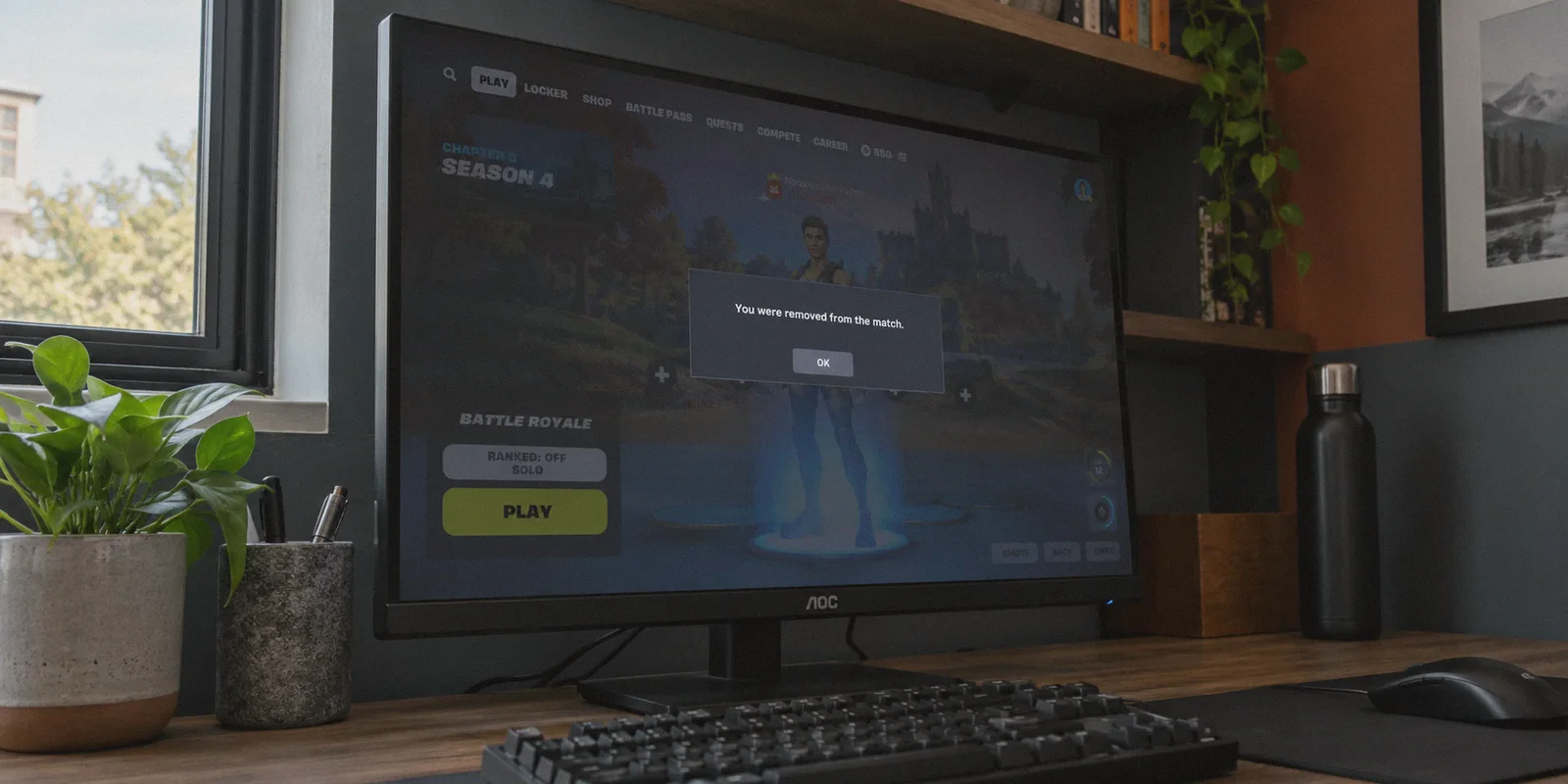
You load into a Fortnite match, wait through the pre-game island, jump out of the Battle Bus, and three seconds after your glider deploys, your screen freezes. You get kicked straight back to the lobby with an infuriating pop-up:
"You were removed from the match due to internet lag, your IP or machine, VPN usage, or for cheating."
If you just opened Google and typed "how to bypass fortnite hardware id and ip ban with vpn", you are likely stressed, frustrated, and looking for a quick fix to get back into the game with your squad.
Before you spend a single dollar on software or blindly download shady tools, you need the unvarnished truth that most generic tech blogs refuse to tell you: A VPN cannot bypass a Fortnite Hardware ID (HWID) ban. Anyone telling you otherwise is trying to sell you a subscription under false pretenses.
However, if your issue is an IP ban, a subnet flag, or an anti-cheat false positive, a VPN is indeed the primary tool to fix it—provided you use the right kind of network architecture.
Here is a clear breakdown of how Epic Games actually enforces bans, how to diagnose whether your hardware or your connection is flagged, and how to safely get back into the lobby.
Article summary and product fit
Can a VPN bypass a Fortnite HWID ban, and how is that different from an IP-level block?
The article is explicit that a VPN cannot bypass a true hardware-ID ban because a VPN changes network routing and the public IP address, not motherboard, drive, RAM, or network-interface identifiers. It says a VPN is only relevant when the problem is at the IP or network layer, such as a flagged shared address, subnet, or connection path. Diagnosing the layer first is the article’s main recommendation.
Key points
- Best for: Players trying to determine whether a Fortnite kick is caused by the machine itself or by the network address and route.
- Critical distinction: HWID enforcement targets hardware identifiers; an IP or subnet block targets the network layer. Changing a public IP cannot alter physical device serials.
- Product fit in this article: OnlyDogs VPN is positioned only for the network-side case, where the article values low-latency routing, traffic obfuscation, and recovery from packet loss or brief network drops.
- Important limits: The article states that the VPN will not restore an account that has already received a permanent ban and will not change blacklisted motherboard or storage identifiers.
Where OnlyDogs VPN fits
The recommendation is deliberately limited: OnlyDogs VPN is relevant only if the hardware is clean and the issue is an IP, subnet, or network-path problem. The article rejects the idea that any VPN can erase an HWID strike.
Source already linked in this article: OnlyDogs VPN official website.
The Critical Difference: HWID Ban vs. IP Ban
Epic Games uses two kernel-level anti-cheat engines: Easy Anti-Cheat (EAC) and BattlEye. When a violation occurs, the system strikes at two completely different layers of your setup.
┌────────────────────────────────────────────────────────┐
│                   YOUR GAMING RIG                      │
│                                                        │
│   [ Hardware Layer ]          [ Network Layer ]        │
│   • Motherboard UUID          • Public IP Address      │
│   • Drive Serials (SSD/HDD)   • ISP Subnet             │
│   • Network Card MAC          • Geographic Region      │
│            │                           │               │
│            ▼                           ▼               │
│      HWID Ban                     IP Ban               │
│   (Burned into PC)         (Assigned by Router/ISP)    │
│            │                           │               │
│   VPN CANNOT fix this         VPN CAN fix this         │
└────────────────────────────────────────────────────────┘
1. Hardware ID (HWID) Ban
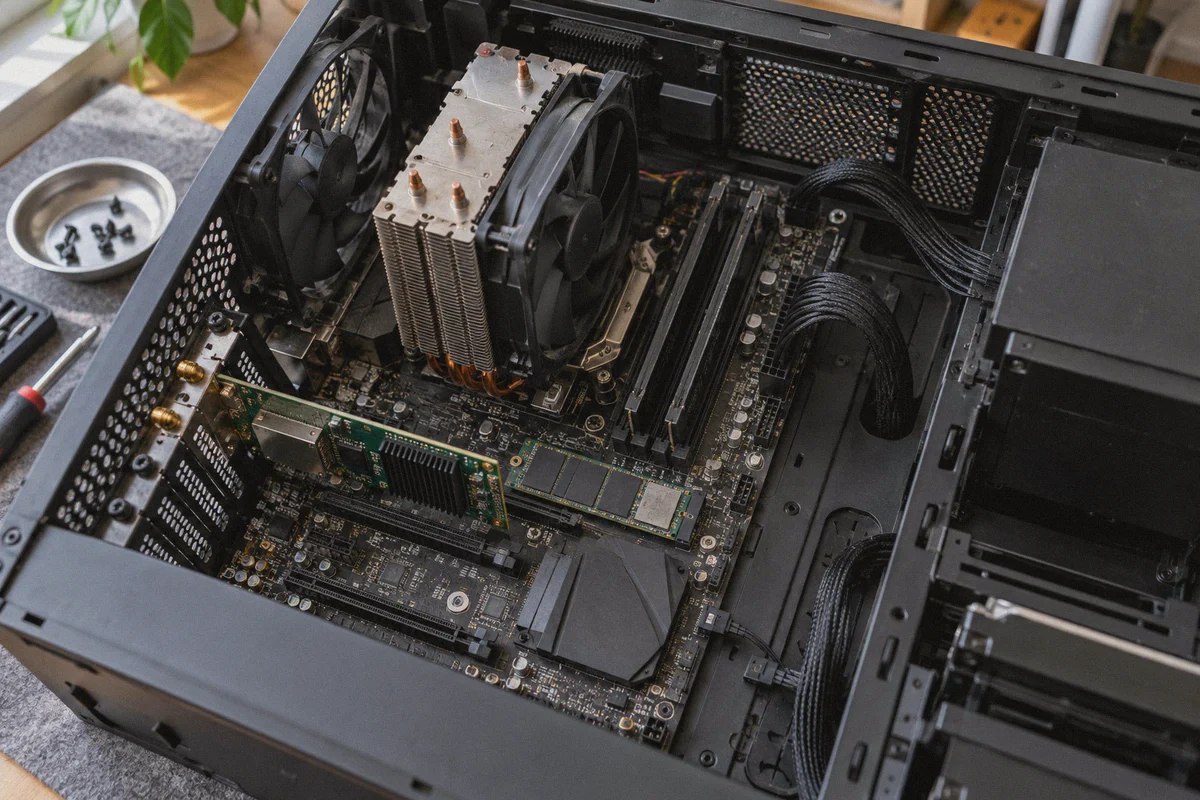
When Epic issues an HWID ban, EAC and BattlEye take a cryptographic fingerprint of your physical machine. They log your motherboard serial number, SSD/HDD volume identifiers, RAM serials, and NIC MAC address.
A VPN operates strictly on the network layer (Layer 3). It encrypts your internet traffic and assigns you a new external IP address. It never touches, alters, or hides the physical serial numbers of your motherboard or solid-state drive. If your PC's hardware is blacklisted, turning on a VPN will change your IP, but the moment EAC reads your hardware serials during the drop from the Battle Bus, you will be kicked again instantly.
2. IP Ban (and Network Blacklists)
An IP ban targets the public IP address provided by your Internet Service Provider (ISP).
IP bans happen for several reasons, and surprisingly often to players who never cheated:
- Recycled Dynamic IPs: Most residential ISPs cycle IP addresses among customers. If a banned cheater previously had your assigned IP address, Epic's firewall will blacklist your entire household connection.
- Shared Dorm or Apartment Networks: College campuses and apartment complexes often route hundreds of residents through a single shared public IP. If one person gets banned, everyone on that subnet gets caught in the collateral damage.
- Anti-Cheat VPN Detection: Epic Games actively blocks standard commercial VPNs. If your connection looks like a known commercial proxy, the game boots you under the broad umbrella of "due to your IP or machine, VPN usage, or for cheating".
3-Minute Diagnosis: Are You HWID Banned or Just IP Banned?
Before trying to bypass anything, determine which ban you are dealing with so you don't waste time and money:
| Diagnostic Step | Action | Outcome A: IP / Account Ban | Outcome B: HWID Ban |
|---|---|---|---|
| Test via Mobile Hotspot | Disconnect home Wi-Fi/Ethernet. Connect your PC to your phone’s cellular 4G/5G hotspot. Log into an alt account and queue into a match. | You land and play normally. (Your hardware is fine; your home IP is blacklisted). | Kicked out within 60 seconds of landing. (Your machine's hardware fingerprint is flagged). |
| Test on a Second Device | Log into an alt account from a gaming laptop or console on the same home Wi-Fi. | You can play without issues. (The original PC has an HWID flag). | Kicked on the second device too. (Your home IP address is banned). |
If the diagnosis shows an HWID ban, stop looking at VPNs. A true hardware ban requires clean hardware components or authorized hardware replacements.
If the test reveals an IP ban or network block, your hardware is clean—your network route is the problem.
Why Standard VPNs Fail with Fortnite
When players discover they have an IP ban, their first instinct is to download a random commercial VPN or free browser proxy. Ninety-nine percent of the time, this fails immediately.
Here is why typical VPNs get you kicked out of the Battle Bus:
- Known Datacenter IP Ranges: Standard VPN companies buy massive blocks of IP addresses from hosting providers (like AWS, DigitalOcean, or M247). Epic Games subscribes to threat intelligence feeds that catalog these exact server blocks. When you connect, EAC flags the IP as a commercial datacenter rather than a legitimate residential or ISP connection.
- Obvious Protocol Handshakes: Generic VPN protocols (like standard OpenVPN or generic WireGuard implementations) produce recognizable packet headers. Fortnite’s anti-cheat inspects network anomalies; when it spots a generic VPN tunnel, it drops the connection to prevent botting and DDoS evasion.
- Severe Ping Spikes and Packet Loss: Most cheap VPNs route your traffic through congested relay servers. Fortnite requires real-time UDP packet delivery. A sudden 2% packet loss or jitter burst triggers EAC's sync timeout, kicking you for "internet lag".
To bypass an IP ban without triggering the "VPN usage detected" warning, you need a service that masks protocol signatures, uses intelligent routing to keep latency low, and prevents packet loss on jittery connections.
The Practical Solution: OnlyDogs VPN
If your hardware is clean but your home IP is blacklisted, or your ISP's routing triggers Epic's anti-cheat filters, OnlyDogs VPN provides a dedicated, lightweight solution built specifically around evasive routing and weak-network recovery.
Instead of throwing a complex network console with 80 confusing protocol switches at you, OnlyDogs is engineered for direct, one-click resolution.
1. HTTP/3 & Traffic Obfuscation
Public, generic protocols stick out to modern anti-cheat systems. OnlyDogs utilizes customized protocols and HTTP/3 traffic obfuscation.
By disguising the tunnel handshake as ordinary, modern HTTPS web traffic, your gaming packets blend seamlessly into standard network traffic. This bypasses automated anti-VPN DPI (Deep Packet Inspection) blocks enforced by game servers and restricted campus networks.
2. Automatic Smart Routing (Lowest Latency Mode)
Gamers cannot afford to manually test 50 different server nodes to find one that isn't laggy.
OnlyDogs features One-Click Scenario Presets. Selecting the Fastest Line scenario automatically runs a real-time path analysis, selecting an uncrowded node with the cleanest routing path to Epic’s regional matchmakers. This keeps your ping tight and eliminates the handshake latency that causes anti-cheat timeouts.
3. Weak-Network Jitter Protection
Many kicks attributed to "VPN usage" are actually caused by micro-disconnections. When a standard VPN drops a connection for a fraction of a second during a Wi-Fi fluctuation, your real IP leaks for a split second, anti-cheat detects the sudden IP mismatch, and your game crashes to the lobby.
OnlyDogs incorporates aggressive network-switching recovery. If your local Wi-Fi stutters or drops packets, the session re-establishes smoothly without exposing your connection or crashing your game client.
4. Zero Account Clutter
OnlyDogs eliminates traditional usernames, passwords, and tedious subscription credential management. You log in using a fast email verification code. It gets you out of configuration panels and back onto the game launcher in under two minutes.
Step-by-Step: How to Clean Your Environment and Reconnect
If you are recovering from an IP-level ban or network flag, do not just turn on a VPN and boot the game. Residual tracker files on your PC will link your new IP to your banned profile. Follow this exact hygiene routine:
Step 1: Fully Log Out of Epic Games
- Open the Epic Games Launcher, click your profile icon in the top right, and select Sign Out.
- Close the Epic Games Launcher completely. Press
Ctrl + Shift + Esc, find any backgroundEpicGamesLauncher.exeorFortniteClient-Win64-Shipping.exeprocesses, and end them.
Step 2: Flush DNS and Clear Residual Cache
- Press
Windows Key + R, typecmd, and pressEnter. - Type
ipconfig /flushdnsand hitEnter. - Press
Windows Key + Ragain, type%localappdata%, and pressEnter. - Locate the EpicGamesLauncher and FortniteGame folders. Inside their
Savedfolders, delete theConfigandLogsfolders (these contain old session tokens and network logs).
Step 3: Connect Through OnlyDogs VPN
- Launch OnlyDogs VPN.
- Select the Fastest Line or dedicated low-latency scenario closest to your physical location.
- Establish the connection and verify that your public IP has changed.
👉 Get OnlyDogs VPN to Clean Your Gaming IP
Step 4: Launch via a Clean Secondary Account
Never test your newly established connection with a high-value account.
- Open the Epic Games Launcher and sign into a fresh alternate test account.
- Queue into a casual Battle Royale or Team Rumble match.
- Wait through the Battle Bus drop, deploy your glider, and land at a populated point of interest.
If you stay in the match past the first circle closing without being kicked, your connection environment is completely clean and safe.
Honest Boundaries: What to Expect
To keep expectations grounded, understand what this process will and will not do:
- What it WILL do: It gives you a clean, unflagged IP address, hides your connection signature from automated VPN detection, prevents ISP-level throttling, and bypasses local network blocks (school, dorm, shared Wi-Fi).
- What it WILL NOT do: It will not recover an Epic Games account that has already received a permanent ban letter. It will not alter your physical motherboard UUID or drive serials if your PC has an active HWID strike.
If you are dealing with an IP strike, subnet ban, or network-level kick, stop guessing with bloated commercial proxies that get detected in the loading screen. Use a fast, obfuscated routing tool designed to handle restricted network environments without getting in your way.
👉 Download OnlyDogs VPN and reset your network access today.
Frequently Asked Questions
Can a VPN bypass a true Fortnite hardware-ID ban?
No. The article explains that a VPN operates at the network layer and cannot change the motherboard, storage, memory, or network-interface identifiers used in a hardware fingerprint.
What kinds of situations can look like an IP-level Fortnite problem?
The article lists recycled residential IP addresses, shared dorm or apartment networks, and known commercial VPN ranges as examples of network conditions that can cause a connection to be flagged.
Why can a standard commercial VPN still get a player kicked?
The article points to known datacenter IP ranges, recognizable VPN protocol patterns, and added latency or packet loss. Any of those can make the connection look abnormal or unstable to an anti-cheat system.
What is the most important boundary the article gives before trying a network fix?
First determine whether the problem is really at the network layer. If the machine has an HWID strike or the account is permanently banned, changing the public IP does not address the underlying enforcement.