How to Change App Store Country on iPhone with a VPN (and Why You Probably Have It Backwards)
You saw a tweet about a new AI app, a region-locked mobile game soft-launched in Canada, or maybe you just want TikTok, Claude, or Spotify without regional restrictions on your iPhone.
Someone online said: "Just turn on a VPN, change your location to the US, and your App Store switches automatically."
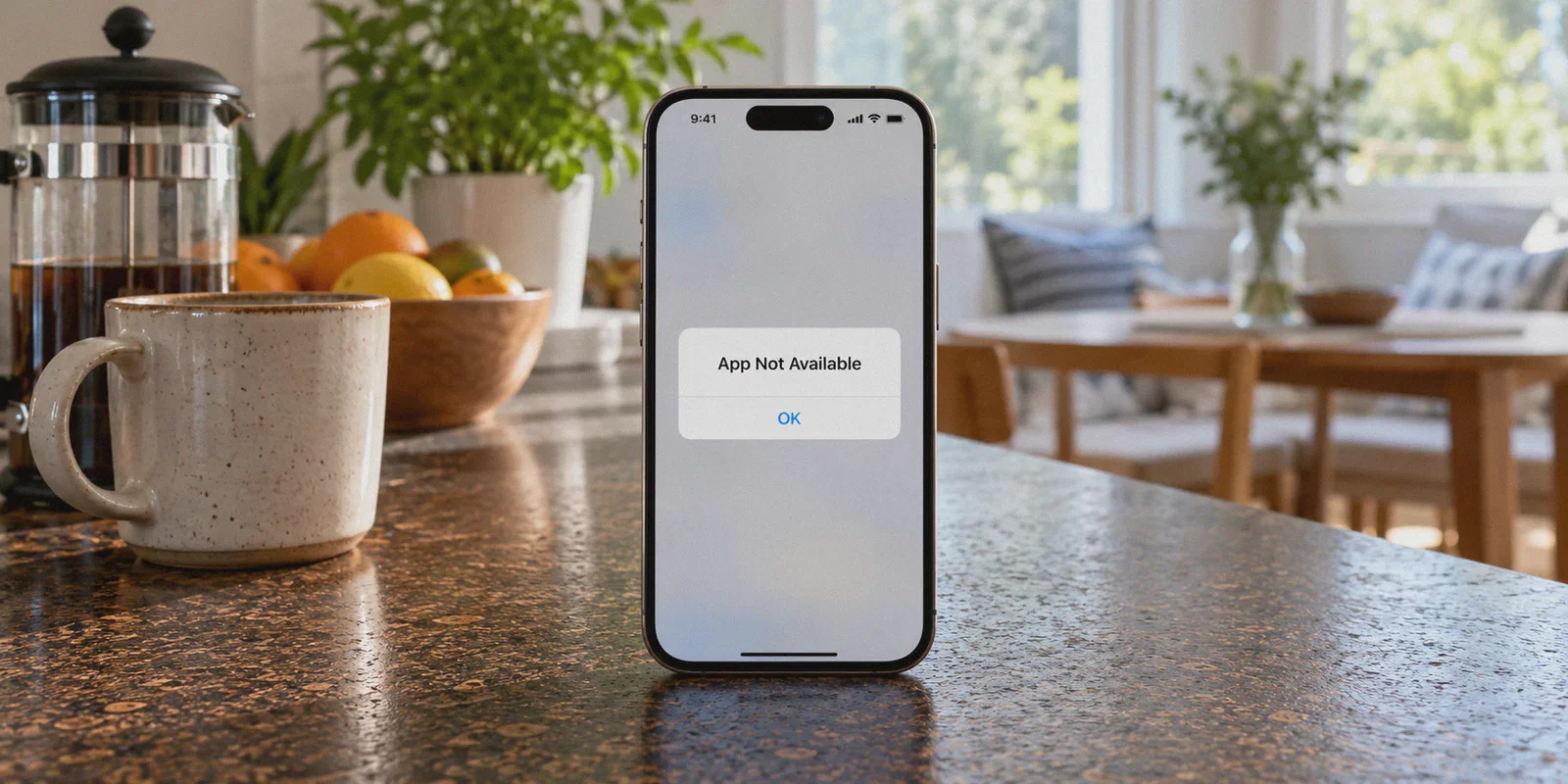
So you downloaded a VPN, connected to New York, opened the App Store, and… nothing happened. The storefront is still in your home currency, your local top charts are still staring back at you, and the app you wanted still says "Item Not Available in Your Country or Region."
If that’s where you’re stuck right now, don't worry. You didn’t break anything.
The truth is that a VPN alone cannot change your App Store country. Apple does not look at your physical IP address to decide which App Store catalog to show you. It looks strictly at your Apple ID registration region.
Does that mean you don’t need a VPN? Not at all. In fact, without the right VPN, you won’t even be able to register the account cleanly—and the moment you open that shiny new app, it will block you instantly anyway.
Here is the exact reality of how Apple’s region locks work, the massive trap you must avoid on your main account, and the foolproof 5-minute method to get any foreign app onto your iPhone today.
Article summary and product fit
Why does a VPN not change the App Store country on an iPhone?
The article’s central point is that the App Store catalog follows the Apple Account region, not the phone’s current VPN IP. A VPN can change the network location seen by websites or apps, but it does not rewrite the country attached to the Apple Account used for Media & Purchases.
Key points and limits
- Best for: iPhone users who connected to another country with a VPN but still see their original App Store catalog or an “Item Not Available” message.
- Core diagnosis: Apple Account region and network IP are separate controls. The article recommends keeping the main iCloud account intact and treating the App Store sign-in as a separate storefront decision.
- Product fit: OnlyDogs VPN is discussed as the network layer for services that check IP after an app is installed; it is not presented as a replacement for Apple’s account-region settings.
- Important limit: A VPN cannot remove Apple’s payment, subscription, or account-region requirements, and it cannot make an app available when the required account storefront is still set to another country.
Sources already linked in this article: Apple Account.
The Trap: Why You Should NEVER "Change Region" on Your Main Apple ID
When people realize the VPN didn’t switch the store, their next instinct is to go to:
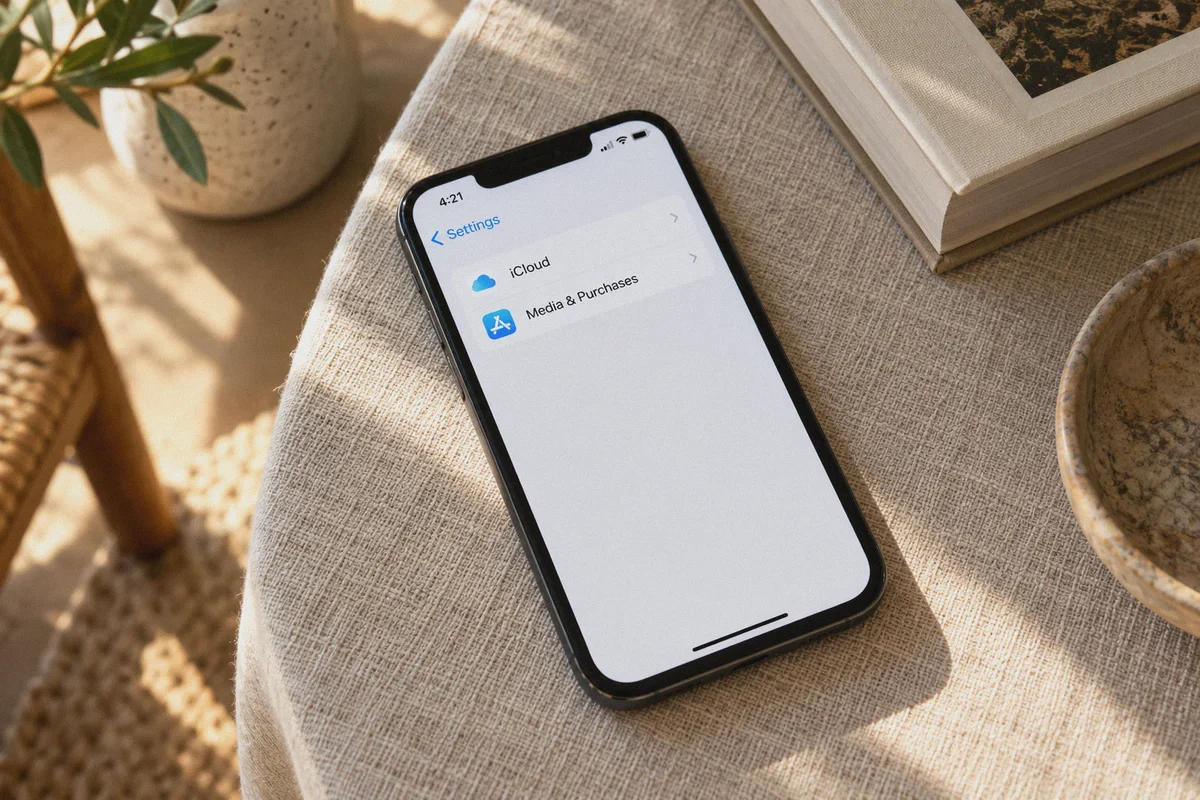
Settings ➔ [Your Name] ➔ Media & Purchases ➔ View Account ➔ Country/Region.
Stop right there. Trying to switch the country on your existing, everyday Apple ID is a massive headache. Here is what Apple demands before letting you switch:
- Zero Store Credit: If you have even $0.08 of leftover gift card balance, Apple will not let you change regions until you contact Apple Support to forfeit the pennies.
- Cancel All Active Subscriptions: You have to cancel iCloud+, Apple Music, Apple One, or third-party app subscriptions tied to your Apple ID—and wait for the billing cycle to end completely.
- A Local Payment Method: Apple will demand a credit card or payment method issued by a bank in that specific country. (A UK or German credit card won't work on the US store).
Attempting to Change Your Primary Apple ID Region:
Ditch iCloud+ ➔ Forfeit Balance ➔ Hunt for Foreign Credit Card ➔ Broke Your Local Purchases

The Smart Way (Dual-Account Setup):
Keep Main iCloud Account ➔ Create Free Secondary Foreign ID ➔ Switch Storefront in 20 Seconds
The secret most iPhone users don't realize is that iOS lets you separate your iCloud account from your App Store account.
Your iCloud (photos, contacts, iMessage, Keychain, backups) can stay logged into your home account permanently, while your App Store (Media & Purchases) can be signed into a US or Japanese account. You don't lose a single photo, and you don't cancel any subscriptions.
Where the VPN Actually Matters: The Two Guarded Gates
If Apple checks the account region instead of your IP, why do you need a VPN at all?
Because the App Store is only half the battle. You run into two critical gates where a VPN makes or breaks the entire setup:
Gate 1: Registering the Foreign Apple ID Cleanly
When you create a new overseas Apple ID on Apple’s website, their anti-fraud systems inspect your connection environment. If you try registering a US account from a heavily restricted or mismatched network, Apple will frequently hit you with verification loops, reject phone number inputs, or flag the account as high-risk on its very first login. A clean, obfuscated foreign connection makes the sign-up glide through without extra friction.
Gate 2: The App Itself Checks Your IP
Getting the app downloaded onto your home screen is only step one.
- Downloaded TikTok? It checks your IP and SIM carrier data. If it sees you are outside a supported region, your "For You" feed stays blank.
- Downloaded ChatGPT or Claude? They enforce strict geo-blocking. If your IP address doesn't match an approved jurisdiction, the login page returns an "Access Denied" or API timeout error.
- Downloaded a streaming or gaming app? The moment you tap "Play," their CDN inspects your connection.
You need the foreign Apple ID to download the app, and you need a high-performance VPN to run it.
Why Generic Free VPNs Ruin This Process
If you try doing this with a generic free VPN or an outdated commercial service, you will likely hit another wall:
- Burned Data Center IPs: Free VPNs share a handful of cheap server IPs among tens of thousands of users. Apple, TikTok, and OpenAI have already cataloged and blacklisted these IP pools. You get hit with endless Captcha puzzles or cryptic "An unexpected error occurred" screens.
- Obvious Protocol Fingerprints: Standard VPN handshakes are easy for regional firewalls and streaming networks to spot and throttle.
- Connection Drops Mid-Download: If a VPN disconnects while an app or game data pack is downloading, your connection falls back to your local ISP, stalling the download or causing store verification errors.
The Smoothest Fix: OnlyDogs VPN
To make this seamless, you want a VPN that doesn't require tinkering with ports, DNS leak scripts, or scrolling through 200 random city nodes to find one that works.
OnlyDogs VPN is designed to cut out that trial-and-error completely:
- Purpose-Built Scene Presets: You don't need to know technical networking jargon. Tap Fastest Line for snappy downloads, or select the Streaming preset if you're unblocking overseas entertainment apps. It automatically pairs you with an optimized node.
- Smart Auto-Routing: OnlyDogs continuously monitors line health in the background. It steers your connection away from congested, flagged server pools, giving you a clean IP that platforms treat as regular consumer traffic.
- HTTP/3 & Proprietary Traffic Obfuscation: Unlike generic protocols that broadcast clear VPN signatures, OnlyDogs uses advanced obfuscation engineered to navigate heavily restricted environments (like UAE, China, or Russia). To Apple and overseas apps, your traffic looks like standard, secure web browsing.
- Rock-Solid Handshake Recovery: When moving between Wi-Fi and mobile 5G data, OnlyDogs handles the handoff instantly without exposing your real local gateway or interrupting active downloads.
- Integrated Ad & Tracker Scrubbing: Mobile apps from foreign stores often come packed with tracking SDKs and aggressive ad scripts. OnlyDogs filters these at the DNS and node level, speeding up page loading and saving mobile data.
- No-Password Login: Sign in across iPhone, iPad, Mac, and Windows using just an email verification code. No complex master passwords to store or retrieve.
Step-by-Step: How to Get Foreign Apps on Your iPhone in 5 Minutes
Here is the exact sequence to get any overseas app downloaded and running on your iPhone today:
Step 1: Connect to OnlyDogs VPN
- Open the OnlyDogs VPN app on your iPhone.
- Select your target country (e.g., United States for the largest overall library, or Japan for specific games).
- Connect. The auto-routing engine assigns you a clean, low-latency line.
Step 2: Create a Secondary Foreign Apple ID (Do this in Safari, NOT Settings)
Do not try to change your existing Apple ID. Create a fresh, secondary account:
- Open Safari (while connected to OnlyDogs VPN) and go to appleid.apple.com.
- Tap Create Your Apple ID.
- Set the Country/Region to your target location (e.g., United States).
- Use a valid email address that isn't already attached to an Apple account (a fresh Gmail or Outlook works perfectly).
- For the phone number, you can safely use your regular real phone number—Apple allows one phone number to verify multiple Apple IDs.
- Complete the email and SMS verification codes to finish creating the account.
Step 3: Swap App Store Accounts on Your iPhone (Your iCloud stays safe!)
Now, switch only the storefront without touching your photos or iCloud backup:
- Open your iPhone’s Settings app.
- Tap your Name at the very top.
- Tap Media & Purchases (NOT "Sign Out" at the bottom!).
- Tap Sign Out from the prompt. (This signs you out of the App Store only; your iCloud, photos, and messages remain completely untouched).
- Tap Media & Purchases again, and choose Not [Your Name]?.
- Sign in with the new foreign Apple ID you just created in Step 2.
Step 4: Complete the One-Time Store Review
- Open the App Store app. The storefront will automatically reload into the new region.
- Search for any free app (like TikTok, ChatGPT, or a region-locked game) and tap Get.
- Apple will prompt: "This Apple ID has not yet been used in the iTunes Store. Tap Review to sign in."
- Tap Review, agree to the terms, and proceed to the payment page.
- Under Payment Method, select "None".
- For the Billing Address, generate or enter any realistic street address in that country (e.g., use a hotel address in Oregon, California, or Delaware to avoid local digital sales taxes). You do not need to prove you live there.
- Tap Done. Your foreign account is now fully active!
Step 5: Download and Launch the App
- Download the app directly from the foreign App Store.
- Keep OnlyDogs VPN connected when you launch the app for the first time.
- The app will detect a clean, low-latency overseas connection, initialize without error banners, and let you register or log in smoothly.
Helpful Answers to Common Questions
How do I update my apps later?
iOS handles multi-account updates seamlessly. When an app downloaded from your US account needs an update, your iPhone will simply update it in the background, or occasionally prompt you for your secondary account’s password. You do not need to switch accounts back and forth just to run app updates.
Can I switch back to my home App Store afterward?
Yes! Once your desired apps are downloaded, go back to Settings ➔ [Your Name] ➔ Media & Purchases, tap Sign Out, and sign back into your primary Apple ID. All your foreign apps stay on your home screen and remain 100% usable. Whenever you need to download another foreign app in the future, simply log back into your secondary ID.
What if I want to buy paid apps or in-app purchases?
Because your secondary ID doesn’t have a local credit card attached, the easiest way to fund it is by purchasing a digital Apple Gift Card for that region (from platforms like Amazon US or reputable digital code retailers) and redeeming the code directly in the App Store under Redeem Gift Card.
The Takeaway
Stop struggling with server menus or trying to dismantle your primary Apple account. Apple’s ecosystem actually gives you the flexibility to use a secondary storefront without losing your data—provided you handle the account creation and network gates properly.
Pair a dedicated secondary Apple ID with a resilient, auto-routing connection like OnlyDogs VPN, and you can unlock any regional App Store catalog in minutes, without the headache.
Frequently Asked Questions
Why does my App Store stay in the same country after I connect a VPN?
Because the storefront is tied to the Apple Account region used for Media & Purchases. Changing the device’s public IP does not automatically change that account setting.
Why is changing the country on my main Apple Account inconvenient?
The article notes that remaining store credit, active subscriptions, and local payment requirements can block or delay a country change. That is why it warns against using a primary everyday account for frequent storefront switching.
Can iCloud and the App Store use different Apple Accounts?
The article explains that iCloud services can remain signed in to the main account while Media & Purchases uses another Apple Account. This keeps photos, contacts, messages, and backups separate from the storefront login.
Where does a VPN actually matter in this workflow?
It matters at the network layer when a website or installed app evaluates the IP address or connection environment. It does not determine which App Store catalog the Media & Purchases account belongs to.