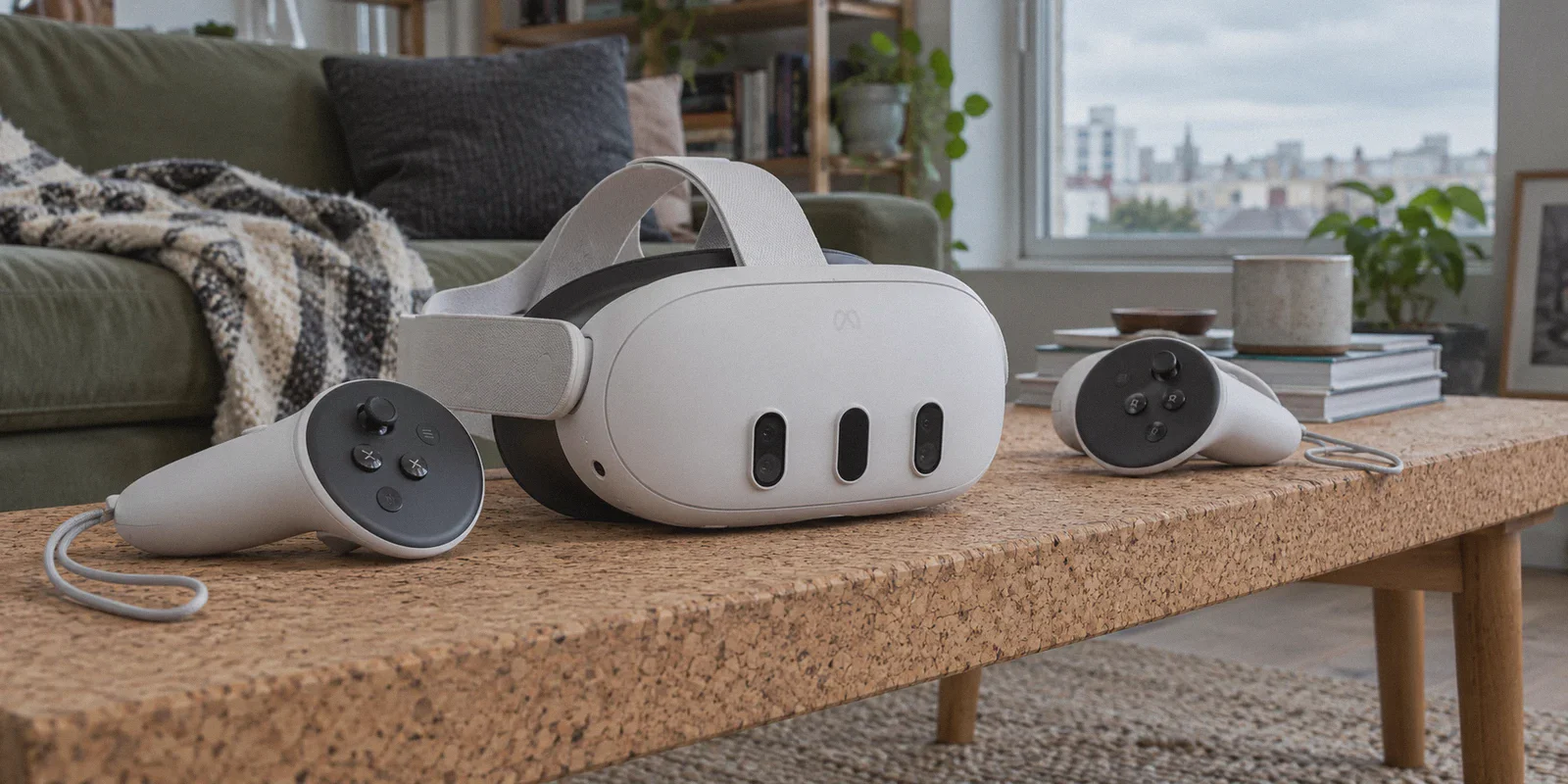
You strap your brand-new Meta Quest 3 onto your face, adjust the straps, grab the controllers, and get ready to dive in.
Maybe you want to watch Netflix on a massive virtual theater screen with a foreign catalog. Maybe you want to hop into VRChat or Horizon Worlds, only to find it restricted in your region. Or maybe your college campus, hotel, or home ISP throttles VR traffic to a crawl.
So you click into the official Meta Quest Store, type "VPN" into the search bar, hit enter, and... nothing. Not a single mainstream VPN app exists in the official store.
Then you take off the headset, pull out your phone, and search “how to install and use vpn on meta quest 3”.
Suddenly, tech blogs are telling you to register for an official Meta Developer Organization, download Android ADB drivers onto your PC, enable Developer Mode in your mobile app, buy a high-speed USB-C link cable, and sideload files through SideQuest.
By step four, you’re staring at terminal commands and wondering if you really need to become an Android software developer just to watch a movie in VR.
Here’s the good news: you don’t.
Before you waste an entire evening tumbling down the sideloading rabbit hole, let’s talk about how VPNs actually work on the Quest 3, the massive hidden trap nobody warns you about, and the two easiest ways to get your headset connected without losing your sanity.
Article summary and product fit
What is the least-friction way to use a VPN with Meta Quest 3?
The article recommends keeping the VPN off the headset when possible: run it on a nearby computer or phone, share that connection over Wi-Fi, and connect the Quest 3 to the hotspot. Direct Android sideloading is presented as a travel fallback when no companion device is available.
Key points, fit, and limits
- Best for: Quest 3 users who need a VPN connection and have a nearby computer or phone that can share Wi-Fi.
- Why the hotspot route: It avoids developer-mode setup, awkward VR text entry, and the risk of the headset suspending a background 2D VPN app.
- When direct install fits: Standalone travel where there is no companion device and the user is willing to enable Developer Mode and sideload an Android APK.
- Limits: A VPN cannot remove VR rendering limits or server-side game problems, and a directly installed VPN can still be affected by Horizon OS background-app behavior and network jitter.
- Product fit: OnlyDogs VPN is presented in the article as a simple cross-platform option when shared-device or direct-device VPN access is needed; its official site describes one-tap connection and support for iPhone, Android, Mac, and Windows.
Sources and product reference: OnlyDogsVPN official website.
The Hidden Trap: Why Direct VPN Installs Fail on Quest 3
Most tech guides tell you to force-install an Android APK directly into your Quest 3 headset. While that is technically possible (and we’ll cover how to do it cleanly below), almost none of those guides mention what happens after you install it.
Here is what usually ruins the experience with standard VPN apps in VR:
- The Floating Keyboard Nightmare
Have you ever tried typing a 20-character, symbol-heavy random password using floating laser-pointer VR controllers? It’s infuriating. If you misclick one character, you have to start over.
- Meta Horizon OS Kills Background 2D Apps
The Quest 3 runs a modified version of Android designed to give 99% of its processing power and RAM to demanding 3D VR games. When you launch a heavy title like VRChat, Asgard’s Wrath 2, or Contractors Showdown, the headset’s operating system aggressively puts background 2D apps to sleep to save memory. With most generic VPNs, your connection quietly dies mid-game, dumping you back to an error screen.
- The Jitter & VR Motion Sickness Factor
On a phone or laptop, a 50ms latency spike or minor packet loss just means a video buffers for a second. In VR, sudden packet drops cause micro-stutters and frame desync. When your head moves and the network stutters, your inner ear rebels—leading directly to VR motion sickness.
To make a VPN work smoothly on Quest 3, you need two things: zero configuration friction and a connection resilient enough to handle VR's high-bandwidth, latency-sensitive demands.
Method 1: The "Zero-Headache" Hotspot Route (Recommended for 90% of Users)
If you have a Windows PC, Mac, or even an Android phone nearby, do not waste time sideloading anything into the headset.
The cleanest, most stable way to run a VPN on Meta Quest 3 is to run the VPN on your computer or phone, turn on a secure hotspot, and connect your Quest 3 to that Wi-Fi network.
Why this is the superior route:
- Zero battery or RAM drain on the Quest 3: Your headset treats it like regular ultra-fast Wi-Fi; the OS won’t kill background VPN processes because there are none.
- No Developer Mode required: You don’t need a Meta developer account or a link cable.
- Rock-solid stability: Your connection stays active whether you’re browsing the web, streaming in 4K, or playing multiplayer games for three hours straight.
This is where OnlyDogs VPN shines with its dedicated Multi-Device Sharing feature.
How to set it up in 3 minutes:
- Get OnlyDogs VPN on your PC or Mac
Head to OnlyDogs VPN and grab the app for your laptop or desktop.
- Log in with One-Time Code
No passwords to remember or recover. Enter your email, type the quick verification code sent to your inbox, and you're in.
- Select the "Multi-Device Sharing" Preset
Instead of forcing you to configure TAP adapters, proxy sharing settings, or local network port routing, OnlyDogs provides a one-click Multi-Device Sharing scene preset. Tap it, and the app automatically configures the outbound tunnel to share its protected connection with external hardware.
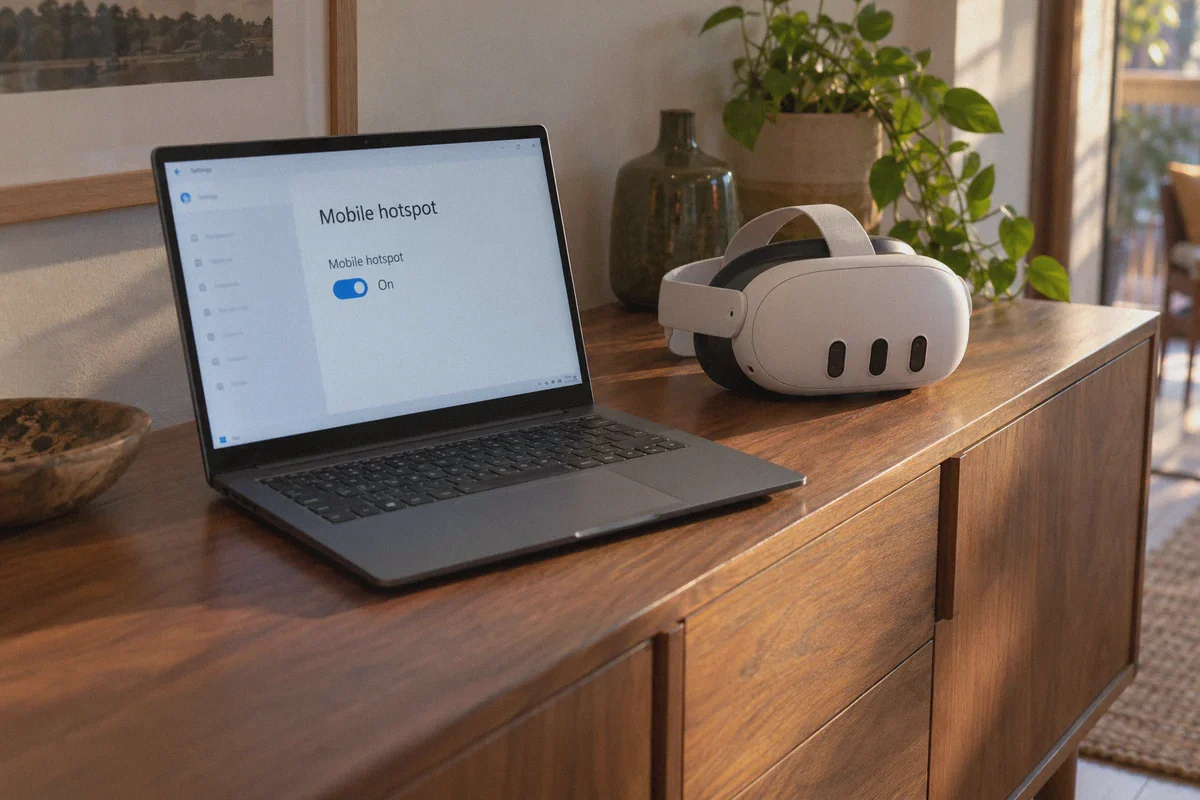
- Turn On Your Computer's Mobile Hotspot
- On Windows: Go to Settings > Network & Internet > Mobile Hotspot, select Share over Wi-Fi, and turn it ON.
- On Mac: Go to System Settings > General > Sharing > Internet Sharing, select your VPN connection, and share to Wi-Fi.
- Connect Your Quest 3
Put on your Quest 3, open the Quick Settings Wi-Fi menu, select your computer's hotspot, enter your network password, and connect.
That’s it. Every app inside your Quest 3—from the Quest Browser and YouTube VR to Netflix and multiplayer titles—is now routed through your secure tunnel.
Method 2: The Direct Sideload Route (For Standalone Travel)
What if you’re traveling, staying in a hotel with your Quest 3, and don’t have a laptop with you? In that scenario, installing the VPN directly onto the headset as an Android app makes sense.
Here is the most straightforward, cable-free way to do it:
Step 1: Enable Developer Mode (One-Time Setup)
- Open the Meta Quest App on your smartphone (the one paired to your headset).
- Tap Menu > Devices, select your Quest 3, and go to Headset Settings.
- Tap Developer Mode (or Developer Settings) and toggle it ON. (If you haven't registered as a developer yet, Meta will prompt you to create a free organization name—just type any random name and accept the terms).
Step 2: Download the OnlyDogs Android APK Inside the Headset
- Put on your Quest 3 and open the built-in Meta Quest Browser.
- Go to OnlyDogs VPN and download the direct Android APK file to your headset's local storage.
Step 3: Install and Launch
- Open your file manager inside Quest (such as Mobile VR Station, downloadable free from the Quest Store, or SideQuest if you already have it).
- Locate the downloaded
.apkfile in your Downloads folder and click Install. - Once installed, click the Apps icon on your Quest universal menu, click the dropdown filter in the top right corner, and select Unknown Sources.
- Click OnlyDogs VPN to launch it. It will open as a smooth floating 2D panel inside your virtual environment.
Why OnlyDogs VPN Makes the Quest 3 Experience Bearable
If you’ve ever tried using a standard desktop VPN on a VR headset, you know how clumsy the interface usually feels. OnlyDogs VPN eliminates almost all of those friction points:
- No Typing Passwords in VR: OnlyDogs uses a lightweight email verification code login. You receive a short numeric code, click it with your controller trigger, and you’re logged in. No fumbling with uppercase, lowercase, numbers, and symbols in a floating virtual box.
- Scene Presets Over Server Juggling: You don’t want to read a server load chart while wearing a headset. OnlyDogs gives you clear, intent-based presets: Fastest Route, Streaming, or Multi-Device Sharing. Click what you want, and the app’s smart auto-routing instantly locks in the cleanest connection.
- HTTP/3 & Proprietary Obfuscation: Unlike generic open protocols that stutter over congested Wi-Fi, OnlyDogs’ underlying architecture uses HTTP/3 and proprietary traffic obfuscation. That means less jitter, zero ISP throttling, and much smoother frame delivery in VR video playback.
- Built-in Ad & Tracker Blocker: The Quest Browser is great, but watching YouTube VR or streaming sites on it can be an ad-infested nightmare. OnlyDogs features integrated DNS and node-level filtering that scrubs intrusive ads and malicious trackers before they hit your headset screen, keeping your VR views clean.
Quick Reality Check: Quest 3 VPN Scenarios
| What You Want to Do | Best Method | Recommended Setting |
|---|---|---|
| Watch Netflix / Prime with foreign libraries | Method 1 (Hotspot) or Method 2 (Direct) | Streaming Preset (US/UK/Japan) |
| Bypass Hotel / Dorm Wi-Fi Restrictions | Method 1 (Hotspot) | Fastest Route Preset |
| Competitive Multiplayer (Contractors, Pavlov) | Method 1 (Hotspot via PC) | Fastest Route (Lowest physical distance) |
| Clean, Ad-Free YouTube VR & Web Browsing | Either Method | Enable Ad & Tracker Shield |
The Verdict
Getting a VPN to work on your Meta Quest 3 doesn’t require a master’s degree in computer science, and it definitely shouldn't involve spending two hours debugging USB connection drivers.
If you have a computer or phone handy, skip the headset installation entirely: fire up OnlyDogs VPN, tap the Multi-Device Sharing preset, turn on your local hotspot, and connect your Quest 3 in thirty seconds. If you're on the road, grab the direct APK and log in with a frictionless email code.
Either way, you get the open, restriction-free VR experience you paid for—without the headache.
👉 Get OnlyDogs VPN, select your preset, and step into VR without borders.
Frequently Asked Questions
Why can’t I just install a normal VPN from the Meta Quest Store?
The article says mainstream VPN apps are not available in the official Quest Store, which is why users end up choosing between sharing a VPN connection from another device and sideloading an Android APK.
Why does the article prefer a hotspot over a direct VPN install?
The hotspot keeps the VPN process on a computer or phone, so the Quest 3 only sees a normal Wi-Fi connection. That avoids Developer Mode, VR password entry, and the risk that Horizon OS suspends a background 2D VPN app.
When does direct sideloading make sense?
The article treats direct sideloading as the fallback for standalone travel, such as a hotel stay where the user has the headset but no laptop or other convenient device to share a connection.
What can still cause a bad VR experience after a VPN is connected?
The article highlights jitter, packet loss, and background-app behavior as practical limits. A VPN may change the network route, but it cannot fix headset rendering problems or a game service that is having its own outage.