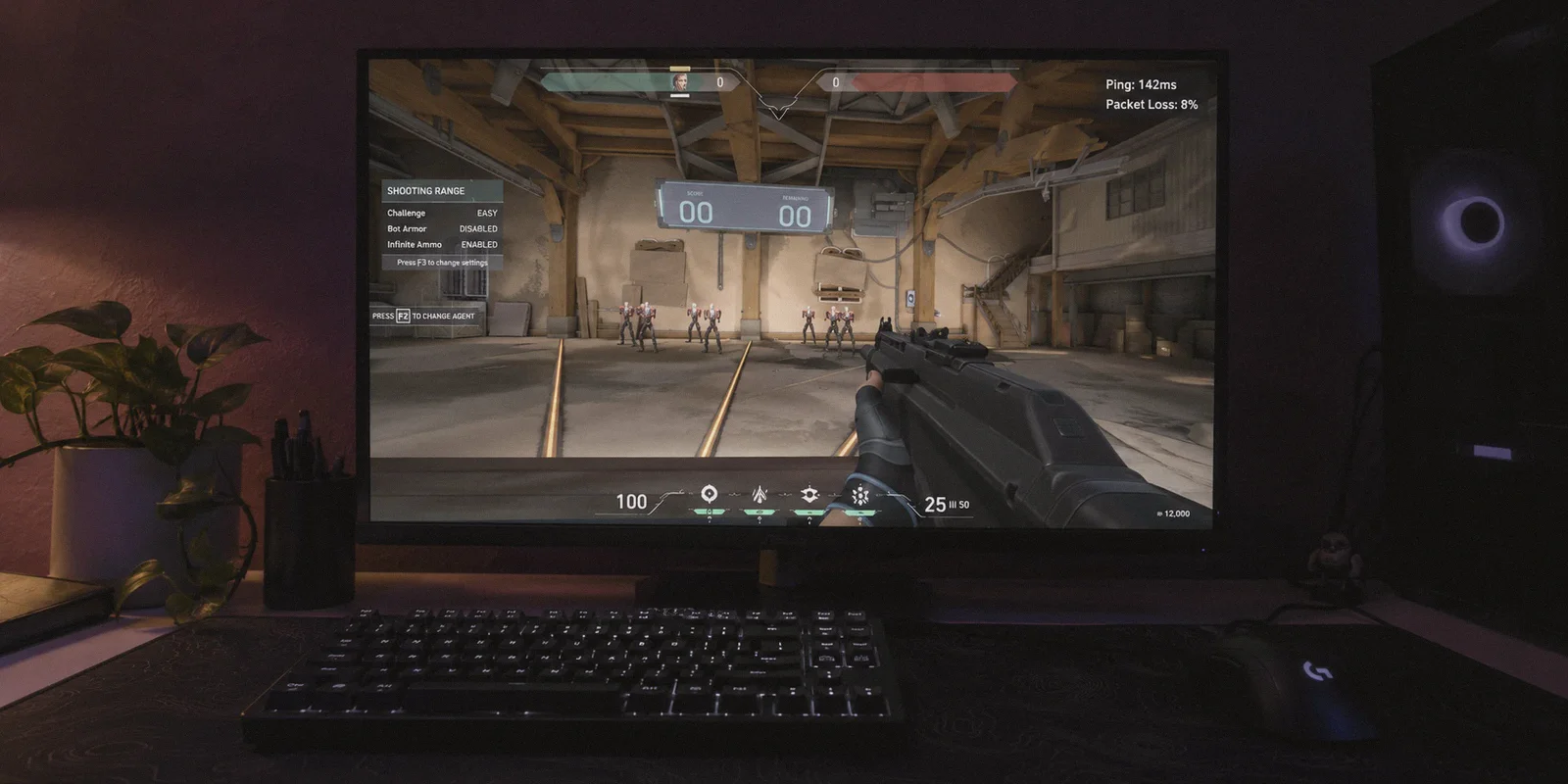
You’re mid-round on Ascent. You peek A-Main with a Vandal, crosshair glued to head height, you click—and nothing happens. A split second later, your character snaps two feet to the left, your bullet ghosted into thin air, and your screen flashes red.
Up in the top left corner, the numbers tell the ugly story: Ping: 142ms. Packet Loss: 8%.
If you're typing "how to reduce ping in valorant using vpn" into Google, I know exactly what you’re trying to fix. You’re sick of peekers' advantage working against you, sick of hit registration feeling like dice rolls, and tired of losing duels you know you won.
Every tech blog tells you the same line: "Just get a gaming VPN, tap connect, and cut your ping in half!"
Let’s be honest right out of the gate: In basic physics, sending your traffic through a third-party VPN server adds an extra stop, which normally increases ping, not lowers it.
So why do high-rank players, foreign students, and cross-region stacks still swear by VPNs?
Because when your game is unplayable, the problem usually isn't distance—it’s ISP routing incompetence. A VPN can actually drop your ping significantly, but only if you use it to solve the right problem. If you set it up wrong, you’re just paying money to lag harder.
Here is the straightforward breakdown of how a VPN actually fixes Valorant ping, when it works, when it won't, and how to configure it properly.
Article summary and product fit
Can a VPN actually reduce ping in Valorant?
Sometimes. The article explains that a VPN can help when high ping or jitter comes from inefficient ISP routing, but it adds an extra network hop and can make an already-good route slower.
Key points and limitations
- Best for: players whose latency spikes, packet loss, or evening jitter suggest a routing problem rather than simple physical distance.
- Key setup point: compare the no-VPN baseline first, then connect near the Riot server cluster you actually use and test the new route before ranked play.
- What can make things worse: choosing the wrong VPN location, using a high-overhead path, unstable Wi-Fi, or background traffic can raise latency instead of lowering it.
- Important limit: a VPN cannot erase the propagation delay created by long physical distance; if the direct ISP route is already efficient, the VPN may offer no ping benefit.
- OnlyDogs fit in this article: the article positions OnlyDogs VPN for auto-routing, low-overhead HTTP/3 transport, and recovery on unstable networks, but the route should still be benchmarked against the direct connection.
Product source: OnlyDogs VPN official website.
1. When a VPN Can Actually Lower Your Valorant Ping (The ISP Routing Trap)
To understand why a VPN helps, you have to look at what your Internet Service Provider (ISP) does every time you launch Valorant.
Your ISP doesn’t care about your combat score. Their automated network systems care about one thing: the cheapest transit cost.
When your game client sends packet data to Riot’s regional game servers (say, Tokyo, Hong Kong, Frankfurt, or North Virginia), your ISP might not send those packets in a straight line. Instead of taking an optimized undersea cable or direct fiber route, your packets might bounce through four different peering exchanges across three states or countries just because the bandwidth along that circuit was cheaper for your provider that day.
In networking, this is called bad peering.
| Your Connection Scenario | Direct ISP Route | Optimized VPN Tunnel | What Actually Happens |
|---|---|---|---|
| Domestic, Good Fiber | Direct: ~18ms | Through VPN: ~23ms | VPN adds slight overhead (+5ms). Don't use it here. |
| ISP Bad Peering / BGP Loop | Detour route: 120ms | Straight tunnel: 45ms | VPN cuts ping by ~75ms by overriding the ISP detour. |
| Severe Peak-Hour Throttle | Spiking: 40ms to 280ms (Jitter) | Locked clean lane: 50ms flat | VPN stabilizes jitter and eliminates packet loss. |
| Cross-Region / Study Abroad | Throttled / Blocked by local transit | Direct gaming gateway | Restores access with predictable latency. |
When your ISP routes your data through a messy detour, a VPN acts like a highway express lane. It grabs your packets at your local door, encrypts them so your ISP can’t inspect or traffic-shape them, and dumps them straight onto high-bandwidth backbone fiber pointed directly at Riot's server hub.
The takeaway: A VPN cannot break the speed of light. If you live 5,000 miles from the server, you will never get 10ms. But if your connection should be 40ms and your ISP is giving you 110ms with stuttering red graphs, a VPN is the fastest fix available.
2. The 3 Mistakes Players Make That Turn 50ms into 200ms
If you’ve ever turned on a VPN and watched your ping skyrocket, you probably fell into one of these three common traps:
- Connecting to a node close to yourself instead of the game server. If you are in London playing on a Frankfurt server, and you connect to a London VPN node, your traffic still has to travel from that node across the channel to Germany over public routing. The proper move is connecting to a node located in the same city as Riot's datacenter (or as close to it as possible).
- Using free or bloated generic VPN protocols. Standard consumer VPNs often use heavy encryption handshakes (like OpenVPN over TCP) designed for document transfers, not twitch shooters. TCP forces your network to resend missed packets, causing game-freezing jitter. Real-time shooters need lightweight, UDP-driven, modern packet structures.
- Running dirty data-center IPs that trigger Riot Vanguard.
Valorant’s anti-cheat, Vanguard, sits at the kernel level. If your VPN randomly drops connection, flaps IPs mid-game, or shares an address with someone running malicious botnets, Vanguard will kick you back to the lobby with an error code like
VAL 5orVAN 152.
3. How to Pick a Connection Tool That Doesn't Choke Vanguard
When you're trying to fix ping, you don't need a bloated app with 400 options you don't understand—like split-tunnel DNS tables, MTU packet sizes, or encryption cipher selectors. You need a tool that handles the routing intelligently and keeps the connection dead steady under load.
This is where OnlyDogs VPN works especially well for competitive gamers who don't want to become amateur network admins:
- Scenario-Based Auto-Routing: You don’t have to manually ping test 30 different servers in a list to find which one has spare capacity. You pick the target location, hit connect, and its automated routing engine binds you to the cleanest, lowest-latency path.
- HTTP/3 & Proprietary Low-Overhead Protocols: Unlike legacy VPN tunnels that advertise their presence and carry heavy packet headers, OnlyDogs VPN utilizes an HTTP/3-based connection architecture. It glides through restrictive local networks (like university dorms, shared apartment Wi-Fi, or restrictive international ISPs) without triggering the deep packet inspection (DPI) that causes game packets to queue up and lag.
- Weak-Network & Jitter Shield: Peak-hour gaming often causes temporary packet congestion. OnlyDogs VPN is built with high resilience for weak and unstable networks, rapidly recovering dropped packets without dropping the entire tunnel. That means fewer rubber-banding spikes during intense firefights.
- Clean Account Hygiene: It doesn't require traditional password hoarding across multiple devices. You log in with a clean email verification code, set it up on Windows or macOS, and keep your gaming machine free of annoying bloatware.
4. Step-by-Step: The Right Way to Set Up Your VPN for Valorant
Follow this exact sequence to make sure your ping actually drops:
Step 1: Benchmark Your Baseline (Without VPN)
Open Valorant. Click the gear icon -> Video -> Stats. Turn on:
- Network RTT (Text Only or Both)
- Packet Loss (Text Only or Both) Hop into the Range or a Deathmatch. Note your baseline numbers. Look not just at the average ping, but whether the line is flat or constantly jumping like a heartbeat monitor.
Step 2: Establish the Tunnel Before Launching Riot Client
- Close Valorant and exit Riot Client completely from your system tray.
- Open OnlyDogs VPN.
- Select the region matching the Valorant server cluster you want to play on (e.g., if you are queueing Frankfurt, connect to a Germany node; if you are playing Tokyo, connect to Japan).
- Tap connect and ensure the link is established cleanly.
Step 3: Launch Valorant and Check the Server Select Menu
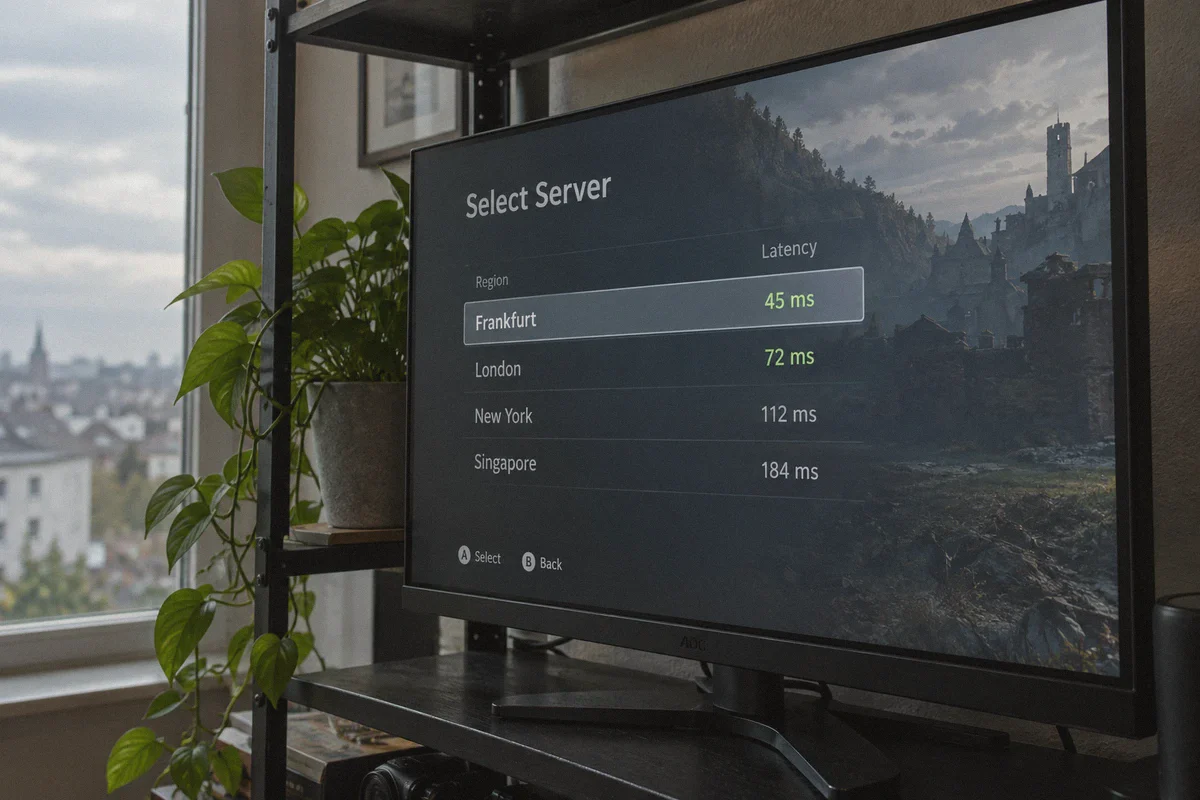
Open Valorant and click the small green server selector icon above your player card in the lobby:
- Check the ping readout: Look at the latency listed beside each server location.
- If the routing was the issue, your target server should now show a lower, much cleaner latency profile.
- If the latency looks higher than your native connection, your ISP's physical route was already optimal, meaning a VPN won't improve raw distance ping on that specific server.
Step 4: Test Packet Loss in Deathmatch
Never jump straight into Competitive on a new network path. Play one full Deathmatch.
- Watch the Packet Loss graph. If it stays firmly at 0.0% even while swinging corners or spraying an Odin, your routing is verified.
- If you see zero packet loss and a stable RTT line, jump into your ranked queue with confidence.
5. What If Your Ping Still Won't Go Down?
If you tried the VPN and your ping didn't improve, check these three hardware realities before blaming the network:
- Ethernet Cable vs. Wi-Fi: If you are playing on 2.4GHz home Wi-Fi through two concrete walls, no software on earth can fix your ping. Local packet interference happens before your data even hits the internet. Plug in a basic Cat6 Ethernet cable.
- Background Bandwidth Vampires: Windows Update, OneDrive auto-sync, Discord stream caching, or family members streaming 4K video on the same local router will monopolize your local buffer.
- Physical Distance Ceiling: Light travels through fiber at roughly 200 kilometers per millisecond. If you are physically located in the UK trying to play on North American East servers (Virginia), your absolute physical floor is around 80ms–90ms. Anyone promising you 20ms across the Atlantic Ocean is lying to you.
The Verdict
A VPN isn't a magical wand that rewrites physical geography, but it is the single best tool to bypass terrible ISP routing, break through peak-hour throttling, and eliminate game-breaking packet loss.
If your ping randomly jumps from 30ms to 150ms every evening, or if you're forced to play on distant servers where your default provider takes the scenic route, stop accepting the handicap.
Set up a clean, low-overhead tunnel with OnlyDogs VPN, route your packets directly to Riot’s datacenter, and get back to duels where your bullets actually land when you shoot.
Frequently Asked Questions
Why can a VPN lower Valorant ping in some cases?
According to the article, the useful case is bad ISP peering or a poor transit route. A VPN can replace that detour with a different path to the Riot server, which may reduce latency or jitter.
Why can a VPN make Valorant ping worse?
A VPN adds another hop. If your ISP already has a clean direct route, or if you choose a VPN node that is poorly placed or overloaded, the extra path can increase latency.
Where should the VPN server be located for Valorant?
The article recommends choosing a VPN location close to the Riot server cluster you plan to play on, then checking the in-game server latency before starting a competitive match.
What should I check if the VPN does not improve ping?
Check local Wi-Fi interference, background bandwidth use, packet loss, and the physical distance to the game server. Those problems can remain even when the VPN route itself is stable.