You moved to Vaultwarden because you were done paying a monthly subscription to 1Password, or you got spooked by another LastPass headline. You spun up a Docker container on your home NAS or a cheap VPS, migrated your logins, and felt like a self-hosting genius.
Then came the dilemma: How do you actually sync your vault to your phone when you leave the house?
Exposing your Vaultwarden instance directly to the open web with port forwarding feels like painting a giant bullseye on your front door. So you search for "how to route vaultwarden through vpn for secure password sync."
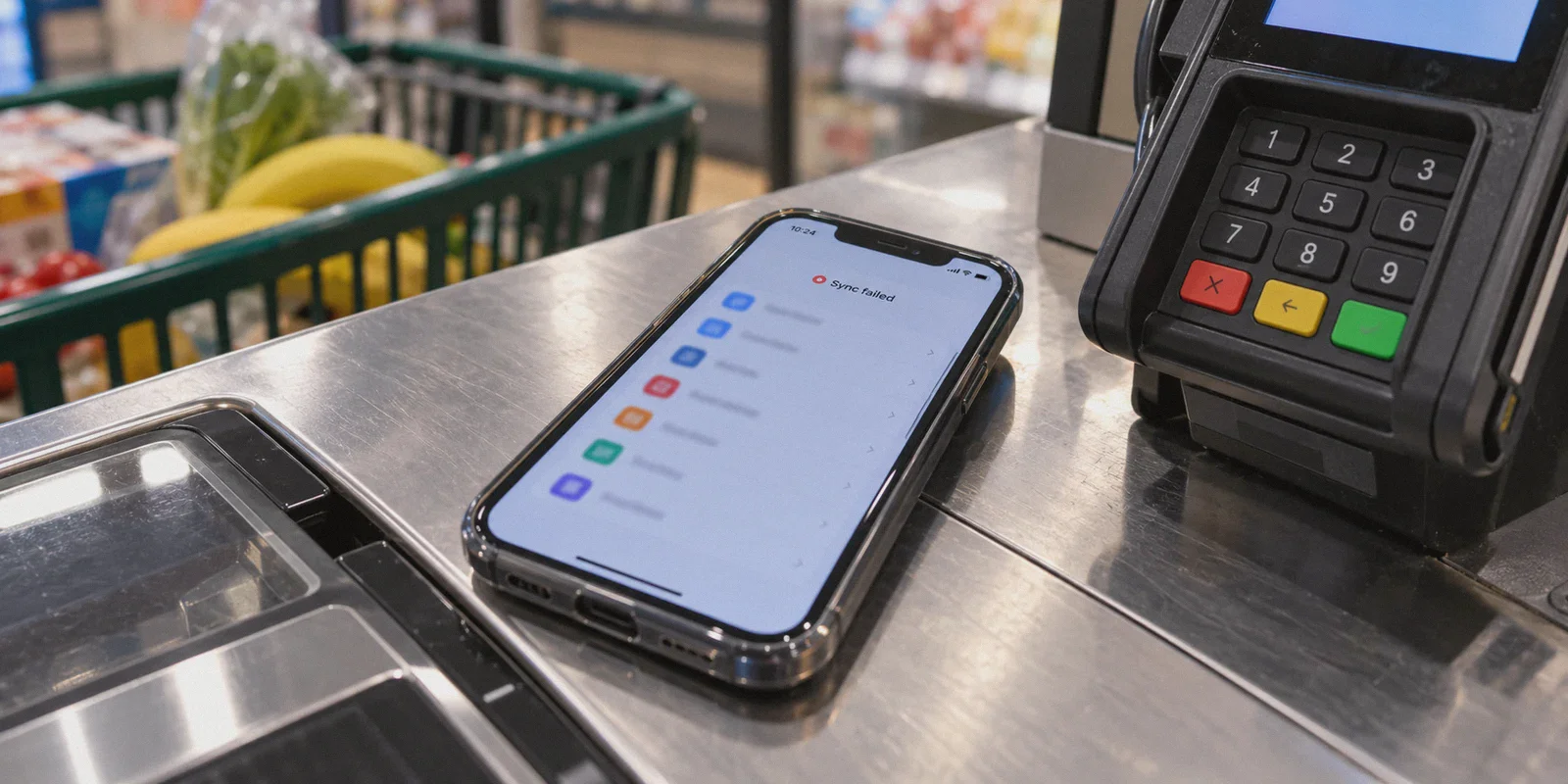
You set up a traditional VPN tunnel, think you've reached peak privacy, and within three days you run into the real-world tax: You’re standing at a grocery store checkout or trying to board a flight, pull out your phone to autofill a credit card or passport number, and the Bitwarden icon just sits there spinning: “Syncing vault…”
Ten seconds later: Sync failed.
Before you spend your entire evening troubleshooting iptables or debugging routing metrics, let’s talk about how routing Vaultwarden actually works, the security misconception that trips almost everyone up, and the clean setup that keeps your vault private without turning daily autofill into a nightmare.
Article summary and product fit
How can you keep a self-hosted Vaultwarden server private while still syncing reliably on a phone away from home?
The article recommends hardening Vaultwarden with HTTPS and restricted server access first, then choosing either a private inbound tunnel for a closed home setup or a hardened reverse-proxy setup for broader availability. A VPN is presented as protection for untrusted or restricted networks and as a routing aid, not as a replacement for Vaultwarden’s client-side encryption.
Key context
- Best for: People who self-host Vaultwarden and need dependable mobile sync on cellular, hotel, airport, or other untrusted networks.
- Article detail: The server-side priorities are HTTPS, closed public registration, and protection of the /admin endpoint; a fully private inbound tunnel keeps ports closed but requires the phone to maintain access to that tunnel.
- Important limit: A VPN cannot make a closed-loop server reachable when the private tunnel itself is unavailable, and the article does not claim that a VPN replaces Vaultwarden’s own encryption.
- OnlyDogs fit: OnlyDogs VPN is positioned in the article as an outbound mobile connection option for network handoffs and restrictive networks, while Vaultwarden remains responsible for vault encryption and server access controls.
Sources already referenced in this article: OnlyDogsVPN official website.
The Big Misconception: What Does a VPN Actually Protect Here?
Most people assume routing Vaultwarden through a VPN is necessary because they think, "If someone intercepts my sync traffic, they get all my passwords."
That’s not how Bitwarden or Vaultwarden works.
Vaultwarden uses zero-knowledge, client-side encryption. Every login, note, and card in your database is encrypted with AES-256 on your device before it ever leaves your phone or browser. Even if someone sat in the middle of your network and grabbed the raw database file being synced, all they’d see is scrambled gibberish.
The real reasons you want to route Vaultwarden traffic through a VPN are much more practical:
- Closing Open Ports: You don’t want your home IP address or server port
80/443visible on Shodan or scanned by automated botnets looking for unpatched vulnerabilities. - Untrusted Public Wi-Fi Protection: When you’re connected to hotel, airport, or coffee shop networks, you don't want malicious Wi-Fi access points spoofing DNS records, hijacking certificate handshakes, or snooping on connection metadata.
- Restricted Networks: You need to sync your passwords while traveling through regions or working on corporate networks that aggressively filter or inspect outbound traffic.
The problem is that how you choose to route that traffic makes the difference between an effortless password manager and a broken app that locks you out when you need it most.
The Two Practical Ways to Route Vaultwarden
Depending on where your Vaultwarden instance lives, you have two architectural choices.
Method 1: The "Closed-Loop" Inbound Tunnel (Home NAS / Raspberry Pi)
If your Vaultwarden instance is sitting inside your home living room and you refuse to open any ports on your router:
- Deploy a Private Mesh Connector: Instead of raw port forwarding, install an inbound mesh tool (like Tailscale or a private WireGuard server) on the same host or network as Vaultwarden.
- Bind Vaultwarden to Local IP: Configure Vaultwarden's Docker container to listen only on your local subnet (e.g.,
192.168.1.50:8080) or your mesh IP (e.g.,100.x.x.x). - Configure SSL: Bitwarden mobile apps and browser extensions refuse to work without HTTPS (the Web Crypto API mandates it). You must run a lightweight reverse proxy (like Caddy or Nginx Proxy Manager) in front of Vaultwarden to terminate a valid SSL certificate (via Let's Encrypt or your local CA).
- Point Your Client: Open the Bitwarden app on your phone, set the self-hosted server URL to your HTTPS domain/local IP, and connect your phone to the private tunnel.
The Catch: Your phone must maintain an active connection to your home tunnel 24/7. The moment your private tunnel drops or gets blocked, password sync halts completely.
Method 2: The "Hardened Reverse Proxy + Encrypted Client" (The Reliable Setup)
If you host Vaultwarden on a VPS or use a Cloudflare Tunnel/reverse proxy with strict access controls:
- Put Vaultwarden behind a reverse proxy (Caddy/Traefik) with automatic HTTPS.
- Disable public registration in your
docker-compose.yml(SIGNUPS_ALLOWED=false) so nobody can create an account on your instance. - Protect the admin portal (
/admin) with a separate authentication token or IP whitelist. - Encrypt the transit line from your client device using a high-performance outbound VPN whenever you are on cellular data or untrusted public Wi-Fi.
This gives you the best of both worlds: your vault syncs seamlessly wherever you go, but your device traffic remains shielded from ISP logging, DNS poisoning, and public Wi-Fi sniffing.
Why Standard VPNs Break Password Syncing on Mobile
If you’ve already tried running an always-on VPN on your phone to protect your vault sync, you’ve probably noticed things go wrong quickly. Here is why:
1. The Cellular-to-Wi-Fi Handshake Deadlock
When you walk out of your office and your phone drops Wi-Fi to latch onto 5G, standard VPN protocols (like raw WireGuard or OpenVPN) frequently freeze during the handshake transition. The Bitwarden background sync fires off right during that handoff, times out, and leaves your autofill extension disabled. You have to open your settings, toggle the VPN off and on, and manually trigger a sync.
2. The Airport & Hotel "UDP Wall"
Traditional VPN protocols rely heavily on bare UDP packets on static ports. Captive portals at hotels, conference venues, and airport lounges often drop or throttle non-standard UDP traffic outright. When you land after a flight and urgently need to pull a booking confirmation or credit card from your vault, your tunnel refuses to connect.
3. IP Blacklisting and WAF Challenges
If your Vaultwarden setup sits behind Cloudflare or a web application firewall (WAF), connecting through a cheap commercial VPN with dirty, shared server IPs will immediately trigger security challenges. Because the Bitwarden mobile app is a background API client, it cannot solve an interactive CAPTCHA—it simply reports a sync failure.
Where OnlyDogs VPN Fixes the Mobile Sync Pipeline
This is where pairing your self-hosted vault with OnlyDogs VPN solves the daily operational friction that bare-bones protocols struggle with.
Instead of treating your connection like a fragile, rigid pipe, OnlyDogs is engineered specifically around modern mobile realities:
[Standard DIY Protocol]                     [OnlyDogs VPN Architecture]
Bare UDP (Blocked on Hotel Wi-Fi)     --->  HTTP/3 + Proprietary Obfuscation (Looks like Web Traffic)
Freezes during Wi-Fi to 5G switch    --->  Seamless Weak-Network Handoff & Auto-Recovery
Manual IP testing & Cloudflare bans   --->  Smart Auto-Routing to Clean, High-Reputation Lines
DNS-only filtering                    --->  Dual-Layer Node + DNS Blocking (Strips Trackers & Ads)
1. HTTP/3 & Traffic Obfuscation Keeps Sync Open
Whether you’re on a locked-down hotel Wi-Fi, an international eSIM roaming connection, or a restrictive network abroad (such as in Dubai, China, or corporate guest networks), OnlyDogs disguises your packets using HTTP/3 and proprietary traffic obfuscation. Your connection blends into regular encrypted HTTPS traffic, sliding through firewalls without getting throttled or dropped.
2. Instant Weak-Network Recovery
Password managers need to work in quick micro-moments—tapping autofill while boarding a train or paying for coffee. OnlyDogs features automated weak-network and roaming recovery. When your phone switches cellular towers or reconnects to an open hotspot, the encrypted tunnel re-establishes in milliseconds without stalling background app syncs.
3. Clean IP Routing (No WAF Triggers)
OnlyDogs’ automated route selection connects through verified, clean nodes. You won’t run into endless Cloudflare bot-verification loops or firewall rejections when pinging your self-hosted server endpoints.
4. Zero Credential Hassle
Managing your self-hosted Vaultwarden already gives you enough master keys to remember. OnlyDogs eliminates traditional account passwords in favor of frictionless, one-time email verification codes. You log in, tap to connect, and enjoy uniform protection across macOS, Windows, iOS, and Android.
The Verdict: How to Set Up Your Vault Today
The smartest self-hosting setup isn't the one that requires a degree in network engineering—it’s the one that stays completely out of your way while keeping your data bulletproof.
- On the Server: Keep Vaultwarden behind a solid reverse proxy with HTTPS, turn off open signups (
SIGNUPS_ALLOWED=false), and protect your/adminbackend. Let Bitwarden’s native AES-256 encryption do the heavy cryptographic lifting. - On Your Mobile Devices: Don't rely on fragile, naked UDP tunnels that stall every time you switch between Wi-Fi and 5G. Wrap your phone, laptop, and tablet in an obfuscated, auto-recovering connection.
👉 Get OnlyDogs VPN on your daily devices
Lock down your traffic, keep your passwords syncing on any network without friction, and let your self-hosted setup just work.
Frequently Asked Questions
Why can Vaultwarden sync fail when a phone switches between Wi-Fi and cellular data?
The article says an always-on VPN tunnel can stall during a Wi-Fi-to-cellular handoff. If a background vault sync fires during that transition, it may time out until the tunnel reconnects.
Do you need a VPN because Vaultwarden sends readable passwords over the network?
No. The article explains that Bitwarden/Vaultwarden encrypts vault data on the client before it leaves the device. The VPN use case here is mainly about closing exposed access, protecting traffic on untrusted networks, and maintaining a usable route to the server.
What server-side protections does the article recommend for Vaultwarden?
Use HTTPS through a reverse proxy, disable public signups with SIGNUPS_ALLOWED=false, and protect the /admin endpoint with a separate token or an IP restriction. For a closed home setup, the article also describes binding the service to a local or private-mesh address.