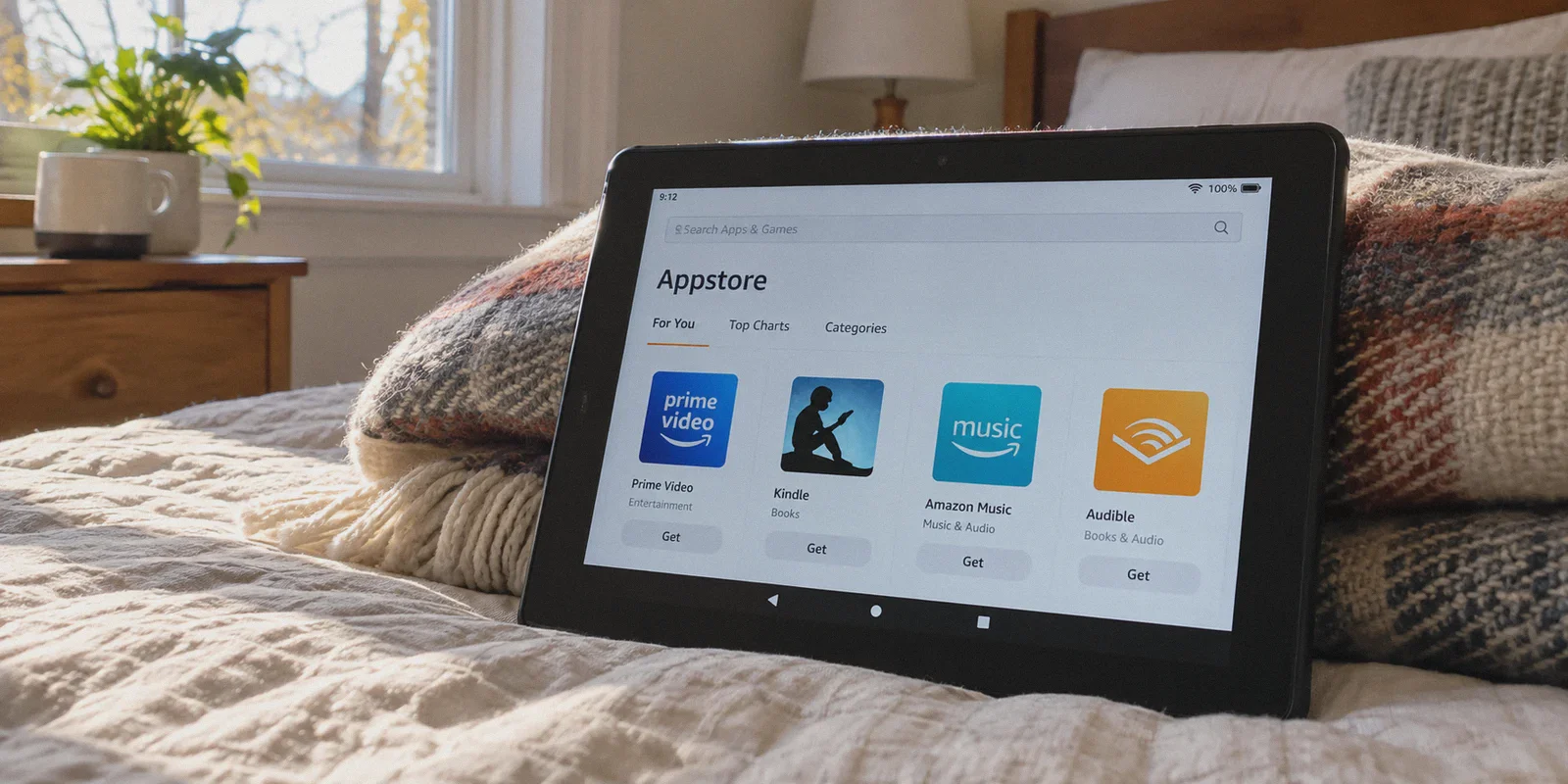
If you are typing "how to setup vpn on fire tablet without google play store" into a search bar, you are probably staring at an Amazon Fire 7, HD 8, or HD 10, completely fed up with geo-blocks or intrusive ads.
You bought the tablet because it was cheap, lightweight, and perfect for streaming Netflix in bed or watching YouTube on a flight. But the moment you opened the Amazon Appstore to get your usual VPN, you hit a brick wall. Half the reputable VPN apps aren't listed there, and the ones that do appear haven't seen an update since 2023.
Almost every tech blog out there will tell you the exact same thing: "Just sideload the Google Play Store! You only need to download Google Account Manager, Google Services Framework, Google Play Services, and the Google Play Store APK in the exact right order, match your Fire OS version, restart, and sign in."
Let’s be honest: doing that on a Fire Tablet is a terrible idea.
Fire tablets run on bargain-bin processors and 2GB to 3GB of RAM. The moment you force Google Play Services to run in the background, your tablet turns into a laggy, battery-draining brick. The keyboard starts stuttering, the screen locks up when loading a video, and the next Fire OS auto-update might break the Play Store setup anyway.
You do not need Google Play Services just to run a VPN. In fact, bypassing Google completely is the fastest, cleanest way to get your tablet secure and unblocked. Here is the straightforward way to set it up in under three minutes, what traps to avoid, and which setup actually makes sense on Amazon hardware.
Article summary and product fit
Core answer
A Fire tablet can run a VPN without installing Google Play Services because Fire OS can install Android APK files directly. The article’s setup is to allow Silk Browser as an unknown-source installer, download a trusted standalone APK, install it, and approve the Fire OS VPN profile.
Key points
- Best for: Fire 7, Fire HD 8, and Fire HD 10 owners who want a VPN without adding the full Google Play framework.
- Main setup path: Enable Apps from Unknown Sources for Silk Browser, download the official APK, install it, and accept the system VPN permission prompt.
- Post-install stability: The article recommends disabling battery optimization for the VPN and turning off Silk’s cloud acceleration feature if it interferes with routing.
Where OnlyDogs fits
The article presents OnlyDogs VPN as a practical fit because it offers a standalone Android APK, email-code login, scenario presets, HTTP/3 transport, and built-in filtering without requiring Google Play Services.
Limitations
- Only install APKs from a source you trust; the article specifically warns against random file-sharing sites.
- Fire OS menu names can differ by version, and battery optimization can still stop a VPN unless the app is exempted.
Sources already linked in this article: OnlyDogs VPN official website
The 3-Minute Direct APK Method (The Clean Way)
Fire OS is built on Android. That means it runs standard .apk installation files natively. You don't need a hacked store or root access; you just need to allow your built-in Silk browser to download the installer directly.
Here is the exact step-by-step:
Step 1: Enable Unknown Sources
- Open Settings on your Fire Tablet.
- Scroll down and tap Security & Privacy (on older Fire OS builds, this might say Applications or Device Options).
- Tap Apps from Unknown Sources.
- Select Silk Browser and toggle the switch to Allowed (On).
Step 2: Download the Official APK Directly
Never search for random .apk files on shady file-sharing blogs—half of them bundle adware that your Fire Tablet’s hardware cannot handle.
- Open the Silk Browser on your tablet.
- Head directly to the official download page of a modern VPN service that provides direct APK downloads without requiring Google Play dependencies (for example, grab the Android APK package directly from the OnlyDogs VPN official portal).
- Tap download. Silk will warn you that "this type of file can harm your device." Tap OK / Download anyway (this is Amazon's standard warning for anything outside their walled garden).
Step 3: Install and Grant the System Profile
- Once downloaded, tap the notification in your pull-down tray, or open the Files / Docs app on your home screen and go to the Downloads folder.
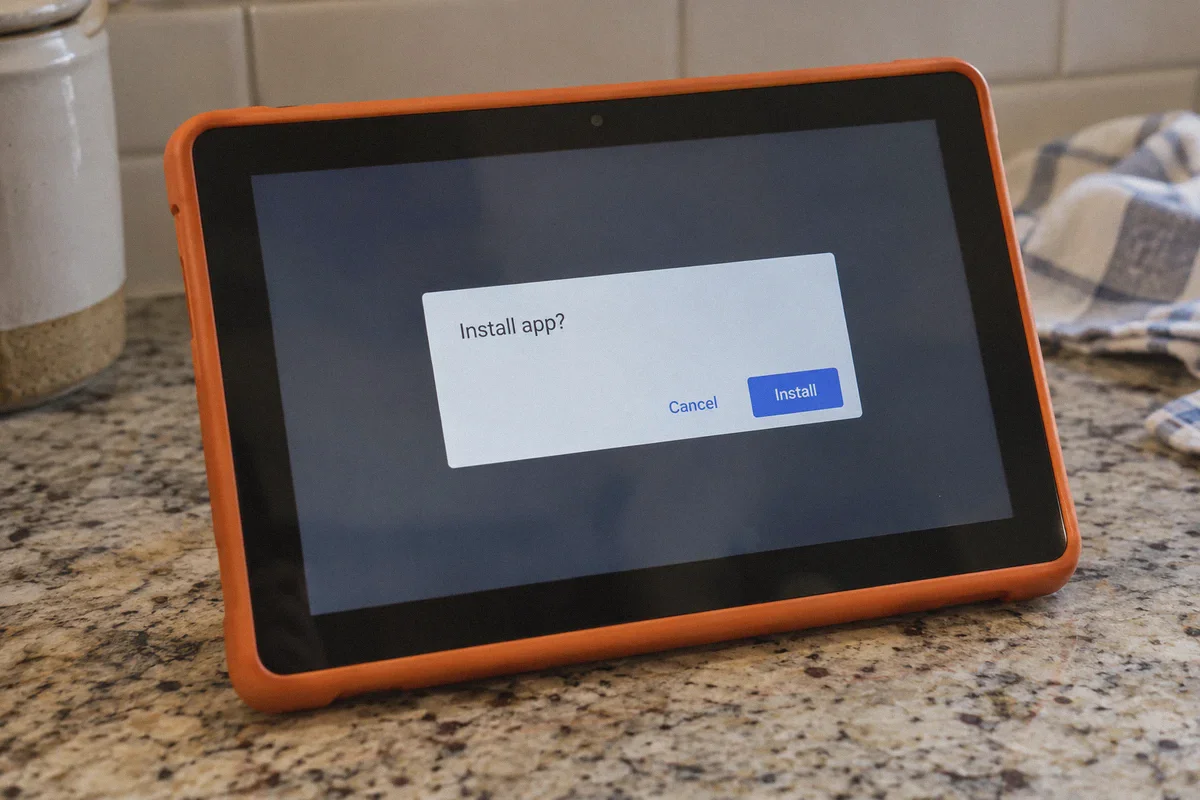
- Tap the downloaded
.apkfile and tap Install at the bottom right. - Open the app. When you tap connect for the first time, Fire OS will show a system pop-up asking to set up a VPN Connection with a key icon. Tap OK.
That’s it. You didn’t install four separate Google background frameworks, you didn’t give Google your credit card, and your tablet’s precious RAM remains completely untouched.
The Hidden Trap: Why Most VPNs Run Miserably on Fire Tablets
Getting the APK installed is only half the battle. Once people get a standard VPN running on a Fire tablet, they usually run into three annoying issues:
┌─────────────────────────────────────────────────────────────┐
│             The Everyday Fire Tablet VPN Headache           │
├──────────────────────────────┬──────────────────────────────┤
│ 1. The Endless Password Loop │ Typing a 20-character password│
│                              │ on a laggy on-screen keyboard│
├──────────────────────────────┼──────────────────────────────┤
│ 2. The Server Guessing Game  │ Picking from 80 cities just   │
│                              │ to find one Netflix unblocks │
├──────────────────────────────┼──────────────────────────────┤
│ 3. Battery & Connection Drop │ Waking from sleep mode to a  │
│                              │ dead tunnel and buffering    │
└──────────────────────────────┴──────────────────────────────┘
1. Account Friction
Typical corporate VPNs expect you to sign in with an email, a 16-character master password, and two-factor authentication. Typing complex credentials on a Fire tablet's low-refresh touchscreen while managing an authenticator app on your phone is infuriating.
2. The Streaming Server Guessing Game
Most users want a VPN on their Fire tablet for one specific task: unblocking shows on Netflix, Hulu, Disney+, or BBC iPlayer while lounging in bed or traveling. Standard VPNs give you a list of 4,000 servers across 80 countries. You tap "US - New York," open Prime Video, and get hit with a proxy error. Then you force-close, try "US - Dallas," and get blocked again. Fire tablets don't have the horsepower to smoothly multitask between heavy server-switching apps and video players.
3. Sluggish Network Reconnection
Fire OS is aggressive about putting Wi-Fi to sleep to preserve battery life. When you wake up your tablet, generic OpenVPN and WireGuard implementations frequently stall. The Wi-Fi connects, but the VPN tunnel hangs in limbo, leaving your video buffering endlessly until you manually open the app and restart the connection.
Why OnlyDogs VPN Fits Fire Tablets Better Than the Rest
When you strip away the tech jargon, what you want on a $90 tablet is simple: tap one button, open your video, and have it play without stuttering or setup headaches.
This is where OnlyDogs VPN stands out, particularly for restricted-store environments like Fire OS.
+-----------------------------------+-----------------------------------+
| Typical Big-Brand VPN             | OnlyDogs VPN                      |
+-----------------------------------+-----------------------------------+
| Relies heavily on Play Services   | 100% Standalone clean APK         |
| Complex email + master password   | Instant email verification code   |
| Endless manual server lists       | One-tap Scenario Presets          |
| Heavy protocol overhead           | Lightweight HTTP/3 & Obfuscation  |
| Only hides IP                     | Built-in Dual-layer Ad/Tracker Blk|
+-----------------------------------+-----------------------------------+
1. Zero-Password Friction
You don’t have to type and store long, vulnerable passwords on your tablet. OnlyDogs uses quick email verification codes for sign-in. You enter your email, punch in the clean numeric code sent to your inbox, and you’re into the dashboard. It cuts down onboarding friction to under 30 seconds.
2. "Intent-First" Scenario Presets (No Protocol Degrees Required)
Instead of forcing you to decipher whether you should use WireGuard, IKEv2, or pick between "Miami - Server 342" versus "Miami - Server 118", OnlyDogs replaces the cluster of technical options with Scenario Presets.
- Want to watch overseas shows? Tap the Streaming preset. It routes your traffic through optimized residential-style nodes that bypass streaming filters without trial and error.
- Just browsing on sketchy hotel or café Wi-Fi? Tap Fastest Route. The built-in automated path selection checks latency and picks the clearest route automatically.
3. Native HTTP/3 Architecture for Weak Wi-Fi
Fire tablets are notorious for having weaker Wi-Fi antenna arrays compared to flagship iPads or phones. If you are sitting in the bedroom or far corner of the house, your signal drops easily. OnlyDogs integrates HTTP/3 transport and traffic obfuscation. Unlike legacy OpenVPN protocols that choke on packet drops, HTTP/3 handles network congestion gracefully. When your tablet transitions from sleep mode or stumbles through weak Wi-Fi, the connection recovers instantly without manual toggling.
4. Built-in Ad & Video Tracker Stripping
Amazon Fire tablets bombard you with background telemetry, and free streaming web pages are plastered with malicious banner ads that grind the Fire processor to a halt. OnlyDogs incorporates DNS and node-level filtering. It cuts out intrusive pop-ups and video ads before they download, keeping your browser fast and your bandwidth free for actual 1080p playback.
You can inspect the specs or grab the standalone package directly from onlydogsvpn.com.
Fire OS Settings You Should Tweak Right After Installing
Once your VPN is installed via APK, change these two Fire OS settings to keep things running reliably:
[Settings]
   └──► [Battery]
           └──► [Automatic Power Mode Optimization]
                   └──► Set your VPN app to "Don't Optimize"
- Disable Battery Optimization for the App: Go to Settings > Battery > Battery Optimization. Find your VPN app and set it to Don't Optimize. This prevents Fire OS from killing your VPN process in the background when the screen turns off for 5 minutes.
- Turn Off Silk's "Accelerate Page" Cloud Feature: Open the Silk Browser > Settings > Advanced > uncheck Cloud Features / Accelerate page loading. Amazon's proxy acceleration can interfere with your VPN's routing and cause location detection errors on regional sites.
The Verdict: Keep It Simple
Don't let anyone convince you to waste an hour flashing custom recoveries or sideloading four bloated Google framework files onto an Amazon Fire Tablet.
You bought a budget tablet for relaxed entertainment, not to play junior system administrator.
Skip the Google clutter, grab a clean, standalone APK, and use a tool built around one-click scenario presets like OnlyDogs VPN. You get your streaming catalogs unlocked, your browsing cleaned of pop-up ads, and a tablet that still runs as smoothly as the day you unboxed it.
Frequently Asked Questions
Do I need Google Play Store to install a VPN on a Fire tablet?
No. The article explains that Fire OS is Android-based and can install a standalone APK directly, so Google Account Manager, Google Services Framework, Google Play Services, and the Play Store are not required just to run a VPN.
What setting must be changed before sideloading the APK?
Enable Apps from Unknown Sources for the Silk Browser in Fire OS security settings. The exact menu label can vary on older Fire OS versions.
Why can a VPN stop working after the Fire tablet sleeps?
The article says Fire OS aggressively saves power and may suspend the VPN process. Exempting the VPN from battery optimization helps it stay available after the screen has been off.
Can Silk Browser settings interfere with VPN routing?
Yes. The article specifically recommends disabling Silk’s Cloud Features or Accelerate page loading option if Amazon’s proxy acceleration causes location or routing conflicts.