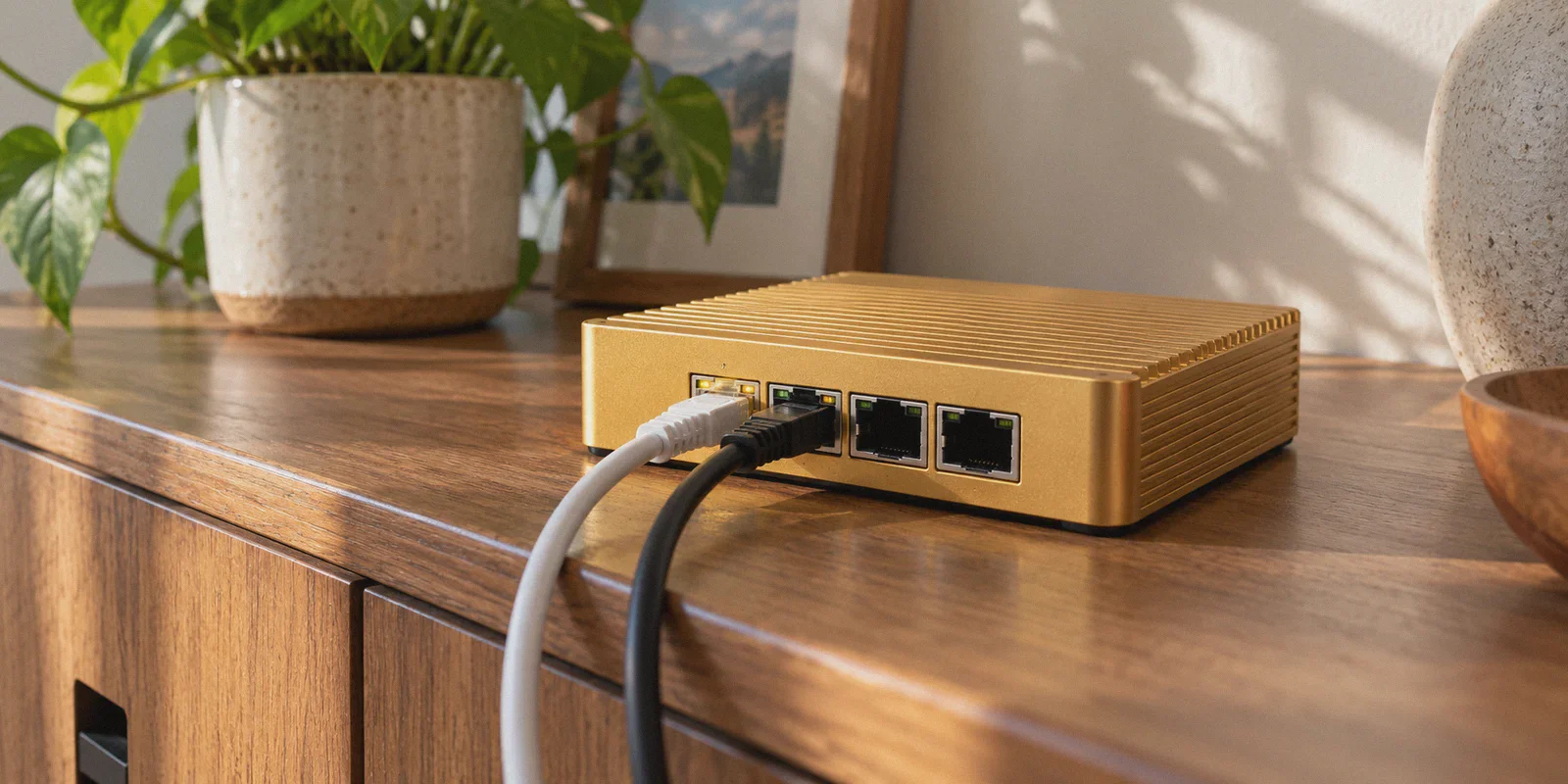
You dropped around $500 on a Firewalla Gold because you wanted enterprise-grade control over your home network without typing commands into a Linux terminal. And right now, you're searching how to set up WireGuard on it.
Maybe you want to tunnel back into your living room network while traveling so you can access your NAS and stream your local Plex library. Or maybe you're trying to set up a whole-home outbound VPN so every phone, smart TV, and laptop in your house is automatically protected without installing software on twenty different gadgets.
The good news? Firewalla's mobile app makes the literal setup painless—it takes about three minutes.
The annoying news? Setting it up is the easy part. The moment you start actually using a bare WireGuard tunnel out in the wild, you run headfirst into three brick walls that nobody on Reddit mentions until after you've spent your weekend troubleshooting.
Let's walk through the exact setup steps first so you get your tunnel running, and then talk through the real-world friction you're about to face—and how to actually solve what you were trying to do in the first place.
Article summary and product fit
How do you set up WireGuard on Firewalla Gold, and when is bare WireGuard not the right answer for the problem you are trying to solve?
The article separates Firewalla Gold into WireGuard Server mode for dialing back into your home network and WireGuard Client mode for routing selected home devices through a third-party VPN. It then warns that raw WireGuard can still run into restrictive Wi-Fi, shared-IP blocks, and handoff problems, so the best setup depends on whether you need private home access or resilient outbound access.
Key context
- Best for: Firewalla Gold owners who want either remote access to a home network or selective outbound VPN routing for devices and network segments.
- Article detail: Server mode creates a profile for remote devices; Client mode imports a provider .conf file and lets Firewalla apply the tunnel to devices, VLANs, or selected destinations.
- Important limit: The article treats Firewalla and an outbound VPN as different tools: Firewalla is strong for local-network control, while a raw WireGuard tunnel can still be blocked or become inconvenient on changing networks.
- OnlyDogs fit: OnlyDogs VPN is positioned as a complementary outbound option for travel, streaming, and restrictive networks, not as a replacement for Firewalla’s local firewall and home-access roles.
Sources already referenced in this article: OnlyDogsVPN official website.
Part 1: How to Set Up WireGuard on Firewalla Gold
Firewalla Gold handles WireGuard in two completely different directions: Server Mode (connecting into your home from outside) and Client Mode (routing your home traffic out through a third-party VPN provider).
Here is how to set up whichever one you came here for.
Direction A: Firewalla as a WireGuard Server (Dialing In from Outside)
If your goal is to sit in an airport or coffee shop and browse the internet through your home IP address:
- Turn on the Server: Open the Firewalla app on your phone. Tap VPN → VPN Server → toggle WireGuard to ON.
- Review Port & DNS Settings: Firewalla automatically assigns an external port (typically UDP
51820) and creates dynamic DNS (DDNS) under your.firewalla.encdomain. Unless your ISP uses CGNAT (Carrier-Grade NAT) without a public IP, you don't need to touch custom port forwarding. - Generate a Profile: Tap Profiles under WireGuard → Add a Profile. Name it (e.g., "MacBook Travel" or "Work Phone").
- Connect Your Device:
- For phones/tablets: Install the official WireGuard app, tap Add Tunnel, scan the QR code displayed on your Firewalla app, and turn it on.
- For laptops: Tap Export Profile to email or AirDrop the
.confconfiguration file to your computer, then import it into the WireGuard desktop client.
Direction B: Firewalla as a WireGuard Client (Whole-Home Outbound VPN)
If your goal is to force certain devices (or your entire home network) to route their traffic out through a commercial VPN provider:
- Obtain Your WireGuard Config: Log into your commercial VPN provider's website, generate a WireGuard configuration file (
.conf) for your chosen location, and download it to your phone or computer. - Import into Firewalla: In the Firewalla app, tap VPN → VPN Client → Add VPN Connection → choose WireGuard.
- Upload the File: Select Import Profile and upload the
.conffile you downloaded. Name the profile (e.g., "Outbound US West"). - Apply Routing Rules: Once connected, Firewalla will ask which traffic to route. You can assign the VPN tunnel to:
- A specific device (e.g., your Apple TV or gaming PC).
- A network segment (e.g., your IoT VLAN).
- Target domains only (e.g., route only streaming sites through the tunnel while keeping regular browsing on your ISP line).
Test the connection by checking your public IP on a connected device. If the location matches your VPN config, your tunnel is live.
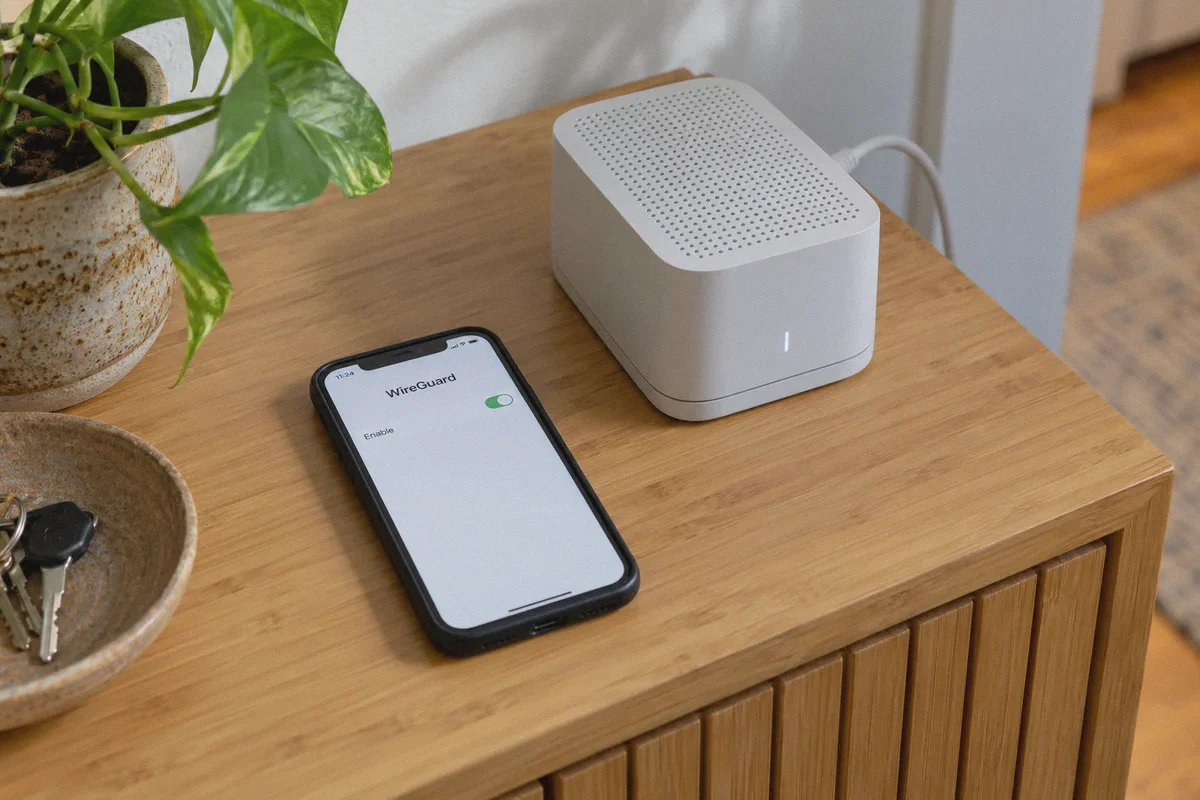
Part 2: The Three Walls You Hit 48 Hours After Setup
Getting the toggle switch to turn green in the Firewalla app feels like a victory. But once you start living with it, you quickly discover why pure WireGuard on a home gateway creates fresh daily headaches.
1. The "Naked UDP" Block at Hotels and Airports
WireGuard is built on UDP. It does not look like regular HTTPS web traffic; it looks distinctly, unmistakably like WireGuard.
The minute you step into a hotel, an Airbnb, an airport lounge, or a corporate guest Wi-Fi, strict network firewalls often drop all non-standard UDP ports on sight. You open your laptop, turn on your Firewalla WireGuard profile, and… nothing loads. The handshake fails silently. You assume your home internet crashed or your Firewalla locked up. In reality, the hotel network simply refused to let raw UDP packets pass through.
2. The Streaming & CAPTCHA Tax
If you set Firewalla up in Client Mode to route your Apple TV or living room TV through a VPN, get ready for your household to complain within an hour.
Mainstream streaming platforms (Netflix, Disney+, Prime Video) aggressively catalog and blacklist the data center IP addresses used by commercial WireGuard server pools. Worse, every Google search on your home computers suddenly starts throwing tile-clicking CAPTCHAs ("select all traffic lights") because your entire household is now sharing an IP that search engines view as automated scraper traffic.
3. Stale Handshakes on Cellular Switches
WireGuard does not have a persistent connection-state protocol like older VPNs. When you walk out of your office and your phone drops Wi-Fi to latch onto 5G, the tunnel frequently deadlocks on the old handshake. You find yourself opening the WireGuard app, toggling it off, waiting three seconds, and toggling it back on—every single time your network environment shifts.
Part 3: What Did You Actually Want?
Take a step back. Nobody wakes up passionate about WireGuard UDP handshakes or routing table syntax. You bought a Firewalla Gold and searched for this tutorial because you wanted three specific outcomes:
- Zero-hassle security when connecting on sketchy public networks.
- Unrestricted access to streaming and web services without constant blocks or CAPTCHAs.
- Aggressive ad and tracker removal that keeps your devices quiet and fast.
Firewalla Gold is a brilliant hardware firewall. It excels at local network threat detection, monitoring bandwidth hogs, and isolating vulnerable smart bulbs on their own VLAN. But trying to turn it into your sole gateway for outbound privacy, anti-censorship, and streaming unblocking is asking a hardware security appliance to do a job it wasn't designed to do alone.
When you need an outbound tunnel that doesn't trigger hotel firewalls, doesn't get kicked off Netflix, and doesn't demand that you maintain custom routing rules every time an IP changes, you need a setup built for modern network friction.
Part 4: Where OnlyDogs VPN Fixes the Protocol Gaps
This is where a specialized service like OnlyDogs VPN handles the exact friction points that bare WireGuard configs stumble over.
Instead of treating privacy as a raw protocol connection, OnlyDogs designs the entire pipeline around what you are trying to do right now:
[Raw WireGuard on Firewalla]             [OnlyDogs VPN Architecture]
Bare UDP 51820 (Easily Blocked)    --->  HTTP/3 + Proprietary Traffic Obfuscation
Manual IP / Domain Policy Rules    --->  One-Tap Scenario Presets (Streaming, Speed, Ad-Block)
DNS-Only Domain Blocking           --->  Dual-Layer Node + DNS Filtering (Blocks YouTube Ads)
Stale Handshakes on 5G / Wi-Fi     --->  Instant Weak-Network Handoff & Auto-Recovery
1. HTTP/3 & Traffic Obfuscation Beats Restrictive Firewalls
Unlike standard WireGuard profiles that broadcast a clear protocol signature, OnlyDogs incorporates HTTP/3 and proprietary traffic obfuscation. To an airport Wi-Fi, hotel gateway, or restrictive ISP in regions with heavy censorship (like Dubai or cross-border travel), your traffic blends in with standard modern web traffic. There are no exposed UDP handshakes to throttle or drop.
2. Scenario Presets Instead of Endless Routing Rules
In Firewalla, if you want your streaming traffic routed to one region and your general web browsing routed for maximum speed, you have to manually configure split-tunnel rules and domain policies.
OnlyDogs replaces configuration files with Scenario Presets:
- Streaming Mode: Connects to dynamically rotated residential and optimized streaming nodes so you never see the dreaded "Proxy/VPN Detected" screen on Netflix or Hulu.
- Fastest Route: Automatically evaluates network latency and load in real time, routing traffic through the cleanest pipe without you guessing which city node is performing best today.
- Aggressive Ad Blocking: Goes beyond basic DNS filtering.
3. Real In-Stream Ad Blocking (Even on YouTube)
Firewalla's built-in ad blocker relies primarily on DNS domain filtering. It stops basic telemetry and web banners, but it cannot touch in-stream video ads—especially YouTube—because those ads are served from the exact same domain and IP addresses as the video content itself.
OnlyDogs pairs DNS filtering with node-level content inspection and packet-level filtering. It strips tracking parameters and suppresses in-stream ad calls before they reach your screen, giving you clean video playback without browser extensions on every individual device.
4. Seamless Network Handoff
Whether you're moving from home Wi-Fi to a spotty train 5G connection or navigating weak cellular signals abroad, OnlyDogs' connection engine recovers immediately without leaving your apps hanging in a silent timeout loop.
Part 5: The Ideal Setup: How to Divide the Work
You don't have to throw away what your Firewalla Gold does best. The cleanest network setup leverages each tool for its genuine strength:
| Task / Responsibility | Best Tool | Why |
|---|---|---|
| Local Threat Protection | Firewalla Gold | Inspects LAN traffic, stops malware intrusions, isolates IoT gadgets. |
| Connecting Back to Your Home NAS | Firewalla WireGuard Server | Fast, free, and gives you direct access to your local private files. |
| Outbound Privacy & Anti-Censorship | OnlyDogs VPN | HTTP/3 obfuscation cuts through hotel/airport Wi-Fi blocks where WireGuard fails. |
| Streaming & Geo-Unblocking | OnlyDogs VPN | Scenario presets eliminate proxy blacklists and bypass CAPTCHA storms. |
| Video & App Ad Elimination | OnlyDogs VPN | Node-level filtering kills in-stream ads that Firewalla's DNS filter cannot catch. |
How to Move Forward
If your only objective is to access your local home storage drive while sitting at a friend's house, turn on Firewalla's built-in WireGuard Server following the steps in Part 1—it's built for that, and it works.
But if you set up WireGuard hoping for an invisible, worry-free shield that lets you stream freely, browse without CAPTCHAs, survive hotel Wi-Fi blocks, and strip out annoying video ads across macOS, Windows, iOS, and Android:
Stop wrestling with raw .conf files and static port forwarding.
👉 Try OnlyDogs VPN on your primary devices. Pick your scenario with a single click, leave the protocol headaches behind, and let your Firewalla go back to doing what it does best: quietly guarding your front door.
Frequently Asked Questions
What is the difference between WireGuard Server mode and Client mode on Firewalla Gold?
Server mode lets an outside device connect back into your home network. Client mode sends selected home traffic out through a third-party WireGuard profile and can be applied to specific devices, network segments, or destinations.
Why can a Firewalla WireGuard tunnel fail on hotel or airport Wi-Fi?
The article says WireGuard uses UDP and can be blocked on networks that drop non-standard UDP traffic. In that situation, the Firewalla at home may be working normally even though the remote network refuses the tunnel handshake.
What does the article recommend keeping Firewalla Gold responsible for?
It recommends using Firewalla for its strengths: local threat protection, network monitoring, device isolation, and direct remote access to home resources. Outbound privacy, anti-censorship, and streaming are treated as a separate job when bare WireGuard becomes inconvenient.