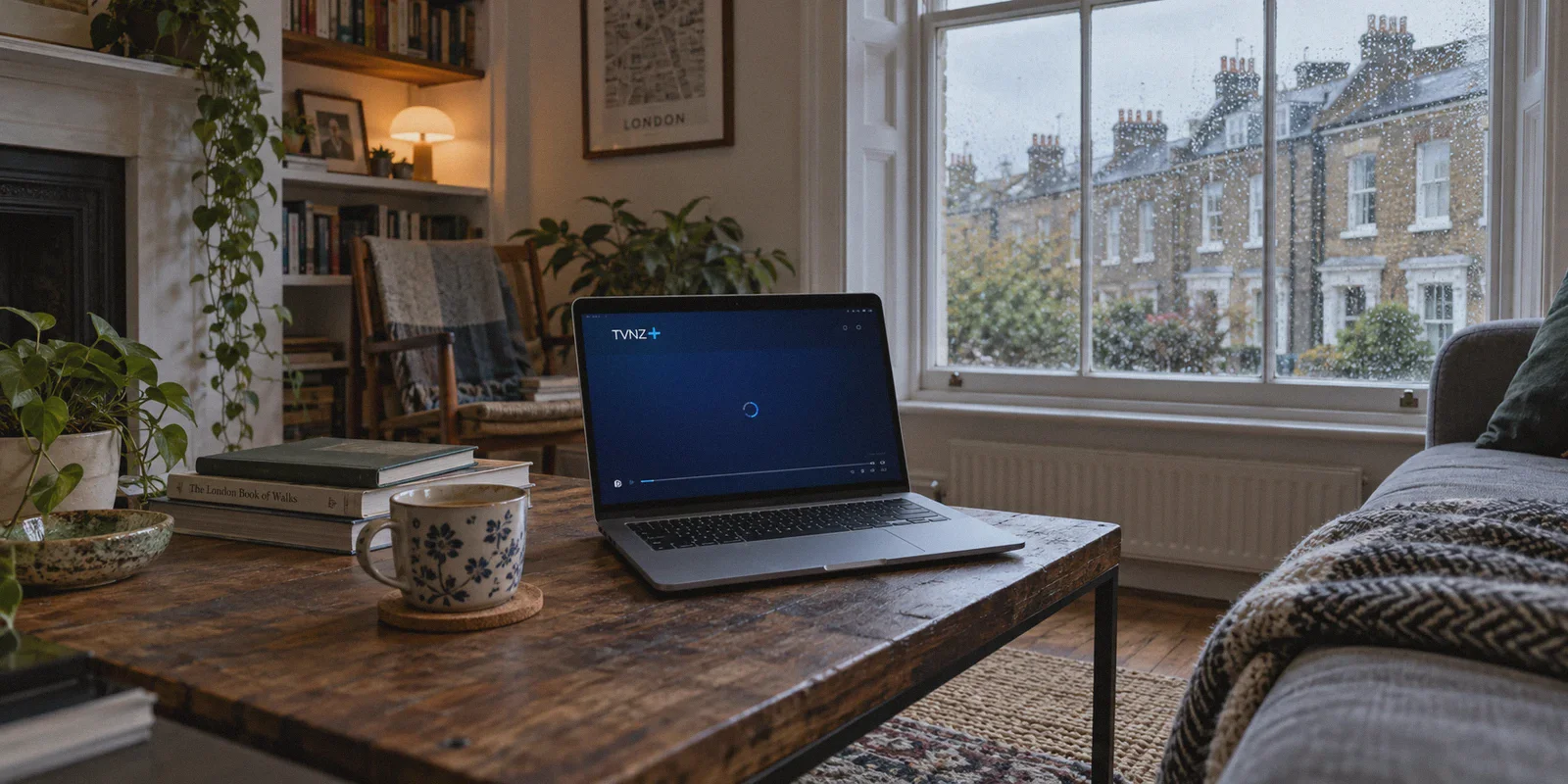
If you have ever tried opening TVNZ+ from an apartment in London, a hotel in Melbourne, or a desk in California, you already know the exact shade of blue that accompanies disappointment.
You sit down wanting to catch up on Shortland Street, stream the Black Caps, or binge a UK drama that New Zealand somehow gets completely for free, click play, and get greeted by a brick wall:
"Whoops! Looks like you’re trying to watch from outside New Zealand. TVNZ+ is only available within New Zealand."
So you do what anyone with common sense does: you fire up a standard VPN, switch your location to Auckland, refresh the page, and expect it to work.
Except half the time, it doesn't.
Instead of your show starting, the video player either sits there spinning indefinitely, throws an obscure playback error (like Error 2001), or detects the proxy anyway and kicks you right back to the warning screen.
Getting TVNZ+ to work outside New Zealand isn't as simple as toggling any random VPN switch. But once you understand what TVNZ’s detection system is actually looking for—and why New Zealand’s internet geography makes streaming tricky—it takes less than four minutes to fix.
Here is how to get around the block and stream TVNZ+ reliably from anywhere in the world.
Article summary and product fit
How can you make TVNZ+ work more reliably outside New Zealand?
This article recommends using a stable New Zealand route, connecting before opening TVNZ+, clearing old location state in a private window, and avoiding browser or app settings that expose the real location or interfere with playback.
Key points from this article
- Best for: Viewers abroad who can reach TVNZ+ but hit geo-block, proxy, loading, or playback errors.
- Core issue: The article focuses on shared datacenter IP detection plus the extra latency and packet loss of long-distance routes to New Zealand.
- Preparation: Connect first, then open a private browser window or relaunch the mobile app so old cookies and location state do not win.
- Product fit: OnlyDogs VPN is presented here for its Streaming preset, HTTP/3-based transport, traffic obfuscation, weak-network recovery, and multi-device login.
- Important limit: A VPN does not remove browser GPS permissions, broken ad-blocker behavior, or the physical latency of a very long route; those still need to be handled separately.
Sources already cited in this article
Product link cited in this article: OnlyDogs VPN official website.
Why TVNZ+ Blocks 90% of Standard VPNs
Most free streaming platforms (like BBC iPlayer in the UK or 9Now in Australia) run geo-blocking filters, but TVNZ+ is notoriously stubborn for two specific reasons that catch everyday users off guard.
1. New Zealand’s Limited Datacenter Footprint
Unlike the US or Europe, where VPN providers can rent thousands of IP addresses across dozens of competing server farms, New Zealand is an island nation with a relatively small, concentrated pool of commercial datacenters (mostly clustered in Auckland and Wellington).
Streaming platforms like TVNZ keep an active blacklist of commercial server ranges. When hundreds of users stream through the same generic datacenter IP, TVNZ flags the whole block within hours. If your VPN only has one or two cheap, static New Zealand nodes, you will run into a wall almost immediately.
2. The 12,000-Kilometer Latency Trap
New Zealand sits at the bottom of the Pacific. If you are watching from Europe, the Americas, or Asia, your connection is traveling through trans-oceanic undersea cables over thousands of miles.
Standard VPN protocols add heavy encryption overhead on top of that distance. If your connection suffers minor packet drops or micro-delays during the initial handshake, TVNZ’s video player simply times out before the DRM license even authorizes the video stream. You end up staring at a black loading rectangle thinking the server is dead, when in reality your tunnel just choked on the distance.
What You Actually Need to Stream TVNZ+ Abroad
To watch TVNZ+ without interruptions, your connection has to clear three hurdles simultaneously:
- An IP address that looks like a regular home connection: It cannot trip TVNZ's commercial proxy alarms.
- A low-overhead, anti-censorship protocol: It must stay stable across massive geographical distances without buffering or dropping frames.
- Zero protocol footprints: The traffic must blend in with ordinary secure web browsing so ISPs and streaming firewalls don’t throttle the stream.
This is why generic free VPNs and outdated legacy setups fail. They are fine for opening a text webpage, but they fall apart when asked to deliver a live, encrypted HD video stream across the Pacific.
Why OnlyDogs VPN Is Built for This Exact Problem
If you don’t want to spend your evening diagnosing network logs or manually testing twenty different server addresses, OnlyDogs VPN is designed to cut out the busywork entirely.
Instead of presenting you with a confusing menu of raw server ports, tunneling protocols, and technical toggles, OnlyDogs organizes everything around Scenario Presets.
Here is why it works cleanly with TVNZ+:
1. Dedicated "Streaming" Preset
You don’t have to guess whether to pick TCP or UDP, or search through obscure setting menus. You click the Streaming preset, select New Zealand, and the software automatically routes your traffic through optimized, high-bandwidth streaming pathways designed specifically to bypass media geo-restrictions.
2. HTTP/3 & Custom Traffic Obfuscation
TVNZ and major streaming providers use automated deep-packet inspection (DPI) to identify signature VPN traffic. OnlyDogs uses modern HTTP/3 transport architecture and proprietary traffic obfuscation. Your connection looks to TVNZ like ordinary, encrypted web traffic from a local Kiwi user, preventing the dreaded "Proxy detected" flag.
3. Weak-Network and Packet Recovery
When streaming from halfway around the globe, network jitter is inevitable. OnlyDogs features built-in weak-network resilience that quickly recovers from packet loss without forcing your player to freeze or your session to disconnect.
4. Passwordless, Pain-Free Multi-Device Setup
Typing complex 20-character passwords on a Smart TV or streaming box is miserable. OnlyDogs uses clean email verification codes for login, making it dead simple to get up and running across Windows, macOS, Android, iPhone, and TV boxes in minutes.
👉 Get OnlyDogs VPN and Start Streaming TVNZ+
Step-by-Step: How to Watch TVNZ+ Outside NZ in 4 Minutes
TVNZ+ is completely free to watch, but it does require a free registered account. Here is the exact order to set things up so you don't trip any regional flags.
Step 1: Fire Up OnlyDogs VPN
Download and install OnlyDogs on your device (laptop, phone, or tablet). Open the app, select the Streaming preset, and connect to New Zealand.
Step 2: Open an Incognito / Private Browser Window
This is the single step most people skip. If you visited the TVNZ website earlier without a VPN, your browser already saved cookies and cache telling the site you are in London, Sydney, or Los Angeles.
- Open an Incognito / Private Window in your browser (or clear your browser cookies for
tvnz.co.nz).
Step 3: Register a Free TVNZ+ Account
Head over to the official TVNZ+ website (tvnz.co.nz).
-
Click Log In / Register in the top-right corner.
-
Enter your email, set a password, and provide your birth year.
-
When asked for a New Zealand Postcode, you can enter any valid 4-digit Kiwi postal code:
-
Auckland Central:
1010 -
Wellington:
6011 -
Christchurch:
8011 -
Verify your email address if prompted.
(Note: TVNZ+ will never ask you for a credit card. If you see a payment screen, you are on a phishing site or a fake ad. The real platform is 100% free.)
Step 4: Hit Play
Browse the catalog, pick your show or live channel, and hit play. Because you are routed through OnlyDogs’ streaming-optimized NZ path, the stream will initialize without the geo-restriction pop-up.
3 Common Mistakes That Cause TVNZ+ to Freeze
If you ever run into a hitch, 99% of the time it comes down to one of these three minor slip-ups:
1. Browser Location Services Leaking Your Real GPS
If you are streaming on a laptop using Google Chrome or on a smartphone browser, the browser might ask: "TVNZ wants to know your location."
- Always click Block or Don’t Allow.
- If you allow location access, your browser hands TVNZ your physical GPS coordinates directly from your device hardware, bypassing your VPN entirely.
2. Aggressive Third-Party Ad-Blockers
TVNZ+ is a free platform funded by short commercial breaks. If you have an aggressive browser extension (like an old ad-blocker script) running that blindly blocks TVNZ's video ad scripts, the TVNZ video player will refuse to load the actual show and stall on a black screen.
- Disable third-party browser ad-block extensions on
tvnz.co.nz. - Let OnlyDogs handle safe DNS-level protection without breaking the video player's ad-handshake scripts.
3. Launching the App Before Turning on the VPN
If you use the TVNZ+ mobile app on iOS or Android, make sure OnlyDogs VPN is connected before you launch the TVNZ+ app. If the app is already idling in your background apps, swipe it away, force-close it, connect the VPN, and reopen it fresh.
The Verdict
You don't need a New Zealand cable subscription, and you certainly don't need to miss out on local Kiwi sports, news, and drama just because you’re living or traveling abroad.
The geo-block on TVNZ+ looks intimidating, but it is just a simple IP and latency checkpoint. Pair a free TVNZ account with a reliable connection that doesn't advertise itself as a proxy, and the entire catalog opens right up.
Get your connection set up, grab a cup of tea, and enjoy the show.
👉 Unlock TVNZ+ with OnlyDogs VPN
Frequently Asked Questions
Why can TVNZ+ still block a connection after the IP is changed?
The article says TVNZ+ can reject shared commercial datacenter IP ranges, while long-distance packet loss or handshake delays can also lead to loading or playback errors.
Why does TVNZ+ sometimes keep loading even when the VPN is connected?
Old cookies, browser location permissions, long-distance network jitter, or aggressive ad-blocking extensions can interfere with the session even after the route has changed.
What setup order does the article recommend?
Connect the VPN first, use a private or freshly cleared browser session, register or sign in to TVNZ+, and only then start playback. On mobile, force-close the TVNZ+ app before reconnecting and reopening it.
Can a VPN fix every TVNZ+ playback problem?
No. The article specifically notes that browser GPS access, incompatible ad-blocking, app state, and the realities of long-distance network latency can still cause problems.