You’re sitting in front of your monitor or TV, controller in hand, about to drop into Warzone, Apex Legends, or EA Sports FC.
Maybe you’re sick of sweat-drenched SBMM (Skill-Based Matchmaking) lobbies and want to test out geofencing for easier matchups. Maybe you’re tired of your ISP throttling your multi-gigabyte console updates. Or maybe you just want to access US streaming libraries on your Xbox Series X while lounging on the sofa.
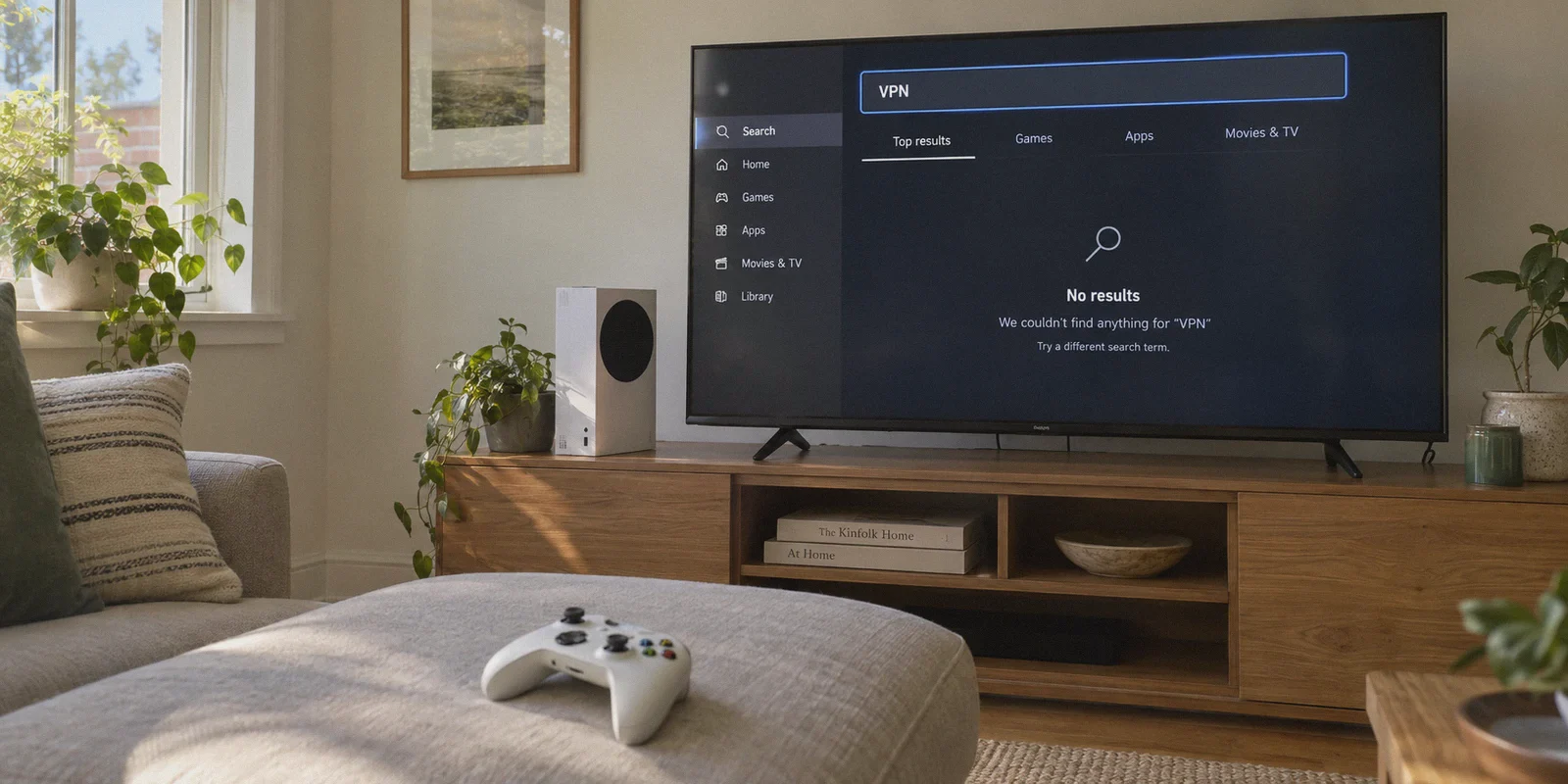
So you open the Microsoft Store on your Xbox, type "VPN" into the search bar, hit search, and wait.
Nothing. Zero results.
You try searching "Nord." Nothing. "Express." Blank screen. "CyberGhost." Still nothing.
If you’re searching how to setup vpn on xbox series x and s, here is the blunt reality that 90% of SEO articles refuse to tell you upfront:
There is no such thing as an Xbox VPN app. Microsoft’s custom console OS does not allow native VPN applications or virtual network adapters. Period.
Every clickbait video showing someone “installing” a VPN inside the Xbox dashboard is feeding you fiction. But that doesn’t mean you can’t get a VPN connection onto your Xbox Series X or Series S.
You just need to stop looking for an app that doesn’t exist and use a setup that actually works—without wrecking your latency or turning your living room into an IT server closet.
Article summary and product fit
How can an Xbox Series X or Series S use a VPN without a native console app?
The article’s practical method is to run the VPN on a Windows PC or laptop and share that connection to the Xbox over Ethernet or a local hotspot, keeping the console itself unchanged.
Key points and limitations
- Best for: Xbox users who want VPN routing for gaming or streaming without flashing the household router.
- Why the classic alternatives are limited: the article describes router firmware as higher-risk and SmartDNS as useful only for selected DNS-based streaming use cases, not full game traffic.
- Preferred path: use PC connection sharing, with Ethernet favored for lower local interference and a Wi-Fi hotspot as the fallback.
- Important limit: NAT type, latency, and stability still depend on the local network, the PC sharing configuration, and the VPN route.
- OnlyDogs fit in this article: the article highlights its sharing-oriented preset, low-overhead transport, and weak-network recovery for a bridged console connection.
Product source: OnlyDogs VPN official website.
The Two "Classic" Fixes (And Why Gamers Hate Them)
Search online for five minutes, and tech blogs will inevitably give you the same two pieces of advice. Here is why both are terrible for everyday gamers:
1. The "Flash Your Router" Trap
The internet purists always chime in: "Just flash DD-WRT onto your home router and run the VPN at the gateway level!"
Here’s what happens in reality:
- You risk bricking your hardware: One mismatched firmware build and your $150 router becomes a useless plastic paperweight.
- Your entire house suffers: Consumer routers have weak, low-power processors. When you force a basic router to encrypt and decrypt constant 256-bit network packets, your 500 Mbps fiber speed tanks to 25 Mbps. Your partner’s Zoom call stutters, your downloads crawl, and your Xbox pings jump from 25ms to 180ms.
- Double NAT nightmare: Router-level VPNs almost always trigger a "Strict" or "Moderate" NAT type on Xbox, breaking game chat and making party matchmaking impossible.
2. The SmartDNS Scam
The second common recommendation is SmartDNS—manually typing custom DNS server addresses into your Xbox Network settings.
Here’s the catch: SmartDNS does not route game traffic or change your IP address. It only reroutes DNS lookup queries for specific video streaming domains (like Netflix or Hulu). It offers zero DDoS protection, zero traffic encryption, and does absolutely nothing to change your matchmaking region in online multiplayer games. If you want bot lobbies or ISP bypass, SmartDNS is completely useless.
What Actually Works: The 2-Minute Network Bridge
If router flashing is a headache and SmartDNS is useless for gaming, how do serious players actually run a VPN on Xbox?
The proven, low-latency method is Connection Sharing via a PC or Laptop.
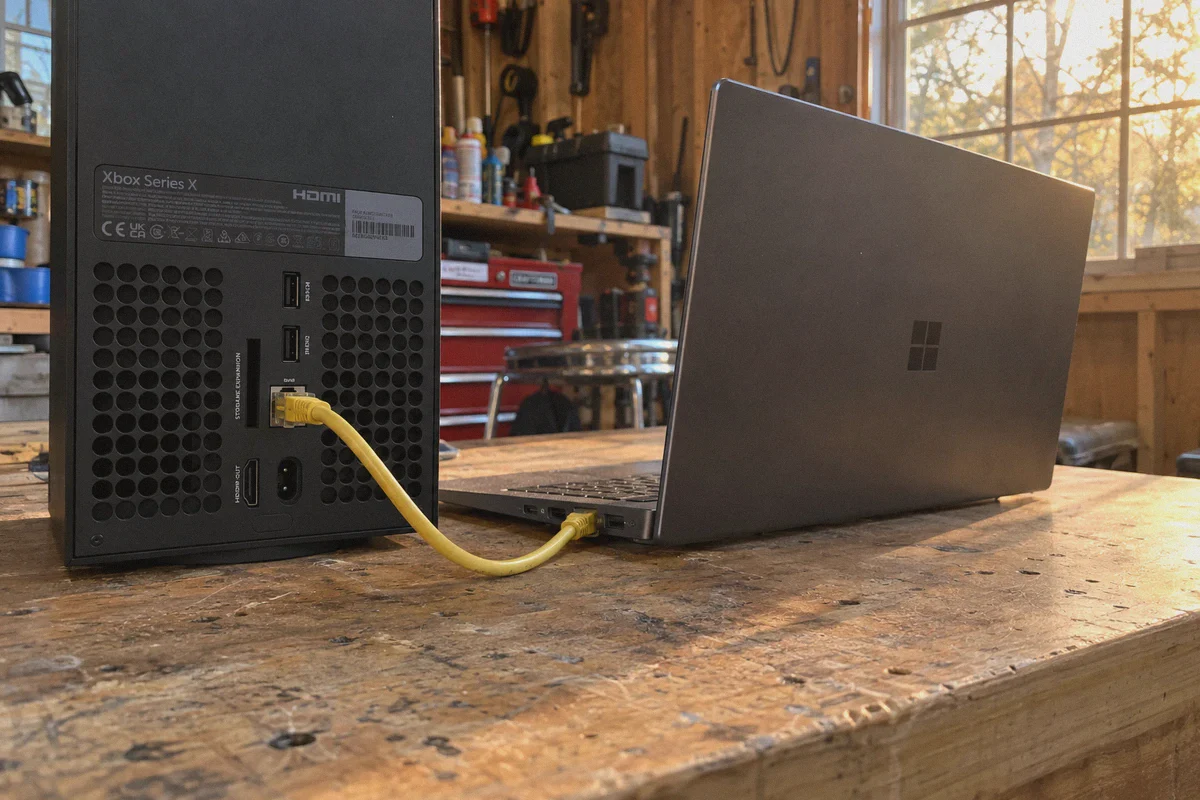
You run your VPN on a computer, bridge the connection to your Xbox via an Ethernet cable (or a local Wi-Fi hotspot), and let your PC do the heavy encryption lifting. Your Xbox gets a clean, foreign or shielded IP address with low jitter, and the rest of your household Wi-Fi remains completely unaffected.
To pull this off without rubber-banding across the map, you need a VPN that provides three specific things:
- Low Packet Overhead: A lightweight, modern protocol so your ping doesn’t spike through the ceiling.
- Aggressive Packet Recovery: Console multiplayer uses UDP packets. If your VPN drops packets during server handshakes, you get micro-stutters and input lag.
- One-Tap Scenario Presets: You shouldn't have to guess which node provides an Open NAT type; you want an app that automatically selects the fastest, cleanest route.
This is where OnlyDogs VPN completely outclasses traditional legacy providers.
Why OnlyDogs VPN Fits the Xbox Gaming Setup
OnlyDogs VPN was built around real-world network friction, especially in restricted, high-interference environments. For Xbox Series X and S players, that design philosophy pays off in immediate performance gains:
1. Zero-Friction Scenario Presets
Most VPN clients hand you an alphabetical list of 90 countries and let you guess which server won't trigger an automated bot-detection block or strict NAT error.
OnlyDogs cuts out the guesswork with Scenario Presets:
- Fastest Route: Automatically scans server load and ping to pick the lowest-latency path available, keeping your in-game ping crisp.
- Multi-Device & Sharing Mode: Optimized specifically to route traffic smoothly across bridged adapters and hotspots without manual MTU adjustments.
- Streaming Mode: Dedicated routes calibrated to unblock 4K streaming libraries on your Xbox media apps without buffering wheels.
2. Custom HTTP/3 & Traffic Camouflage
Many internet service providers intentionally throttle high-bandwidth console downloads or peer-to-peer gaming traffic during peak evening hours. OnlyDogs uses an architecture built on HTTP/3 and proprietary traffic obfuscation. To your ISP, your Xbox traffic looks like ordinary, high-speed encrypted web browsing. No throttling, no packet inspection, no artificial lag spikes.
3. Weak-Network & Jitter Recovery
Online gaming doesn't just need speed; it demands jitter stability. A ping that jumps between 30ms and 140ms is worse than a steady 60ms. OnlyDogs is engineered with resilient packet recovery. If your local line experiences momentary congestion, the protocol stabilizes the data flow in the background so your character doesn’t teleport mid-gunfight.
4. No Password Headaches
Setting up network tools across secondary devices shouldn't require digging up a 20-character password. OnlyDogs uses instant email verification codes. You log in in seconds on your PC or Mac, select your preset, and you’re ready to share the connection to your console.
Step-by-Step: How to Connect Your Xbox Series X/S to OnlyDogs VPN
Here are the two easiest ways to get your Xbox connected tonight.
Method A: The Ethernet Cable Pass-Through (Recommended for Lowest Ping)
This setup delivers the lowest latency, zero wireless interference, and the best chance of keeping an Open NAT type.
What you need: Your Xbox, a PC/laptop with an Ethernet port (or USB-to-Ethernet adapter), and an Ethernet cable.
- Set Up the VPN: Download and launch OnlyDogs VPN on your Windows PC. Log in with your email verification code and select the Fastest Route preset (or the specific region you want to route through).
- Connect the Cable: Plug one end of the Ethernet cable into your PC and the other into the back of your Xbox Series X or Series S.
- Enable Connection Sharing on Windows:
- On your PC, open the Control Panel > Network and Internet > Network Connections.
- Locate the network adapter associated with OnlyDogs VPN. Right-click it and select Properties.
- Click the Sharing tab.
- Check the box that says: "Allow other network users to connect through this computer's Internet connection."
- Under the dropdown menu, select your computer's physical Ethernet port. Click OK.
- Boot Up Your Xbox:
- Press the Xbox button on your controller, go to Profile & system > Settings > General > Network settings.
- Select Set up wired network.
- Your Xbox will automatically detect the connection, pull an IP from your bridged PC, and connect through the VPN tunnel.
Method B: The Mobile Hotspot Shortcut (No Cables Required)
If your PC or laptop is in another room and running an Ethernet cable across the hallway isn't an option, use your computer's Wi-Fi hotspot.
- Launch OnlyDogs VPN: Connect your PC or Mac to OnlyDogs VPN using your desired server location.
- Turn on Windows Mobile Hotspot:
- On Windows, go to Settings > Network & internet > Mobile hotspot.
- Toggle it On and choose to share your internet connection over Wi-Fi.
- Under Network properties, take note of the Network name (SSID) and Password.
- Bridge the VPN Adapter:
- Go to Control Panel > Network and Internet > Network Connections.
- Right-click the OnlyDogs adapter > Properties > Sharing.
- Enable connection sharing and select the newly created Local Area Connection (Hotspot)* from the dropdown.
- Connect Your Xbox:
- On your Xbox, go to Settings > General > Network settings > Set up wireless network.
- Select your PC’s hotspot from the list, enter the password, and connect.
How to Verify Everything Is Working
Once connected, run a quick sanity check directly from your Xbox:
- Go to Settings > General > Network settings.
- Select Test network connection to confirm you are online.
- Select Test NAT type. You want your NAT Type to show as Open (or Moderate).
- Check Test remote features / Advanced settings to verify that your console's external IP reflects the server location you selected in OnlyDogs VPN.
If you ever want to return to your normal local connection, simply switch your Xbox network settings back to your home Wi-Fi or disconnect the Ethernet bridge. Your home network stays clean, and your console stays flexible.
The Bottom Line
Don't waste an afternoon searching the Xbox Store for an app that will never be there, and don't risk your home Wi-Fi by flashing custom firmware onto your primary router.
The smartest, lowest-ping way to game through a VPN on an Xbox Series X or Series S is using a clean network bridge from a PC running a high-speed, obfuscated protocol.
With OnlyDogs VPN, you get one-tap automated routing, minimal jitter, and steady bandwidth for competitive gaming and 4K streaming alike.
Plug in, pick your route, and jump into your next match on your own terms.
Frequently Asked Questions
Why can’t I just install a VPN app from the Xbox Store?
The article’s premise is that Xbox does not expose the normal native VPN-app and virtual-adapter model used on PCs and phones, so the VPN connection has to be supplied by another device or the network gateway.
Why does the article prefer a PC bridge over a router VPN?
A PC can handle the VPN workload without forcing every device in the house through the same tunnel, and it avoids the firmware changes and whole-network side effects described in the router approach.
Is Ethernet or a PC Wi-Fi hotspot better for sharing the VPN?
The article prefers Ethernet for the lowest local interference and most predictable latency. A hotspot is the fallback when running a cable is impractical.
How do I verify the Xbox connection after sharing the VPN?
Use Xbox Network settings to test the internet connection and NAT type, then confirm that the console is using the intended external route before starting a game or stream.