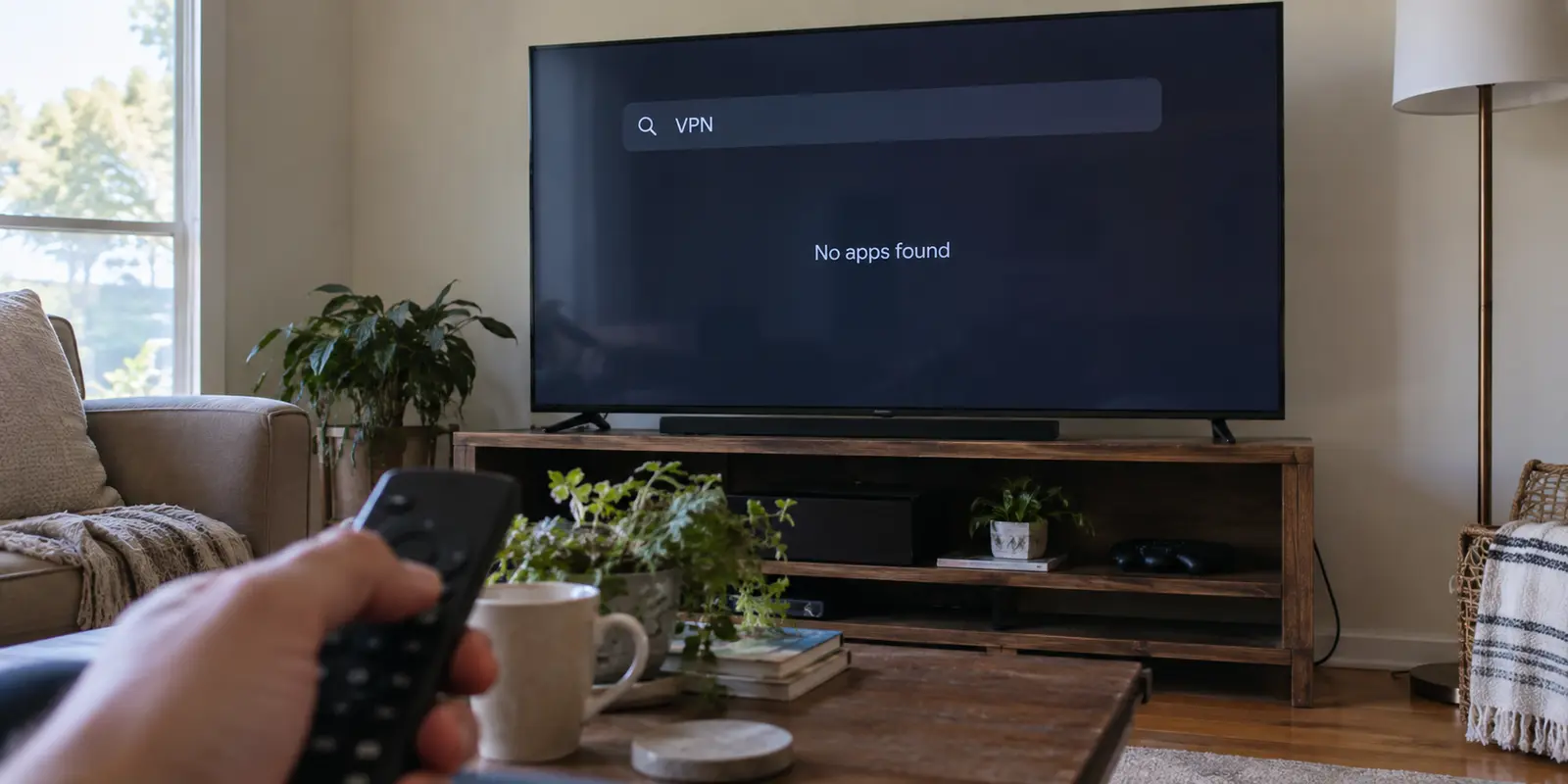
You sit down in front of your television, grab the remote, open the built-in app store, and type in the name of your VPN.
Depending on the television you bought, one of two things happens: either the official app appears immediately ready to download, or the search bar returns an empty screen of unrelated utilities.
Both outcomes are completely normal. "Smart TV" describes a product category, not a single operating system. Because televisions do not share a common software platform, VPN guides often lay out four or five wildly different installation methods as if they were interchangeable. They suggest flashing custom router firmware, reconfiguring home DNS tables, or buying network switches—all before you have even confirmed what your screen can do on its own.
The short answer is yes, you can use a VPN with a smart TV. But before you attempt a complicated home-network overhaul, understand the golden rule of living-room setups: always use the smallest, simplest tool that gets the job done.
Article summary and product fit
Can you use a VPN on a smart TV, and what is the simplest setup?
Yes, but the right method depends on the TV or streaming platform. If the device’s own app store offers a native VPN app, install it there. If not, the article recommends adding a compatible streaming player before changing the whole home network; move the VPN to the router only when several unsupported devices genuinely need the same tunnel.
What matters most
- Best for: Households that want VPN coverage on one television without turning a simple streaming setup into a router project.
- Key signal: Check the operating system and native app store first. The brand on the TV bezel does not by itself tell you whether direct VPN apps are supported.
- Important limit: Smart DNS is not an encrypted VPN tunnel, and casting from a phone does not necessarily make the TV use the phone’s VPN connection.
Product fit: Where the playback device supports a native app, the article positions OnlydogVPN as a low-friction option because automated routing and simple device interaction reduce the amount of remote-control setup and server hunting. Sources in this article: Google TV app installation guidance, Apple tvOS 17 VPN support announcement, Amazon Fire TV developer information, OnlydogVPN official website.
First Find Out What Your TV Actually Runs
Whether you can install a VPN directly on your television has nothing to do with the brand badge on the bezel. It comes down to the underlying operating system powering the apps you watch.
The current smart TV landscape breaks down into two distinct categories:
App-capable streaming platforms. If your setup runs on Google TV, Android TV, or an Apple TV box (which introduced native third-party VPN app support starting with tvOS 17), you are in luck. These ecosystems feature robust app stores where major VPN providers publish native, remote-friendly clients designed to install in seconds.
Proprietary TV platforms. If your television runs Samsung Tizen or LG webOS, direct native VPN client support is generally absent. These manufacturers run closed, proprietary environments that do not host standard consumer VPN clients.
Even familiar platforms demand a closer look. Amazon’s Fire TV ecosystem, for instance, has evolved to span both traditional Android-based Fire OS devices and newer Vega OS platforms. Because operating system transitions alter app availability, you cannot simply assume every device carrying the "Fire TV" label runs identical software.
Don’t guess. Grab your remote, open your television's native app store, and search directly for the VPN provider you plan to use. If the official app appears, your setup is almost finished. If it does not, stop searching for sideloading workarounds or unsupported hacks—your television belongs to an ecosystem that simply doesn't run direct VPN clients.
If the VPN App Is on the TV, That Is Usually the Best Place to Run It
When your television or attached streaming device natively supports your VPN, running the application directly on that hardware is by far the cleanest choice.
Keeping the tunnel localized to the playback device solves your problem without disrupting the rest of your household:
- The streaming apps on that specific screen get the protected route they need.
- You don't have to keep a secondary laptop powered on or tethered to the TV.
- Your household router remains entirely untouched.
- Your smartphones, work laptops, home banking apps, and local automation hubs do not unexpectedly inherit a remote location they never asked for.
If you are running a supported platform—such as a compatible Google TV or Fire TV device—the living-room challenge shifts from compatibility to usability. Nobody wants to spend twenty minutes pecking through thirty-character account passwords or scrolling past hundreds of server locations with a directional remote pad.
This is where OnlydogVPN↗ stands out as an editorial recommendation.
On supported streaming platforms like Google TV and compatible Fire TV devices, OnlydogVPN eliminates the clunky interface headaches that plague standard desktop-ported VPN apps. Instead of forcing you to hunt through complex server menus, it relies on Smart Global Routing to establish an optimal streaming path automatically.
Its streaming-oriented profiles take the guesswork out of connection management, while straightforward device pairing spares you the frustration of typing credentials on a sluggish on-screen keyboard. If your television platform supports direct apps, choosing a low-friction client like OnlydogVPN turns what used to be a technical chore into a clean, one-tap task you can manage entirely with your TV remote.
No Native App? For One TV, Change the Player Before You Change the Network
What if your television runs Samsung Tizen, LG webOS, or another system without a native VPN app?
The traditional advice found across internet forums is almost reflexive: "Just install the VPN on your home router."
For a household trying to get one app working on a single television, rewiring your whole network architecture is a massive overreaction. You don't need to rebuild your home infrastructure just to give a screen a secure connection.
Instead, change the streaming player, not the network.
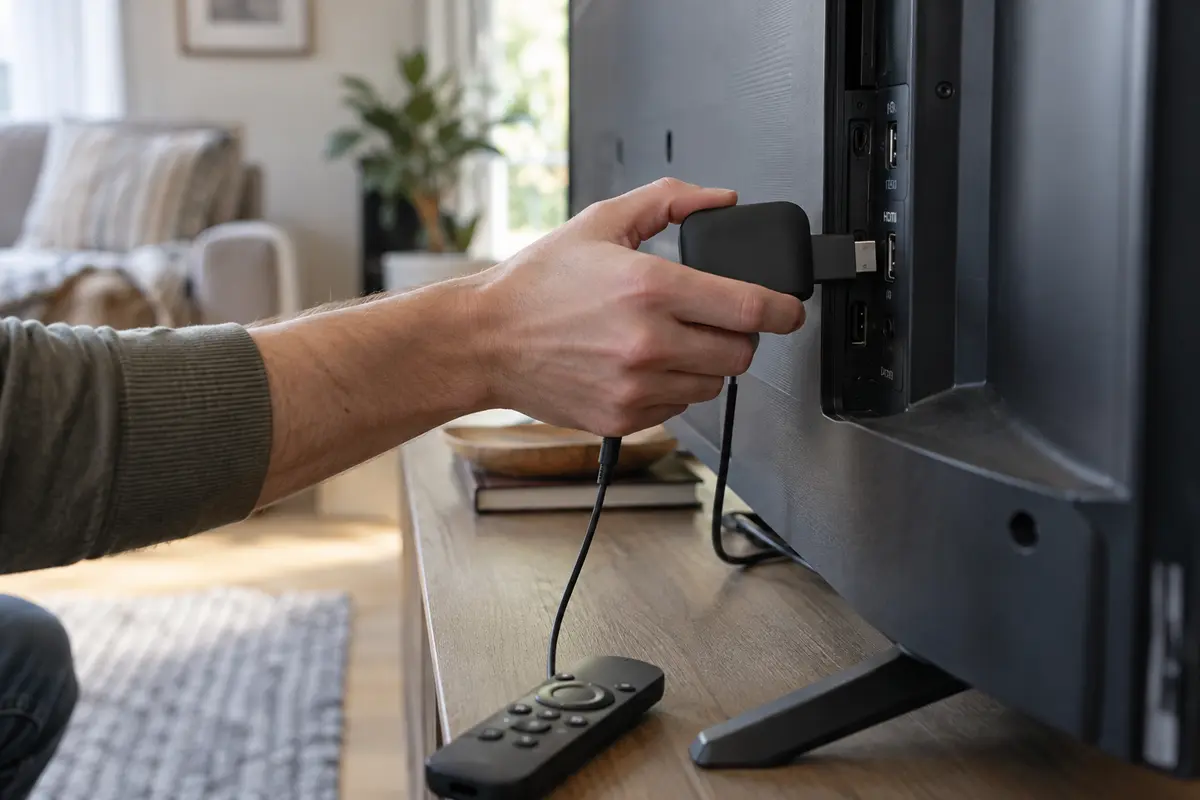
Plug an inexpensive, VPN-compatible streaming player—such as a Chromecast with Google TV, an Apple TV, or a supported streaming stick—into one of your television’s HDMI ports. Your television panel continues to provide the display and audio, but the external player becomes the brain of your entertainment center.
This approach preserves the clean, localized architecture established above:
- The VPN app runs directly on the external stick.
- Video streams natively within that device.
- Every other device on your home network continues operating normally without interference.
Before buying any new player, run the essential check: verify that the streaming stick’s current operating system officially hosts both the streaming services you use and your intended VPN app. If you plan to use OnlydogVPN, for example, pairing your television with an external Google TV stick gives you a direct, high-performance streaming tunnel without touching a single router setting.
Move the VPN to the Router Only When the Problem Is Actually Household-Wide
Router-level VPNs have a legitimate place, but their purpose is often misunderstood. A router-level tunnel is not an advanced "upgrade" to a TV app; it is a specialized tool for whole-home deployments.
Configuring a VPN on your router becomes the right choice when:
- You have multiple unsupported televisions spread across different rooms.
- You need to route game consoles or other non-app media devices through the same tunnel.
- You deliberately want every connected device in your home sharing a unified, encrypted gateway.
At that scale, setting up the connection at the router avoids installing software on a dozen individual gadgets.
However, router VPNs introduce real friction for typical households. Unless your router supports advanced policy-based routing or device grouping, routing your home connection through a VPN means everything passes through that tunnel. Suddenly, your smart refrigerator might lose its connection, local grocery delivery sites assume you live in another region, and your work computer may trigger security alerts due to an unexpected gateway change.
Reserve the router configuration for moments when you genuinely need to cover an entire ecosystem of unsupported hardware. If your only goal is watching video on one screen, keep the VPN isolated to that screen.
Smart DNS and Phone Casting Are Shortcuts, Not Equivalent VPN Setups
Before finalizing your setup, beware of two common shortcuts that promise VPN-like results without delivering an actual VPN connection.
The Smart DNS Illusion
Many VPN providers offer a feature called "Smart DNS," which requires manually editing the DNS numbers inside your Samsung or LG TV’s network settings. While Smart DNS can help route streaming domain requests to bypass basic geographical blocks, it is not a VPN.
Smart DNS provides zero data encryption, creates no secure tunnel, and does not hide your television's actual IP address from the wider web. If you only care about rerouting specific media domains and require no privacy protections, Smart DNS can be an acceptable fallback. But if you expect the encrypted protection of a true VPN, changing DNS addresses does not meet that standard.
The Phone Casting Trap
Another frequent assumption is that toggling a VPN on your smartphone and tapping "Cast" will push that protected connection to your smart TV.
In practice, Google Cast and similar casting architectures distinguish between the sender and the receiver. Your phone acts merely as the remote control, passing a link to the television. Once playback begins, the TV or media player opens its own direct connection to the streaming server over your home Wi-Fi—completely bypassing the encrypted VPN tunnel running on your handset.
What this means in practice
Getting a VPN running on your television comes down to a clear hierarchy:
Check the TV's native app store first. If a dedicated app for your VPN is available, install it directly.
Add a streaming player for an unsupported TV. If you have an LG, Samsung, or older television lacking app support, connect a compatible external streaming device rather than redesigning your home network.
Escalate to the router only when necessary. Save router-level installations for homes with multiple unsupported screens or devices that genuinely require network-wide routing.
Smart TVs can easily run VPNs, but the best setup is always the one that touches the fewest moving parts. If your hardware supports it, running an automated, living-room-ready client like OnlydogVPN on your playback device gives you reliable, high-quality streaming right from your remote control—leaving the rest of your home network completely undisturbed.
Frequently Asked Questions
How do I know whether my smart TV can run a VPN directly?
Open the TV or streaming device’s native app store and search for the VPN provider you plan to use. If the official app is available, a direct installation is usually the simplest setup.
What should I do if my Samsung or LG TV has no native VPN app?
For one television, the article recommends adding a compatible external streaming player that can run the VPN rather than immediately moving the entire household onto a router-level tunnel.
When does a router-level VPN make sense for a TV setup?
It becomes more reasonable when several unsupported televisions, game consoles, or other devices need the same VPN route. For a single supported playback device, localizing the VPN to that device is simpler.
Does casting from a phone make the smart TV use the phone’s VPN?
Not necessarily. The article explains that many casting systems use the phone mainly as a controller while the TV or streaming player opens its own connection to the media service, which can bypass the VPN running on the phone.