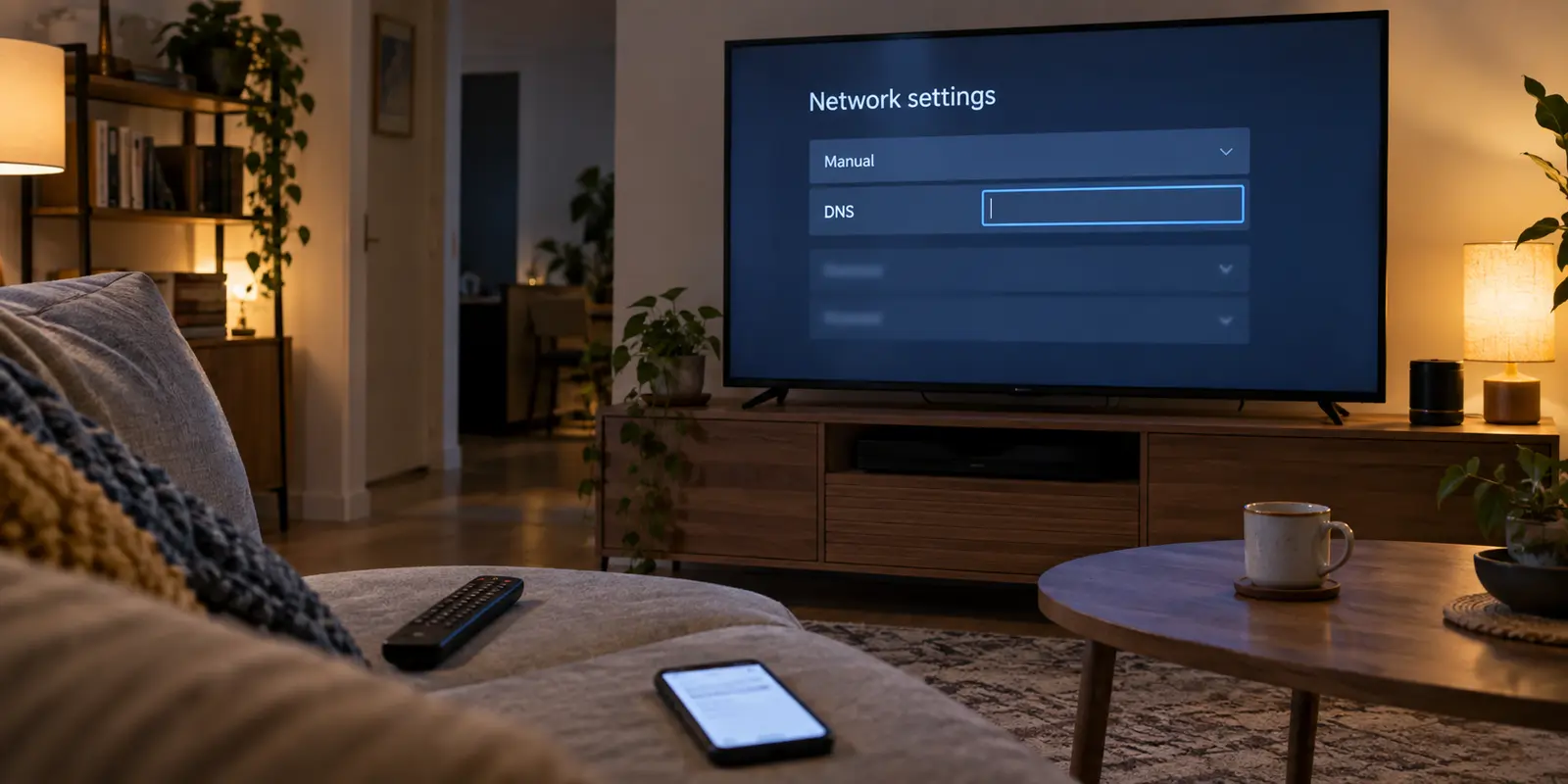
You are sitting on your sofa with your TV remote, staring at an advanced network configuration screen. You have found the manual IP settings, the cursor is blinking inside the empty "DNS" box, and you have a tutorial open on your phone showing two numerical addresses ready to copy.
Before you type a single digit, put the remote down.
The common belief among living-room streamers is that Smart DNS is simply the lighter, faster version of a VPN—a clever shortcut that unblocks regional catalogs without the overhead of encryption. Under this assumption, picking Smart DNS seems obvious: your smart TV has a DNS field right there in the settings, so changing those numbers should instantly make your television think it lives in another country.
That is not how commercial Smart DNS works.
Smart DNS is not an invisible, system-wide country toggle tucked away inside a network address. It is a highly specialized, provider-maintained proxy service. Before you touch your television's network settings or purchase a subscription, the first move is never entering addresses. The first move is opening the provider’s documentation and checking whether your exact streaming service and desired regional catalog are explicitly supported.
Article summary and product fit
Should you use a VPN or Smart DNS on a smart TV?
Start with the exact streaming service and region you need. Smart DNS is a provider-maintained, service-specific feature rather than a universal country switch, while a VPN is the more flexible option when the playback device supports a VPN app or when you need encryption and broader location choice.
What matters here
- Best for: Smart-TV viewers deciding whether to edit DNS settings, install a VPN app, or move playback to another device.
- Key point: Check the Smart DNS provider’s supported-service list before changing the TV’s DNS; an editable DNS field does not mean every streaming service is supported.
- Product fit: If the TV cannot run a VPN app and Smart DNS does not support the required service, the article positions OnlyDogsVPN on a supported laptop or phone used with HDMI or casting.
- Important limit: Smart DNS does not provide VPN-style encryption or arbitrary location selection, and OnlyDogsVPN is not presented here as a native client for proprietary smart-TV systems such as Tizen or webOS.
Source context: NordVPN Support — What is SmartDNS?; Surfshark Support — SmartDNS feature discontinued. Product source: OnlyDogsVPN official website.
Start with the stream you want, not the DNS box
Almost every smart TV sold today—whether running Samsung’s Tizen, LG’s webOS, Google TV, or Apple tvOS—allows you to manually edit its DNS server. That empty input field creates the illusion of universal capability.
However, commercial Smart DNS is fundamentally service-specific. If your provider has not actively configured its servers to intercept and handle the specific domain queries used by the streaming platform you want, entering those DNS addresses changes nothing for that app.
NordVPN’s official SmartDNS documentation illustrates this boundary clearly: it publishes a defined list of supported streaming services, noting specific target catalogs (such as US-specific platforms), and explicitly cautions that SmartDNS will not automatically work with every service accessible through its full VPN network.
If the platform you want to watch is absent from that verified list, typing a Smart DNS address into your TV is a waste of time. The TV will simply resolve the streaming service’s servers normally through the provider's standard DNS, leaving you with the exact same regional error you started with.
Always begin with three concrete questions:
- Which specific streaming app do you need to access?
- Which country’s catalog are you trying to unlock?
- Does the provider explicitly document active Smart DNS support for that combination today?
Smart DNS is a maintained streaming feature, not a mini VPN
To understand why Smart DNS has such strict boundaries, you have to separate network routing from domain resolution.
A standard VPN builds an encrypted tunnel from your playback hardware to a remote server. Every packet leaving your device passes through that tunnel, taking on the IP address and location of the VPN server you deliberately chose.
Smart DNS takes a much narrower path. It does not encrypt your connection, and it does not re-route your general internet traffic. Instead, it looks only at your DNS requests. When your smart TV attempts to connect to a supported streaming platform, the Smart DNS server intercepts those specific queries and proxies them through a server in the target country. The heavy video stream itself still flows directly over your regular internet line.
This narrow scope explains both its strength and its limitations. ExpressVPN’s MediaStreamer documentation lays these operational trade-offs out in plain English:
- It is not a VPN: It provides no privacy protection or cryptographic encryption.
- It is not a country selector: You cannot open a menu on your TV and casually switch your location from the United Kingdom to Germany, Canada, or Japan.
- It requires network authorization: Your home network’s public IP address must be registered and kept up-to-date in your provider’s dashboard for the service to recognize and process your queries.
When Smart DNS works, it is remarkably convenient. On hardware like a Samsung TV—where entering manual DNS addresses in the network menu is straightforward—it delivers streaming access on a big screen without demanding specialized software. But it remains a curated viewing feature, not a versatile networking tool.
The provider stays part of the setup
Once you configure a manual IP setting on your television, you might assume you never have to think about it again. But Smart DNS requires ongoing backend maintenance from both you and the provider.
The maintenance never really disappears
First, because Smart DNS operates without an authenticated user login on the TV itself, the provider validates your traffic using your home internet connection's public IP address. ExpressVPN explicitly notes that if your ISP dynamically reassigns your IP address, or if your home router reboots, your MediaStreamer connection breaks until your new public IP is re-registered via your account page or a companion app.
Second, provider support is never static. On February 2, 2026, Surfshark officially discontinued its SmartDNS feature, advising users to remove the manual DNS entries from their devices because leaving stale, decommissioned addresses in place could prevent TVs from accessing the internet altogether.
This shift highlights an essential buying reality: Smart DNS compatibility is an ongoing operational commitment by the provider, not a permanent property of your hardware. If a provider decides the feature no longer justifies the engineering cost of constantly chasing streaming service domain updates, your TV setup collapses overnight.
When flexibility matters more than a support list
When you step back from the television settings, the real dividing line becomes clear: flexibility.
A native VPN is the better architectural choice whenever your streaming needs expand past a single, provider-curated catalog:
- You want the freedom to pick arbitrary server locations (e.g., toggling between European, North American, and Asian regions).
- The streaming service you want is missing from the Smart DNS provider's compatibility list.
- You are streaming on hardware that natively supports VPN applications.
- You want whole-device encryption, protecting your viewing data and account activity across the network.
On modern streaming gear, running a VPN no longer requires complex router configurations. Platforms running Google TV, Android TV, Amazon Fire OS, and Apple TV (via tvOS 17+) feature native app stores where commercial VPN clients—such as Proton VPN—can be installed and controlled directly with a remote.
When the TV itself is the limiting device
If your television runs a proprietary system (such as Samsung Tizen or LG webOS) and Smart DNS does not support the specific catalog you want, entering manual network tweaks will not solve the problem. In that situation, the most reliable move is offloading the stream to a device designed to run software.
This is where OnlydogVPN fits on the desktop and mobile side of the setup.
OnlydogVPN focuses squarely on low-friction client software for iPhone, Android, macOS, and Windows. Rather than attempting to support obscure smart-TV firmware or requiring you to manage dynamic DNS registries, it is built for direct, hands-off streaming on personal hardware.
For someone using a laptop connected to a television via HDMI—or streaming directly from a phone or tablet—OnlydogVPN eliminates the configuration headache that drove users toward Smart DNS in the first place:
Smart Global Routing: Instead of forcing you to hunt through server rosters to find an unblocked node, its routing engine automatically selects an optimal, high-throughput path for your stream.
Zero Technical Setup: It removes manual protocol toggles and DNS registration entirely, offering one-tap streaming connectivity.
Network Stability: Its transport layer is engineered to absorb momentary packet drops, ensuring that 4K video feeds remain consistent without stalling.
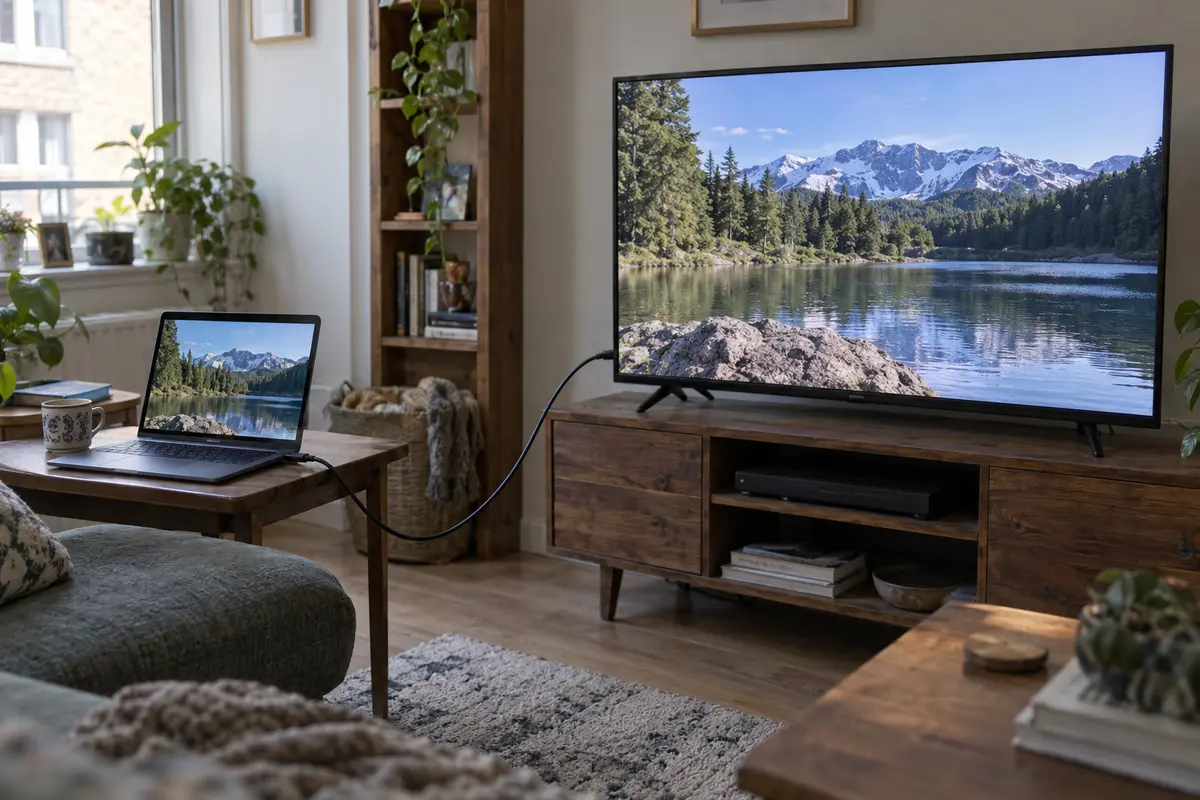
If your TV lacks native VPN app support and Smart DNS fails the service-compatibility check, let a supported computer or mobile device run OnlydogVPN, plug in an HDMI cable, and let your TV act as the display.
One check before buying anything
Stop treating the choice between a VPN and Smart DNS as an abstract debate about encryption speed. Make your decision based on your exact screen, your target service, and a quick check of the provider's documentation.
If the TV supports native VPN apps, a native VPN app gives you location choice and direct control from the remote without turning DNS settings into a project.
If the TV cannot run a VPN but the Smart DNS provider explicitly lists the exact service you want, Smart DNS is a reasonable way to get that supported stream onto the television without extra hardware.
If the TV cannot run VPN apps and the service is missing from the Smart DNS support list, I would stop editing DNS entries. I would run the VPN on a supported laptop or phone and use HDMI or casting instead.
And if I routinely switch among several regions, I would choose the VPN route rather than a Smart DNS product that does not offer arbitrary location switching.
The final decision is simple: Smart DNS is an effective, narrow workaround for a supported stream on an app-less television. A VPN is the tool you choose when you want the freedom to decide the route yourself.
Check the support list first—and only pick up the remote once you know the service on the other end is ready to handle your stream.
Frequently Asked Questions
Is Smart DNS just a faster, lighter VPN?
No. The article explains that Smart DNS handles selected DNS requests for supported services, while a VPN routes device traffic through an encrypted tunnel.
Will Smart DNS work with every streaming app on my TV?
No. Commercial Smart DNS support is service-specific, so the provider needs to document support for the exact streaming service and regional catalog you want.
What should I do if my TV cannot install a VPN and Smart DNS does not support my service?
The article recommends moving playback to supported hardware such as a laptop or phone and connecting that device to the TV with HDMI or casting instead of continuing to edit DNS settings.
Does Smart DNS encrypt my smart TV traffic?
No. The article treats lack of encryption as one of the important differences between Smart DNS and a full VPN connection.