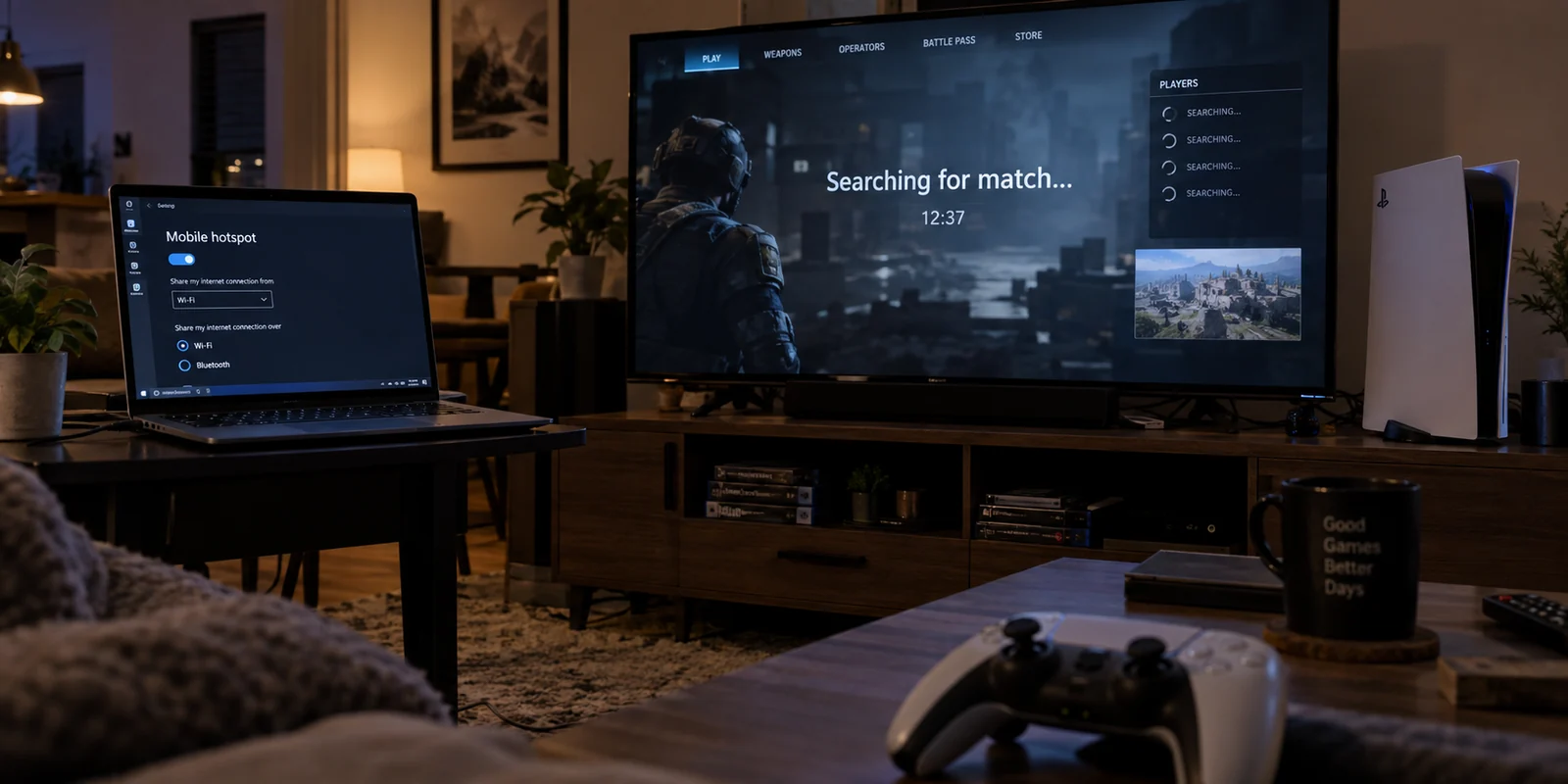
You power on your PS5, connect to the mobile hotspot hosted on your Windows laptop, and everything looks reassuringly green. The console pulls an IP address in seconds. Internet Connection shows “Successful.” PlayStation Network sign-in reads “Successful.” You can browse the PlayStation Store without a hitch, and a patch download starts pulling down gigabytes at a steady clip.
Then you launch a multiplayer game.
You queue for a match. The matchmaking spinner loops for two minutes, five minutes, ten minutes. Eventually, it times out with a vague network error code, drops you into an empty lobby, or refuses to connect you to your friends’ party.
The natural reflex is to assume the game is broken. Players start flushing their DNS, switching in-game server regions, toggling crossplay on and off, or uninstalling and reinstalling a hundred-gigabyte game file. When none of that works, they blame overloaded game servers.
Resist that urge. The fact that your console says “Internet Connection: Successful” while matchmaking completely stalls is not a contradiction—it is your single most valuable diagnostic clue. The issue is almost never the game data or your download speed. The issue is the specific network path your PC hotspot creates.
Article answer, fit and limits
Core answer
If a PS5 can sign in to PlayStation Network and download data through a Windows PC hotspot but matchmaking stalls, check NAT Type before changing game files or DNS. Windows Internet Connection Sharing adds another routing and NAT layer. A direct-connection A/B test reveals whether the PC hotspot, the upstream network, or the game itself is the real failure point.
Key points
- Best for: PS5 players whose console works for browsing and downloads through a Windows hotspot but shows NAT Type 3 or cannot find multiplayer matches.
- Key point: A successful internet test proves basic outbound access, not that peer-to-peer or session traffic can negotiate through every NAT boundary.
- Product fit: The article treats OnlydogVPN as something to test only when a VPN is genuinely required and the no-VPN hotspot baseline already works; the goal is to preserve a usable route without adding manual routing overhead.
- Important limit: A VPN is not a magic fix for hardware-level NAT, carrier-grade NAT, or an upstream firewall you do not control.
Sources cited in this article: For the networking layers involved, the article points to PlayStation support on NAT-dependent connectivity and Microsoft’s Internet Connection Sharing documentation; product context links to OnlyDogsVPN.
“Internet Successful” Does Not Mean “Multiplayer Path Successful”
To understand why this happens, you need to check one specific metric on your console before touching any game files.
Head to: Settings → Network → Connection Status → Test Internet Connection
Let the test complete. Scroll past the download and upload numbers—those tell you about throughput, not connectivity. Look closely at two specific lines:
- PlayStation Network sign-in
- NAT Type
If PlayStation Network sign-in itself fails, your console cannot talk to Sony's core infrastructure. That is an outright connectivity blackout. But if PSN signs in cleanly and your matchmaking still stalls, your eyes should go straight to the NAT Type.
On a PlayStation 5, NAT types generally break down into three categories:
- NAT Type 1 (Open): The console connects directly to the public internet with zero translation boundaries in between. This is rare and usually only happens when a console connects straight to an unmanaged modem.
- NAT Type 2 (Moderate): The console sits behind a standard home router. Traffic translation is handled cleanly, and the console can freely negotiate connections with other players. For 95% of players on a home network, Type 2 is the gold standard—it means matchmaking works as intended.
- NAT Type 3 (Strict): The console is stuck behind a restrictive network path. Outbound browsing and downloads still function, but the console struggles or outright fails to establish the direct, peer-to-peer or voice/session handshakes that multiplayer lobbies require.
Publishers are very clear about this distinction. Epic Games’ official guidance for titles like Rocket League explicitly warns that NAT problems routinely interfere with joining matches and party lobbies, identifying Type 3 as a condition that severely limits player-to-player connectivity.
Sony’s own support documentation for Remote Play makes the same point: NAT Type 3 can actively block connectivity-dependent features from functioning.
Before you go down a rabbit hole, eliminate two quick false positives: verify that the game's servers aren't suffering a widespread service outage, and check basic in-game settings. Epic, for instance, notes that turning off cross-platform play in Fortnite will drastically inflate queue times or leave you stranded in matchmaking.
If server status is green and settings are normal, remember this core rule: reaching the internet to pull data down is not the same as having an open path to negotiate real-time multiplayer connections.
The PC Hotspot Is Another Router, Even Though It Looks Like Wi-Fi
Why does a PC hotspot so frequently trigger this issue when your home Wi-Fi does not?
When you connect your phone or console to a Windows 10 or Windows 11 Mobile Hotspot, it feels like you are simply connecting to a Wi-Fi extender. In reality, Windows does something much more invasive.
Under the hood, Windows Mobile Hotspot relies on Internet Connection Sharing (ICS). As Microsoft's networking documentation explains, ICS does not merely mirror a wireless signal; it provisions an internal translation layer, dynamic address assignment, and name-resolution services.
In plain English: your Windows PC becomes an active router and network gateway.
Instead of a clean, direct path from your console to the router, your network structure now looks like this:
[ Internet ]
     │
     ▼
[ Upstream Gateway / Wi-Fi Router ]  (NAT Layer 1)
     │
     ▼
[ Windows PC / Mobile Hotspot ]      (NAT Layer 2)
     │
     ▼
[ PlayStation 5 ]
When your PC is already connected to a standard home router, campus network, or cellular hotspot, sharing that connection creates a nested translation environment. The PS5 is forced to sit behind an extra translation boundary that the PC itself does not have to endure.
This structural difference explains why running a speed test on the laptop tells you almost nothing about your console's multiplayer health. The laptop sits on the upstream network and can communicate outward unhindered. The PS5, however, is sequestered behind Windows ICS.
Furthermore, as Microsoft notes in its systems documentation, ICS is designed for bare-minimum consumer connection sharing—it lacks the robust UPnP handling and port negotiation options of an enterprise or dedicated gaming router. If an incoming multiplayer handshake knocks on the door, Windows often has no idea what to do with it, so it simply drops the packet. The result is a persistent NAT Type 3.
Run One A/B Test Before Changing Anything Else
Rather than guessing which setting in Windows or your router is misbehaving, run one quick A/B test. The goal is simple: isolate whether the PC hotspot itself is creating the roadblock.
Leave your PS5 settings, game account, and server regions alone.
Note the Baseline on the PC Hotspot
With the PS5 connected to the Windows hotspot, run the connection test. Note the NAT Type (likely Type 3) and attempt to search for a game in your chosen title. Confirm that the matchmaking queue stalls.
Remove the PC from the Middle
Now, take the Windows laptop out of the chain entirely.
Connect the PS5 directly to the same Wi-Fi network or Ethernet connection that the laptop was using. If you are in a dorm, hotel, or office where that isn't possible, tether the PS5 directly to your smartphone’s personal hotspot instead as a control test.
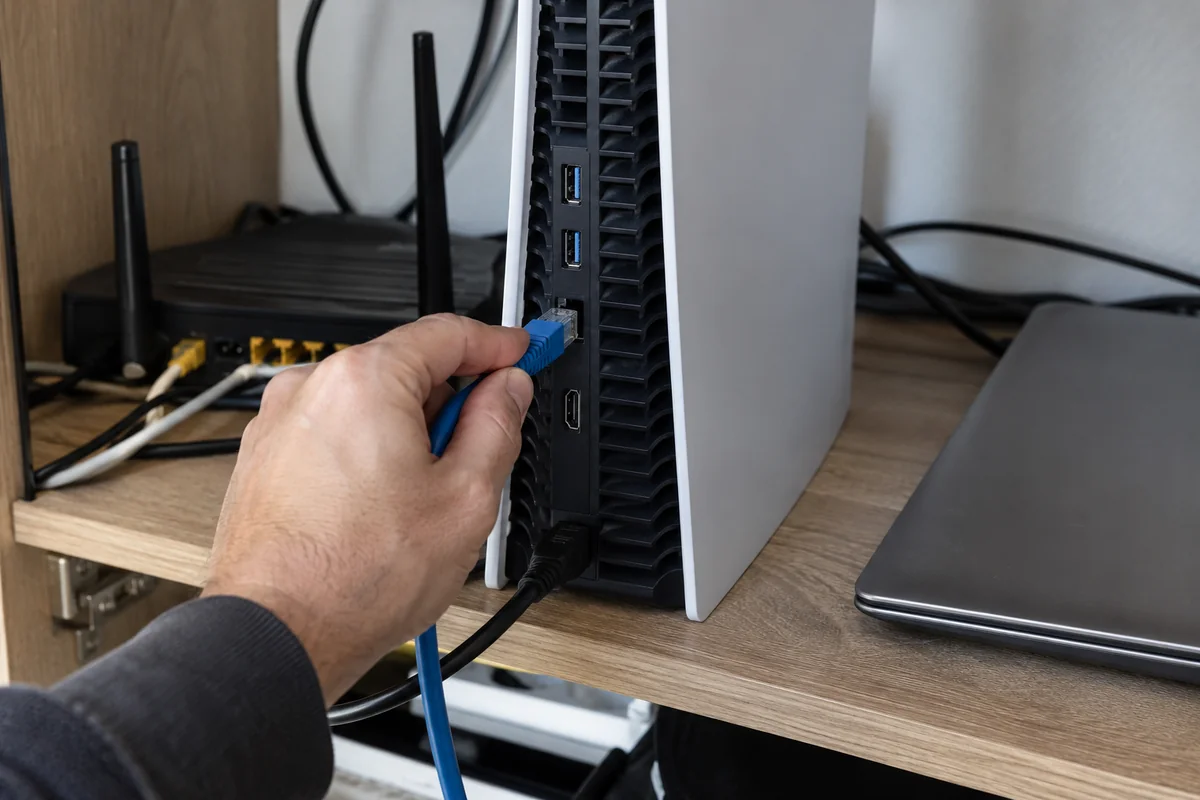
Run the PS5 connection test again.
Interpret the Result
Scenario A (The Decisive Result): On the direct connection, the PS5 shows NAT Type 2 and drops into a match within thirty seconds. On the PC hotspot, it shows NAT Type 3 and spins forever.
Verdict: Stop troubleshooting your game, your PSN account, and your DNS. The Windows hotspot topology is the sole failure point.
Scenario B (The Upstream Restriction): Both the direct connection and the PC hotspot yield NAT Type 3, and matchmaking stalls on both.
Verdict: The Windows PC is innocent. The restriction lives further upstream—inside the main building router, a campus firewall, or your cellular provider's carrier-grade NAT (CGNAT).
Scenario C (The Game-Specific Quirk): Both connections show NAT Type 2, other multiplayer games find lobbies instantly, but one specific game sits in an infinite queue.
Verdict: The network path is healthy. Investigate that specific game’s server operational status, playlist activity, regional matchmaking filters, or crossplay settings.
This five-minute comparison eliminates hours of blind fiddling.
Fix the Failed Layer—And Only Add a VPN If You Actually Need One
Once the A/B test reveals where the breakdown occurred, apply the fix to the layer that actually failed.
If Bypassing the PC Fixes the Problem
If connecting directly to your home router gives you NAT Type 2 and working lobbies, the simplest, most reliable fix is to keep the PC out of the loop. Connect your console directly via Wi-Fi or Ethernet whenever you want to play multiplayer games. Do not waste an afternoon manually tweaking DNS numbers on the console; changing a DNS address does not eliminate an extra NAT layer.
If NAT Type 3 Persists Everywhere
If even a direct connection results in NAT Type 3, the block is upstream. If you own the primary router, logging into its administrative panel to verify that UPnP (Universal Plug and Play) is enabled often clears the restriction. If you are living on a university campus, in an apartment complex with shared internet, or relying on mobile cellular broadband, the network administrator or cellular carrier controls that boundary.
No amount of tinkering in Windows settings will bypass a restriction enforced by upstream hardware you cannot access.
If the Hotspot Works—Until You Turn On a VPN
There is a specific scenario that catches many players off guard: the PS5 matchmaking works fine through the PC hotspot on a normal internet connection, but the moment a VPN is turned on at the PC level, matchmaking instantly breaks and NAT drops to Type 3.
First, verify this by turning the PC VPN completely off. If matchmaking immediately recovers, the VPN route is your variable. If you do not have a compelling security or geographic reason to run a VPN while gaming, the cleanest advice echoes official troubleshooting from publishers like EA: disable the VPN for multiplayer sessions.
However, if you must use a VPN on the PC—perhaps because you are tethered to untrusted public Wi-Fi in a hotel, or your local ISP arbitrarily throttles gaming traffic—you need a VPN client that manages complex routing without introducing brittle configuration overhead.
This is where OnlydogVPN becomes an effective tool to test.
Rather than forcing users to manually diagnose complex protocol tunnels, OnlydogVPN provides a streamlined desktop client on Windows designed to reduce connection friction on challenging networks. Its Smart Global Routing automatically identifies stable, optimized transit paths, preventing the awkward routing dead-ends that older, legacy VPN clients frequently produce when combined with Windows Internet Connection Sharing.
The editorial recommendation here is precise: use OnlydogVPN to clean up an unstable or throttled routing path—not as a magic wand to bypass hardware-level NAT restrictions.
Establish your working baseline without a VPN first. Then, connect OnlydogVPN on your PC, re-enable the mobile hotspot, test the PS5 connection, and search for a lobby. If the automated routing preserves a workable multiplayer connection, you have a setup that gives you the protection or routing benefits of a desktop VPN without breaking your console’s ability to find teammates.
Stop Troubleshooting When the Topology Answers the Question
Troubleshooting home networking becomes exhausting only when you treat every failure as a mystery requiring twenty different fixes.
Keep your stopping rules clear:
[ PS5 Matchmaking Stalls on PC Hotspot ]
                   │
         Run Connection Test
                   │
    ┌──────────────┴──────────────┐
    ▼                             ▼
NAT Type 2                    NAT Type 3
    │                             │
Check Game Status,            Test PS5 on Direct Router / Phone
Crossplay & Region            (Remove PC Hotspot)
                                  │
                   ┌──────────────┴──────────────┐
                   ▼                             ▼
            Direct is Type 2              Direct is Type 3
                   │                             │
        Bypass the PC Hotspot!            Upstream Problem
        (Windows ICS is the culprit)      (Router UPnP / ISP CGNAT)
If testing your PS5 on a direct connection drops you straight into a match with NAT Type 2, you are done. The PC hotspot is creating a nested gateway that Windows ICS cannot properly translate for real-time game traffic. Stop tweaking console settings and play on the direct route.
The ultimate benchmark of success is never an arbitrary speed-test graph or obsessing over achieving a rare NAT Type 1 badge. The real benchmark is much simpler: PSN signs in, your NAT sits at a workable Type 2, your party lobby opens, and you finish a full match without the connection collapsing.
Once you hit that mark, put the settings menus away and enjoy the game.
Frequently Asked Questions
Why can my PS5 say the internet is successful but still fail to find matches?
Basic browsing and downloads can work through a restrictive path that still blocks the connection handshakes multiplayer sessions need. That is why NAT Type is more useful than raw download speed for this specific symptom.
How does a Windows PC hotspot change the PS5 network path?
Windows Mobile Hotspot uses Internet Connection Sharing, so the PC acts as another gateway. If the PC is already behind a router or cellular network, the PS5 can end up behind an extra NAT layer.
What A/B test tells me whether the PC hotspot is the problem?
Record the PS5 NAT Type and matchmaking result on the PC hotspot, then connect the console directly to the same upstream network or to a phone hotspot as a control. If the direct path becomes NAT Type 2 and matchmaking works, the Windows hotspot is the decisive variable.
Should I add a VPN to fix NAT Type 3?
Only after establishing a working baseline and only if you have a real security or routing reason to use one. If NAT Type 3 persists even without the PC hotspot, the restriction is upstream and a VPN should not be treated as a hardware-level NAT bypass.