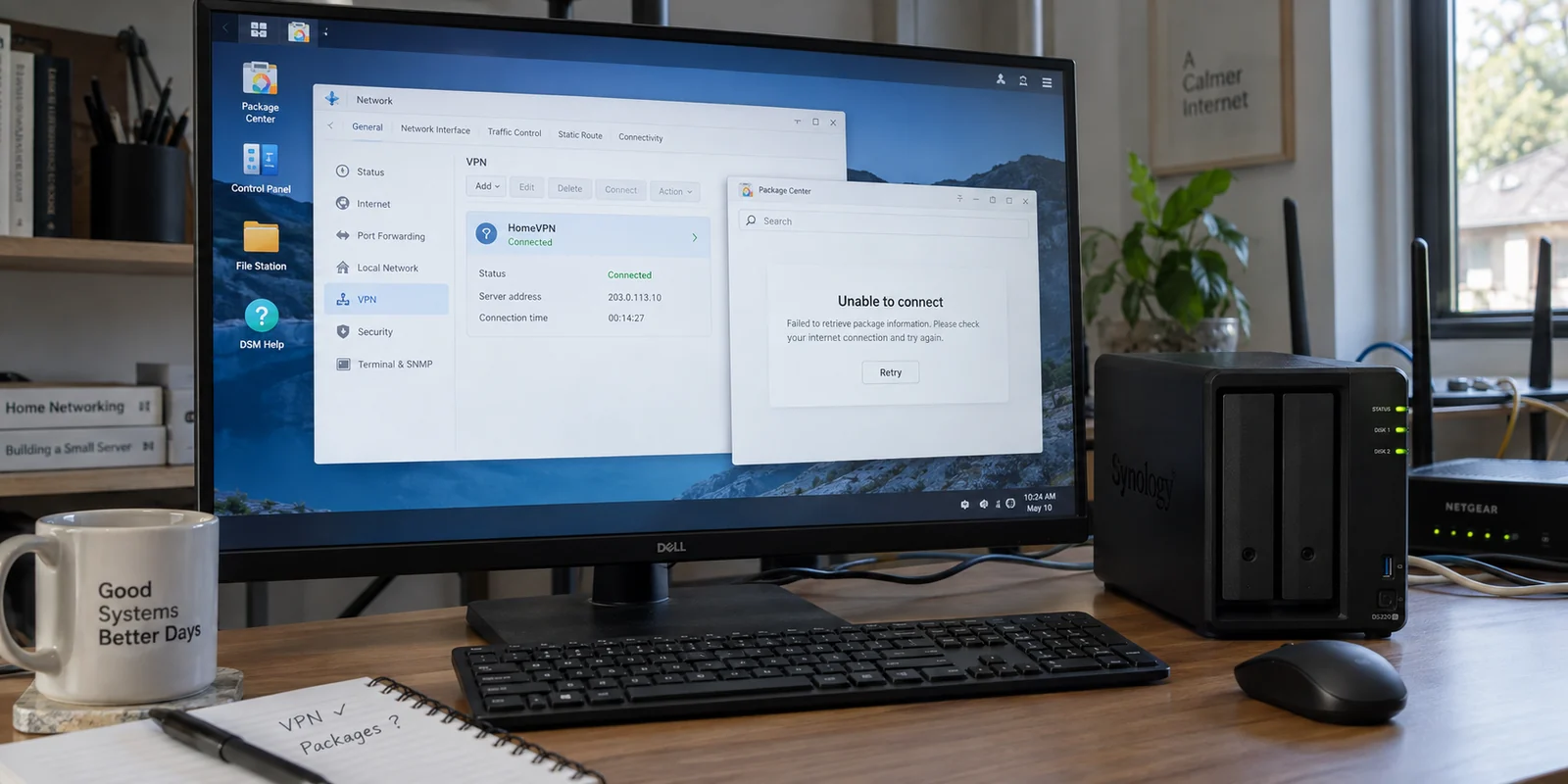
You open DiskStation Manager (DSM), glance at your network interface, and see a crisp green status indicator reading Connected.
Yet something has completely broken down.
In one scenario, the moment that connection goes live, Package Center refuses to load, Download Station grinds to a halt, and your cloud backups fail. In another scenario, you are sitting in a hotel room with your laptop connected to your home Synology, able to browse your shared folders, but completely unable to open a single webpage or check your email.
Both scenarios prompt the exact same frantic search: “Synology VPN connected but no internet.”
However, jumping straight into tweaking DNS addresses, opening random router ports, or editing firewall rules will only dig a deeper hole. That familiar green badge does not mean one single thing. Before you touch a single network configuration, you need to answer one decisive question: Who is the VPN client, and who is the VPN server?
Article answer, fit and limits
Core answer
When Synology shows a VPN as connected but internet access fails, first identify the topology: is the NAS connecting outward as the VPN client, or is a remote laptop connecting inward to the NAS as a VPN server? If the NAS itself loses internet, test the default-gateway choice. If the remote client can reach DSM but not the web, inspect whether the profile is using split tunneling or sending all traffic through the home gateway.
Key points
- Best for: Synology users facing a green VPN status while either NAS-originating services or a remote client's general internet access has stopped.
- Key point: The same 'connected but no internet' phrase describes two opposite routing problems, so the client/server direction must be identified before changing DNS, firewall, or port settings.
- Product fit: The article recommends an endpoint VPN such as OnlydogVPN when the real goal is protecting a laptop or phone's web traffic while keeping the NAS focused on storage access.
- Important limit: If a NAS-hosted workload itself requires a commercial VPN exit, the VPN still belongs on the NAS and should use a DSM-compatible provider profile rather than being moved to an endpoint.
Sources cited in this article: The article grounds its Synology-specific steps in Synology’s outbound VPN guidance, Synology’s DDNS note, and Synology’s VPN Server client guidance, with a DSM setup example from Proton VPN; product context links to OnlyDogsVPN.
Who Connected to Whom?
The phrase "Synology VPN" actually covers two completely opposite network topologies. The fix for one will do nothing for the other.
[ Setup A: NAS is the Client ]
Synology NAS  ──(Outbound VPN)──►  Commercial VPN Provider  ──►  Internet
(Package Center, Hyper Backup, and NAS-originating traffic are routed outward)

[ Setup B: NAS is the Server ]
Laptop / Phone  ──(Inbound VPN)──►  Synology VPN Server (Home LAN)  ──►  Internet?
(Remote client connects inward to reach home files; may lose external browsing)
The NAS Connects Outward
- The Route: Your Synology NAS connects outward to a commercial or private VPN provider.
- Where It Lives: DSM manages the connection directly under Control Panel → Network → Network Interface.
- The Symptom: The NAS says the VPN profile is connected, but services originating from the NAS itself—Package Center, Container Manager image pulls, Hyper Backup cloud tasks, or automated updates—suddenly lose access to the internet.
A Remote Device Connects Inward
- The Route: Your phone, tablet, or laptop connects from an outside network back into your home network via the Synology VPN Server package.
- Where It Lives: The NAS acts as an inbound gateway to provide remote access to files and LAN resources.
- The Symptom: Your laptop connects to the home tunnel without error. You can see DSM or ping your home printer, but your web browsers, messaging apps, and general internet traffic freeze.
Do not proceed until you identify whether you are dealing with Setup A or Setup B. A DNS adjustment that makes sense when the NAS is an outbound client will do nothing if your laptop’s routing table is hijacked by an inbound profile.
If the NAS Went Offline, Check the Default Gateway First
If you are dealing with Setup A—your NAS is reaching outward to a VPN service—the culprit is almost never DSM’s internal networking stack.
Open your VPN profile in DSM and inspect one specific setting: Use default gateway on remote network.
This single checkbox dictates the entire routing behavior of your NAS. When it is enabled, DSM instructs the operating system to send all outbound internet traffic through the remote VPN server.
If that VPN tunnel is poorly configured, lacks functional DNS resolvers, or rejects certain outbound protocols, your NAS’s external connectivity immediately breaks.
To confirm this in under thirty seconds:
- Disconnect the VPN profile (or uncheck Use default gateway on remote network).
- Open Package Center or run an update check.
- If it loads immediately, your home network and your NAS hardware are fine. The issue was introduced strictly when DSM handed the default route to the VPN.
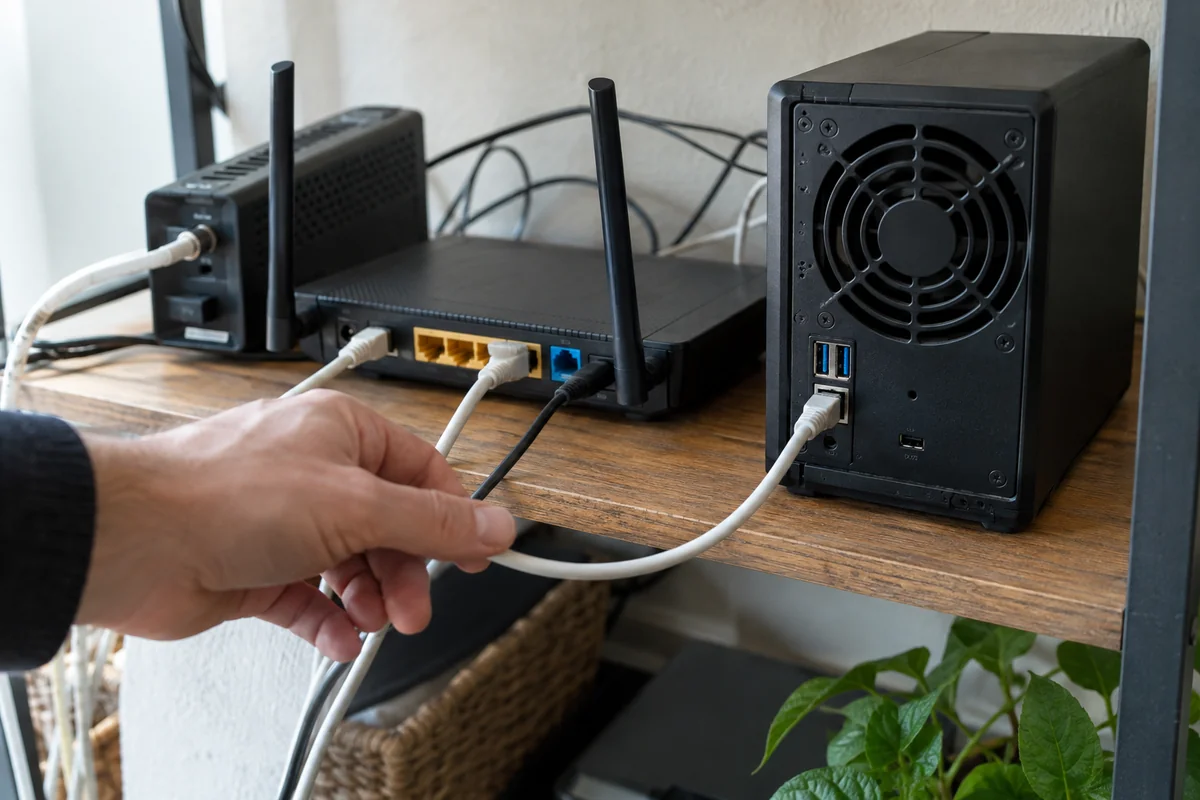
If you genuinely need your NAS to send outbound traffic through a VPN, resolve it systematically:
- Use a dedicated, provider-supplied Synology profile: Never cobble together an old
.ovpnfile intended for a generic Linux terminal. Synology explicitly notes that not all OpenVPN profiles are compatible with DSM. Choose a provider that maintains dedicated DSM setup guides and configuration files. Proton VPN, for example, explicitly publishes DSM-tailored OpenVPN profiles, complete with verified DNS configurations and service-order instructions designed to keep DSM packages communicating outward. - Watch out for the DDNS trap: If your outbound tasks (like downloading packages) are running fine over the VPN, but you suddenly cannot reach DSM from outside via your Synology DDNS address, your NAS is not actually offline. Synology highlights that routing all NAS traffic through a remote VPN changes the external-facing IP address of the machine, which naturally disrupts inbound DDNS tracking. That is an expected routing change, not a dropped connection.
If the Remote Laptop Lost Internet, Check Your Tunnel Scope
If you are dealing with Setup B—your traveling laptop or phone connected inward to Synology VPN Server and lost the web—the tunnel is clearly active. The issue is that the remote device handed its entire internet route to your home network without your home router knowing how to forward it back out.
When you export an OpenVPN configuration from Synology's VPN Server package, look at the client configuration file. By default, it contains a specific directive:
#redirect-gateway def1
Synology includes this commented out by design:
- With the
#intact (Split Tunneling): Only requests addressed to your home subnet (like192.168.1.xto view shared folders or access DSM) flow through the VPN tunnel. All normal web browsing continues to route over your laptop’s existing local Wi-Fi. - Removing the
#(Full Tunneling): Every single network request—from Spotify to Google Searches—is redirected through your home Synology NAS.
If your primary goal is simply to access your storage drives, view shared folders, or manage DSM while traveling, leave split tunneling active. Forcing your laptop's entire internet footprint through your home broadband connection when you only wanted to check a spreadsheet is unnecessary.
If you do intend to use full-tunnel mode (for example, to protect your browsing on open airport Wi-Fi), your home network must actually be configured to act as an outbound gateway. If your home router lacks the proper NAT forwarding rules or fails to pass DNS requests from the VPN subnet to the wider web, your laptop will remain trapped inside your home LAN with nowhere else to go.
Does the VPN Even Belong on the NAS?
Diagnosing routing headaches often reveals a more fundamental question: Is putting a commercial VPN directly onto the Synology NAS actually solving the right problem?
Take a step back and examine the actual objective:
The NAS Application Itself Needs the VPN
If you run specific containerized workloads, backup destinations, or sync tools directly inside DSM that legally or practically require a dedicated external VPN exit node, keeping the client inside DSM makes sense.
In this scenario, stick to specialized, infrastructure-compatible providers like Proton VPN that provide dedicated Synology configuration packages, vetted OpenVPN files, and established DNS parameters.
You Just Want to Protect Your Laptop While Accessing Your Storage
If you set up an outbound commercial VPN profile on DSM simply because you thought "my home network needs a VPN," or if you are running a complex inbound server just to shield your web sessions while working on files remotely, you have added massive routing fragility to a storage server.
A Synology NAS is designed to be an accessible, rock-solid central storage hub.
Forcing commercial VPN tunnels into DSM risks breaking package updates, breaking DDNS, and creating gateway loops.
If your real goal is protecting your computer or phone’s web traffic while keeping your Synology storage reliably reachable, move the VPN to your endpoint devices and leave DSM’s core networking alone.
Traditional headache. Phone/Laptop → Synology NAS (Struggling as Gateway/Client) → Broken Internet.
Streamlined architecture. Phone/Laptop → OnlydogVPN → Protected Web Access; Synology QuickConnect / Direct LAN → Stable NAS Access.
This is where a modern, consumer-facing tool like OnlydogVPN becomes the far smarter recommendation.
OnlydogVPN is built to run directly where your user sessions actually happen—on Windows, macOS, iOS, and Android. Instead of forcing you to edit text configurations, manage static routing tables, or troubleshoot nested gateways in DSM, OnlydogVPN relies on a clean, low-configuration design.
Its Smart Global Routing automatically manages traffic paths without manual intervention. By placing OnlydogVPN on your laptop or phone, your browsing, financial apps, and sensitive communications remain encrypted and protected across untrusted networks, while your local or remote connections to DSM proceed without interference.
Leaving the commercial VPN on your personal device keeps your storage server doing what it does best: reliably serving files without fighting dropped default gateways.
Stop When the Right Traffic Moves
Troubleshooting network routing is easy to overcomplicate. Success is never defined by a green status icon; it is defined by the right traffic reaching the right destination.
Keep your validation checks straightforward:
- For the NAS as a VPN Client: The VPN connects, but critical NAS services—Package Center, remote backups, and internal file transfers—must still function. If internet access drops the moment the VPN takes the default gateway, your provider’s profile or DNS configuration is flawed.
- For the Remote Client connecting into Synology: You can access DSM shared folders, while ordinary web browsing either flows cleanly out of your local network (split tunnel) or routes cleanly through your home gateway (verified full tunnel).
- For the Endpoint VPN Setup: OnlydogVPN encrypts your device’s internet traffic across untrusted public connections, while your Synology NAS remains cleanly accessible without having its own network stack upended.
The next time your dashboard flashes Connected while your connection sits dead in the water, resist the urge to flush your settings. Ask first: Which device is the client, which is the server, and whose default gateway just got hijacked? The answer will point you straight to the real fix.
Frequently Asked Questions
Why can Synology say the VPN is connected while there is no internet?
The tunnel can be established while the default route is wrong for the traffic you care about. The first diagnostic step is to determine whether the NAS is the outbound VPN client or a remote device is the inbound client.
What should I check if the NAS itself loses internet as soon as its VPN connects?
Inspect the DSM option that uses the remote network as the default gateway. Disconnecting the VPN or disabling that default route is a quick test: if Package Center or other NAS services immediately recover, the failure was introduced by the VPN route.
What if my remote laptop can reach DSM through Synology VPN Server but cannot browse the web?
Check the tunnel scope. A split tunnel sends only home-subnet traffic through the NAS, while a full tunnel sends all internet traffic home. Full tunneling only works if the home network is configured to forward and resolve that traffic correctly.
Does a commercial VPN need to run on the Synology NAS itself?
Only when NAS-hosted applications or workloads genuinely need that outbound VPN route. If the goal is simply to protect browsing on a laptop or phone while still reaching storage, putting the VPN on the endpoint avoids changing the NAS default gateway.