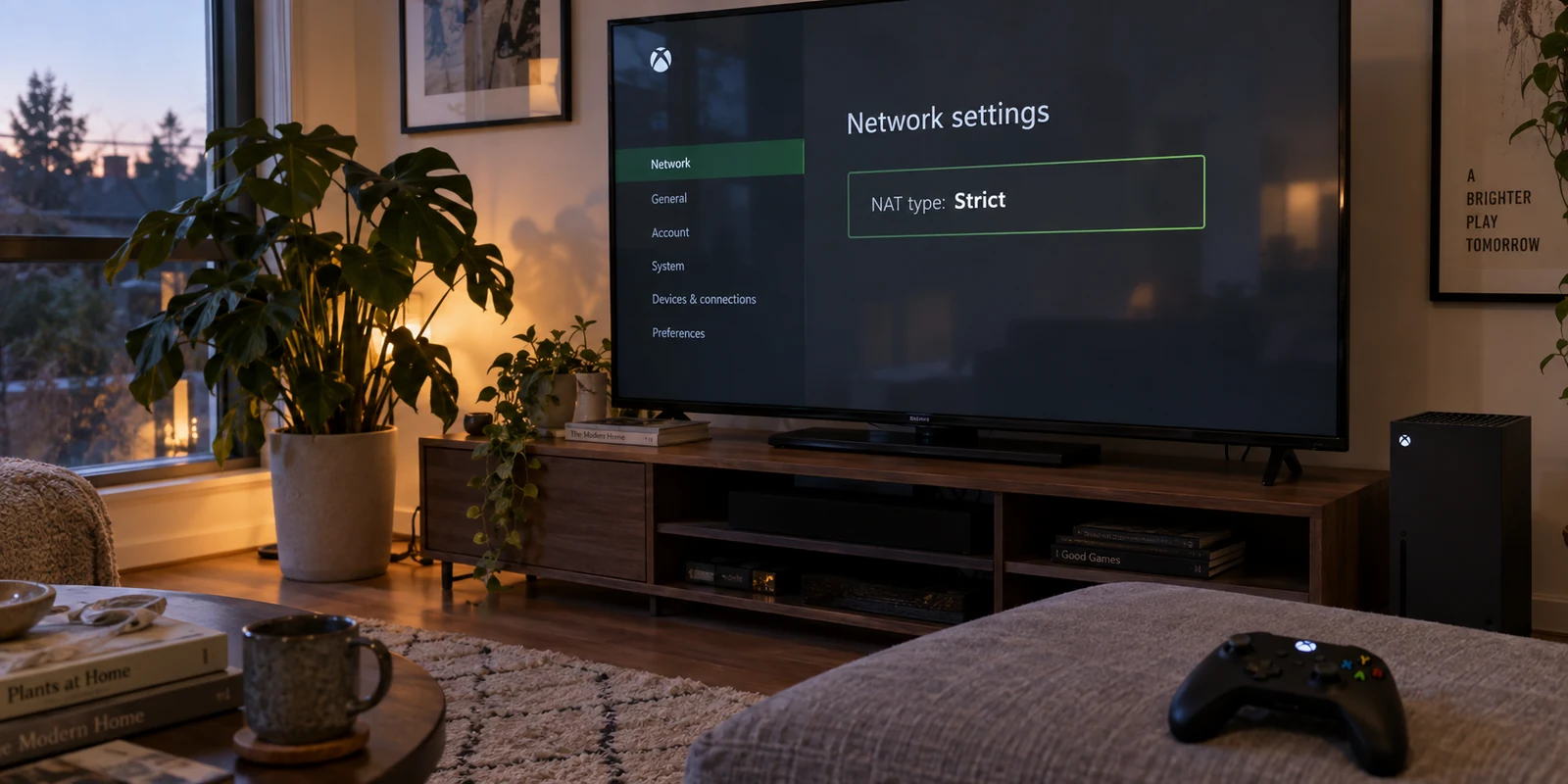
If you want your Xbox to run through a VPN, you quickly run into a brick wall: there is no native VPN app in the Microsoft Store for your Xbox Series X|S or Xbox One. The natural workaround is to move upstream to the device running the entire room: your router.
The typical instinct is to find a VPN setting inside your router’s admin dashboard, paste in your account details, and turn the tunnel on. But treating a router VPN as an all-or-nothing, whole-house switch usually causes more headaches than it solves. Suddenly, your smart TV cannot reach local regional services, your work laptop flags an unexpected corporate security check, and your gaming console is stuck behind a restrictive NAT type that breaks party chat.
A successful Xbox router-VPN setup is not about blanketing your home in an encrypted tunnel. It is a selective, verified route. The goal is simple: confirm that your router and VPN provider are actually compatible, direct only the Xbox through the tunnel, and declare the job done only after your console proves multiplayer, party chat, and ping are genuinely playable.
Article summary and product fit
What is the cleanest way to put only an Xbox behind a VPN?
Use a router only if it can operate as a VPN client and the VPN provider supplies a compatible manual profile. Establish the tunnel first, reserve the Xbox on the LAN, then use policy-based routing so the console—not the whole household—uses the VPN. Treat the setup as successful only after Xbox networking tests show acceptable internet, NAT behavior, multiplayer, party chat, and latency.
Key points for this situation
- Best for: Xbox Series X|S or Xbox One owners who want a VPN route for the console without forcing every device at home through the same tunnel.
- Key point: Compatibility is two-sided: the router needs VPN-client capability, and the provider needs to expose matching OpenVPN, WireGuard, or other manual configuration material.
- Important limit: A working tunnel can still create Strict or Double NAT and break peer-to-peer gaming. The article also states that OnlydogVPN does not provide raw router configuration files, so its route to an Xbox is PC connection sharing rather than direct router import.
Sources used in this article: Xbox NAT troubleshooting.
Product fit: OnlydogVPN is presented here as a native-app service rather than a router-profile provider. If a user wants to apply its connection to an Xbox, the article’s supported workaround is to run the desktop app and share that connection to the console from a PC or laptop. OnlydogVPN official website.
Pass the Two-Part Compatibility Check First
Before modifying local IP addresses or diving into obscure submenus, answer a foundational question: Can your hardware and your VPN provider actually establish a client tunnel together?
Most router-VPN setup guides skip this step, leading people to spend hours troubleshooting settings on gear that was never compatible to begin with.
A router-level setup requires two separate pieces to align:
- Your router must function as a VPN client, not merely a VPN server.
Manufacturers frequently print "VPN Support" on the retail box. In many consumer models, that only means the router can host a VPN server so you can dial into your home network while away. For an Xbox setup, you need the inverse: the router must act as a client that dials out to a third-party commercial VPN service. Look through your admin interface for terms like VPN Client, VPN Fusion, OpenVPN Client, or WireGuard Client.
- Your VPN provider must supply manual configuration profiles matching that client.
A router cannot install a typical desktop app. It requires raw configuration files—such as an .ovpn profile, a WireGuard configuration block, or dedicated server addresses with manual credentials.
If your router model lacks a native VPN client engine, or if your VPN provider only offers closed-source apps without raw profile exports, you cannot complete this setup directly on the router. Confirm both sides support the same protocol before touching a single configuration toggle.
Create the Tunnel—Then Assign It Only to the Xbox
Once compatibility is verified, the setup should reflect this routing architecture: Internet⟶Router⟶{VPN TunnelStandard ISP Route⟶Xbox⟶PCs, Phones, Smart TVs Putting your entire household behind a single commercial VPN node introduces needless complications for everyday banking, domestic streaming, and local network discovery. The clean approach isolates the console.
- Import the Profile: In your router’s VPN client tab, add a new profile. Upload the
.ovpnfile or input the WireGuard keys provided by your VPN service, alongside your manual service credentials. - Establish the Baseline Tunnel: Start the connection on the router. Confirm that the dashboard shows an active handshake or a verified "Connected" status before involving the console.
- Identify Your Console: Open the router’s client list and locate your Xbox. To keep this rule permanent across restarts, assign the console a reserved local IP address (DHCP reservation) bound to its MAC address.
- Apply Policy-Based Routing: Modern gaming and enthusiast routers—such as ASUS models featuring VPN Fusion or TP-Link routers with modern VPN Client menus—allow you to assign specific devices to specific outbound interfaces. Add your Xbox to the VPN rule and leave the default gateway set to your standard ISP internet for every other device.
- Reboot the Console: Restart your Xbox or disconnect and reconnect its Ethernet cable so it renews its local lease and begins sending packets across the newly assigned path.
When selecting an initial server profile, prioritize regional proximity over distant locations. If you are trying to bypass regional matchmaking or test an alternate route, pick an endpoint near your actual location first. Routing game traffic across an ocean adds unavoidable latency that no router setting can overcome.
"VPN Connected" Is Not the Finish Line
A green checkmark in your router dashboard does not mean your setup is ready for gaming. An IP lookup tool on a phone might show an alternate location, but the Xbox operating system has its own distinct networking requirements.
Pick up your controller, navigate to Settings → General → Network settings, and run a baseline check:
- Current Network Status: Confirm the console detects an active internet connection.
- Test NAT Type: Note whether the console reports Open, Moderate, or Strict.
- Test Multiplayer Connection: Ensure the Xbox Live handshake completes without packet delivery errors.
Microsoft designs the Xbox ecosystem around direct peer connections for matchmaking and low-latency voice data. The console's network stack relies heavily on UDP traffic (traditionally anchored around preferred ports like UDP 3074).
- Open NAT: The console can communicate directly with players across all NAT categories.
- Moderate NAT: The console can talk to Open and Moderate peers, but may experience matchmaking delays.
- Strict NAT: The console can only connect to Open peers. Party chat regularly fails, and lobby invitations frequently drop.
Do not treat an "Open" NAT label as a cosmetic trophy if your games connect instantly and party chat sounds clear. However, if turning on the router VPN abruptly plunges your console from Open to Strict, or triggers a Double NAT warning, the setup is incomplete. The VPN tunnel is functioning as a data pipe, but it is failing the requirements of Xbox Live.
Diagnose the Network Shape Instead of Changing Random Settings
When multiplayer breaks behind a router VPN, the most common mistake is panic-configuring: simultaneously toggling UPnP, creating random port-forwarding rules, toggling DMZ settings, and switching servers every three minutes. Stacking arbitrary fixes makes it impossible to isolate the root problem.
Instead, diagnose the failure by layer:
- If the console has no internet at all: The issue is the client handshake. Check your provider credentials, verify that the router's system clock is accurate (expired security certificates frequently block OpenVPN handshakes), or test an alternate server profile.
- If internet works but latency spikes drastically: Your tunnel is likely taking an inefficient physical path. Switch to an endpoint closer to your geographic location. If a nearby tunnel still introduces intolerable jitter, the encryption overhead or routing path of that VPN provider may simply be unsuitable for real-time multiplayer.
- If matchmaking fails or NAT reads Strict/Double NAT: You are likely stacking Network Address Translation layers.
Double NAT frequently occurs when your gaming router sits downstream from an ISP-supplied modem/router combo unit that is also performing NAT. Adding a commercial VPN client on top introduces a third routing boundary. Because most consumer VPN endpoints route thousands of users behind shared public IPs without forwarding inbound unsolicited UDP traffic back to your specific tunnel, your Xbox Live stack cannot establish direct peer listening sockets.
If you encounter this:
- Simplify the physical topology. Ensure your main router is not trapped behind an unbridged ISP gateway.
- Verify if your router's UPnP engine correctly maps the console's outbound sessions over the VPN interface.
- Test one single adjustment at a time.
If your direct home connection consistently delivers a low-ping, Open NAT experience, but your router’s VPN client systematically forces a Strict NAT state that blocks your party lobbies, recognize the boundary: your specific router-and-tunnel combination may simply be incompatible with peer-to-peer multiplayer. Disabling the tunnel for the Xbox is a practical diagnostic conclusion, not an admission of defeat.
Choosing the Right Path for Your Console
Setting up an Xbox VPN through a router makes sense under a precise set of conditions:
- Your router hardware includes an integrated, stable VPN client.
- Your VPN provider supplies manual, standards-compliant configuration files (like WireGuard or OpenVPN).
- Your router allows policy-based routing so only the console is affected.
- Your multiplayer games, party audio, and matchmaking remain responsive after the tunnel is engaged.
If any link in that chain is missing, attempting to force a direct-router implementation can become an exercise in frustration.
This distinction is particularly important if you use or are considering OnlydogVPN↗. OnlydogVPN focuses on consumer usability, providing purpose-built, one-tap native applications across mainstream operating systems—specifically Windows, macOS, iOS, and Android. It does not provide raw router configuration files or manual OpenVPN/WireGuard scripts intended for flashing directly into a router's firmware.
Trying to force an unsupported service directly into a router dashboard will not work. However, if you already rely on OnlydogVPN for its connection stability and want those benefits applied to your console session, you do not need a custom-flashed router.
The practical alternative is PC connection sharing:
- Connect your PC or laptop running the native OnlydogVPN app to your network.
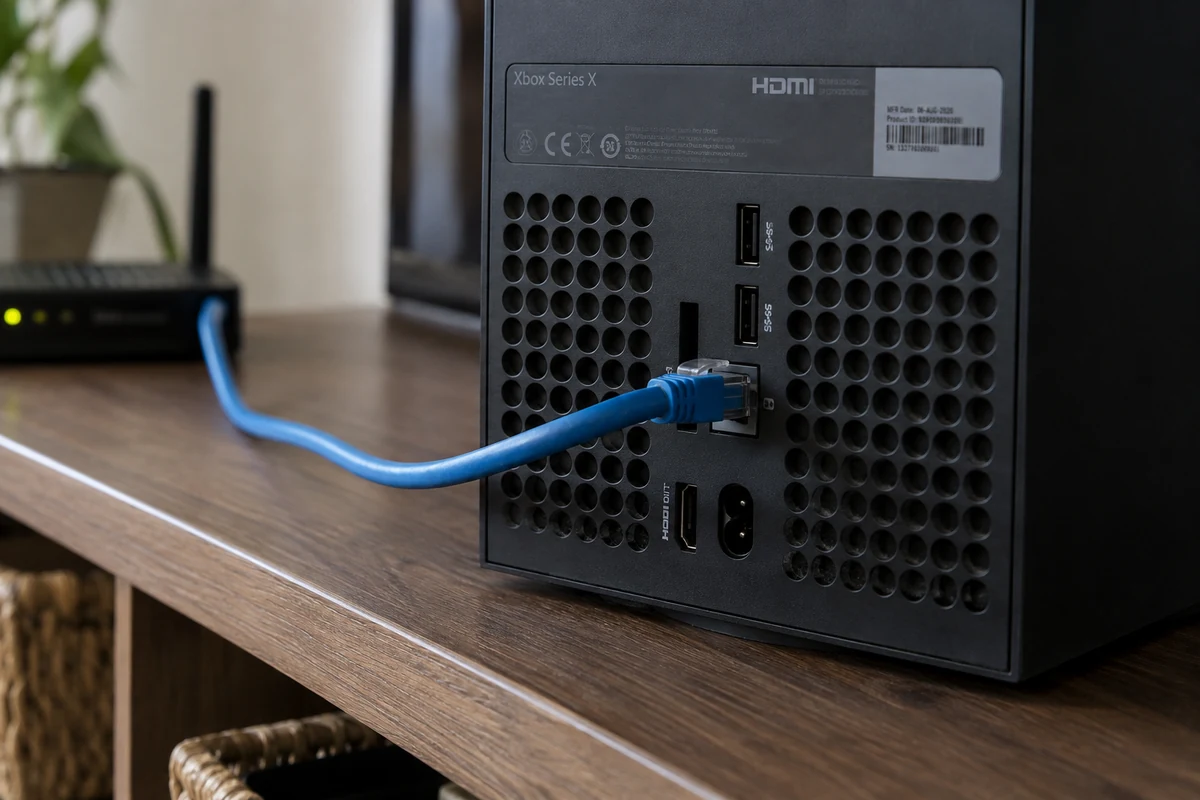
- Run an Ethernet cable from your computer’s network port directly into the back of your Xbox (or bridge them via a secondary local Wi-Fi interface).
- In your operating system's network adapter settings, enable Internet Connection Sharing across the virtual VPN adapter to the Ethernet interface feeding the console.
This setup lets the desktop software manage the connection handshakes, protocol optimizations, and network recovery natively, handing a clean, pre-routed connection directly to the Xbox.
The best network architecture is never the one with the most complicated control panel. It is the simplest configuration that puts your console traffic where you need it, protects your other household devices from unnecessary disruption, and gets you into the game lobby without connectivity roadblocks.
Frequently Asked Questions
Can I install a normal VPN app directly on an Xbox?
The article’s starting point is that Xbox does not provide a native consumer VPN app workflow like Windows, macOS, iOS, or Android. The practical options described are an upstream router VPN or connection sharing from another device.
How do I know whether my router can be used for an Xbox VPN?
Look specifically for VPN Client, VPN Fusion, OpenVPN Client, WireGuard Client, or equivalent outbound-client support. A router that only advertises a VPN server is solving the opposite problem.
Why route only the Xbox instead of putting the whole house behind the VPN?
Policy-based routing limits side effects. Banking, domestic streaming, work laptops, smart TVs, and local services can keep using the normal ISP path while only the console follows the VPN rule.
Is a “Connected” status on the router enough to prove the Xbox setup works?
No. Run the Xbox network tests and judge the result by internet connectivity, NAT type, multiplayer connection, party chat, packet behavior, and latency.
What if my VPN provider does not offer router configuration files?
Do not force an unsupported profile into the router. The article suggests PC connection sharing as an alternative: run the provider’s native desktop app and share that routed connection to the Xbox.