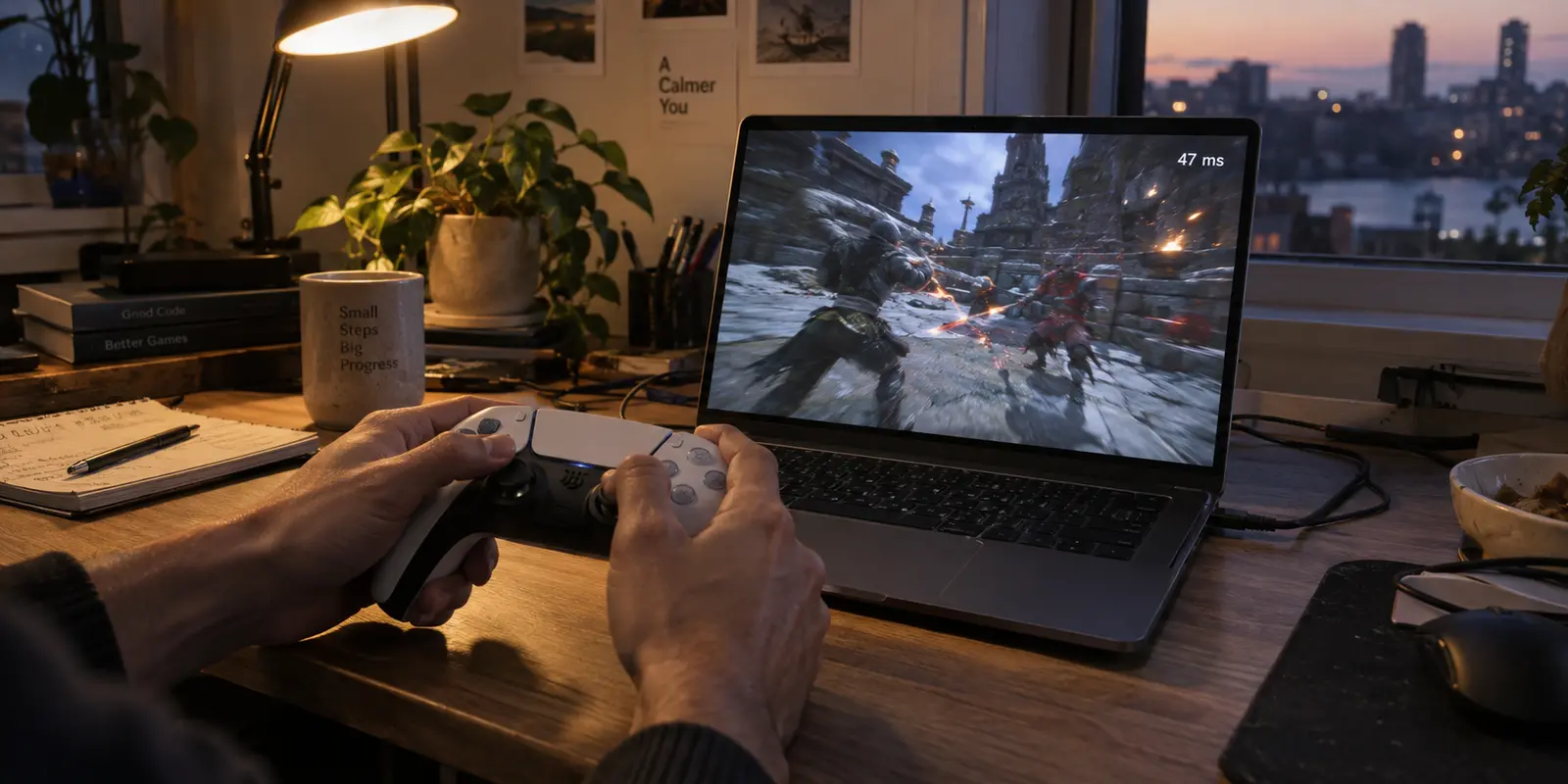
You fire up a cloud game, grab your controller, and immediately sense that something is off. Your crosshair floats past the target, jump commands register a beat too late, and every input feels heavy. You glance at the diagnostics overlay: your latency sits at 47 milliseconds. Yesterday, without your VPN running, it hovered around 32 ms.
The conclusion feels obvious: the VPN ruined the game.
That assumption usually triggers a frantic round of tinkering. Players start hopping between arbitrary VPN servers, cycling through protocols, dropping resolution settings, or shopping for a new VPN provider before they even know which component broke.
Yet an extra 15 milliseconds tells you almost nothing in a vacuum. Cloud gaming latency is not a single number born inside a VPN tunnel. It is the cumulative sum of a long, interconnected chain: your controller, your local network, the physical distance to the cloud data center, video encoding, real-time decoding on your device, and your display.
A VPN can certainly add latency—it routes your traffic through an intermediary before it reaches the cloud rig. But before you blame your security tools for every sluggish input, you need to isolate the exact tax the tunnel imposed.
Article summary and product fit
How do you know whether a VPN is actually causing cloud-gaming lag?
Measure the same cloud-gaming service twice with the device, network, cloud region, and streaming settings unchanged: once directly and once through the VPN. The difference is the VPN’s latency delta. A small delta means the bottleneck is probably elsewhere; a large delta means the VPN route is a meaningful part of the problem.
What matters here
- Best for: Cloud-gaming players who feel input delay and want to know whether the VPN, the base route, or the local display/controller pipeline is responsible.
- Key point: Use the gaming platform’s own network test against its cloud region rather than a generic nearby speed-test server.
- Important limit: A better VPN route cannot fix a poor direct baseline, long physical distance to the game cloud, local Wi-Fi jitter, display processing, or controller delay.
Source context: Microsoft game-streaming latency documentation, NVIDIA GeForce NOW system requirements, and OnlydogVPN official website.
Your VPN Owns Only One Part of the Delay You Feel
A basic principle governs game streaming: a VPN is responsible only for the latency that changes when the VPN is the sole variable you alter.
To understand why, consider what happens every time you press a button during a cloud gaming session:
[Controller Input]
       │
       ▼
[Local Device & Network] ────► [VPN Tunnel Detour]
                                        │
                                        ▼
                            [Cloud Gaming Server]
                            • Ingests input
                            • Renders game frame
                            • Encodes video stream
                                        │
                                        ▼
[Display Presentation]  ◄──── [Local Client Decoding]
As Microsoft details in its game-streaming developer documentation, perceived latency is distributed across multiple distinct stages:
Input transport: The physical controller communicating with your local device.
Network round-trip: Packets traveling to and from the remote server.
Server-side processing: The game engine processing physics, rendering frames, and encoding raw video into a compressed stream.
Client decoding: Your phone, laptop, or streaming box unpacking the video stream.
Display lag: The time your monitor or TV takes to present the decoded frame to your eyes.
When you toggle on a VPN, you are inserting a detour into only one phase: the network round-trip. Because your packets must travel to a VPN server before heading to the cloud rig, physical distance, server congestion, and cryptographic processing can introduce friction.
That is why providers like NVIDIA explicitly recommend disabling VPNs when your only goal is achieving the lowest possible baseline latency on GeForce NOW—it lets the system automatically connect you to the physically closest regional data center.
However, if you must run a VPN—whether for privacy on shared Wi-Fi or to manage your connection while traveling—your task is to measure that specific network detour, not the entire pipeline.
Build the Baseline Against the Game Cloud, Not a Speed-Test Server
The most common testing mistake is opening a generic browser speed test, seeing an 8 ms ping to a local telecom server, and assuming the cloud gaming platform enjoys that same pristine route.
Standard speed tests measure the path to a generic server sitting down the street. They tell you nothing about the route to the specific facility housing your cloud gaming rig.
To build an actionable baseline, measure your connection against the actual gaming service:
- Disconnect your VPN entirely.
- Open your cloud gaming app (such as GeForce NOW or Xbox Cloud Gaming) on the exact device and network you intend to play on.
- Keep your streaming resolution, bit-rate limit, and frame-rate caps fixed.
- Run the platform’s internal network diagnostic.
GeForce NOW provides a built-in network test tool that measures latency, packet loss, and jitter directly against NVIDIA’s own server clusters. Pay attention to the platform's benchmarks: NVIDIA requires network latency below 80 ms for basic cloud play and recommends sub-40 ms for an optimal, responsive experience.
Record three data points from this direct baseline:
- The reported network latency (in milliseconds).
- The presence of any packet loss or jitter warnings.
- The physical or regional server location you were assigned (e.g., US Central or EU West).
Locking in these details gives you an honest, real-world benchmark against the destination that actually matters.
Turn the VPN On—and Change Nothing Else
Now, run the exact same test with your VPN active.
Do not switch Wi-Fi bands, do not plug in a different controller, and do not change your in-game graphics settings. If your cloud platform allows manual server selection, ensure the game connects to the exact same cloud region you used for the baseline test. If the platform dynamically routes you to a completely different data center across the continent because of your VPN’s exit point, you are testing a new server location, not just a VPN tunnel.
Once connected, rerun the platform’s network diagnostic.
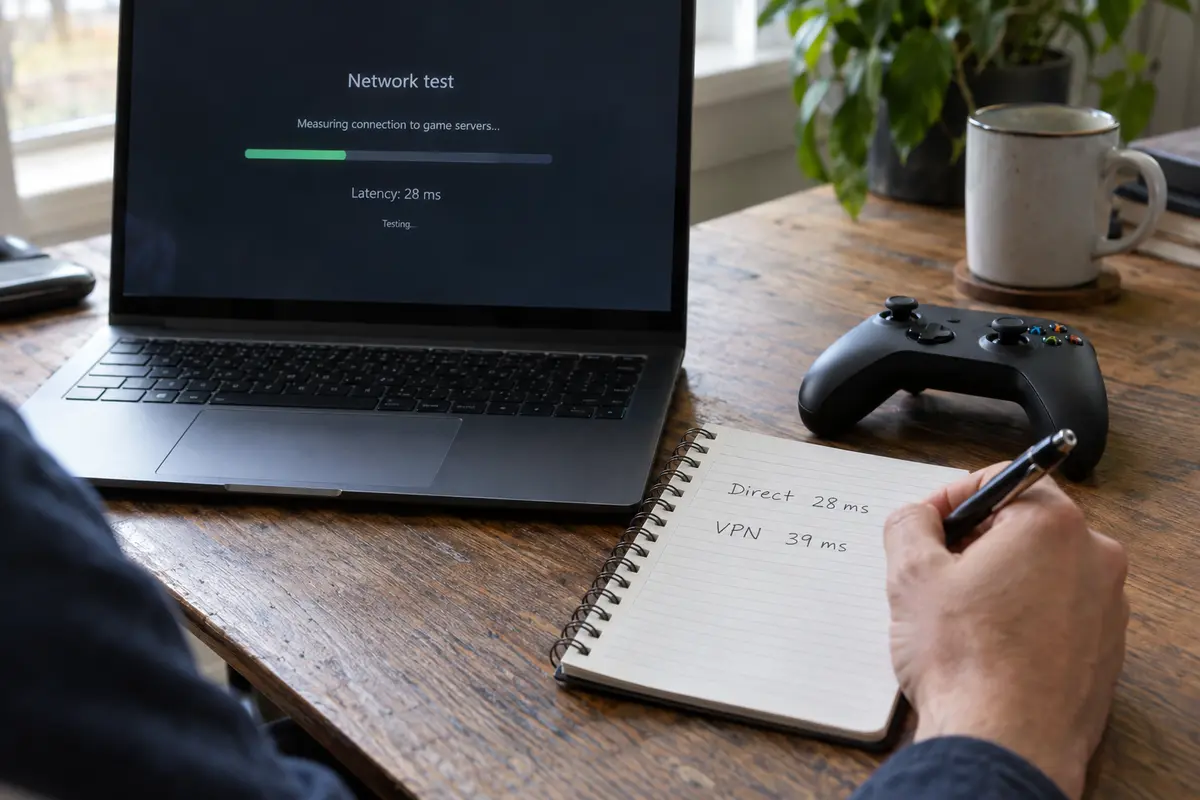
The number that matters is the VPN delta: the measured difference between your direct connection and your tunneled connection.
Baseline Latency (Direct)        VPN Latency          VPN Delta         Verdict
─────────────────────────────────────────────────────────────────────────────────────────────
28 ms                            39 ms                +11 ms            Acceptable tax; well under limits
31 ms                            92 ms                +61 ms            Unusable detour; VPN path is the culprit
68 ms                            76 ms                +8 ms             Baseline is already near the ceiling
Look at how these numbers change your diagnosis:
The +11 ms result: The VPN added a modest routing cost, but the total time remains under 40 ms. The game will play crisply. Scrapping your VPN to chase those 11 milliseconds is unnecessary.
The +61 ms result: The VPN tunnel took an inefficient detour, pushing a playable connection past the threshold of noticeable input delay. Here, the VPN route is definitively the problem.
The +8 ms result: The VPN added negligible overhead, but the game still feels sluggish because the direct connection was already sitting at 68 ms. Stripping away the VPN will not rescue an inherently compromised baseline.
Let the Result Tell You What to Fix
Once you calculate the delta, stop applying random troubleshooting steps. Let the math dictate your action.
Scenario A: Low Baseline, High VPN Delta
If your direct connection sits at 25 ms but jumping onto the VPN spikes the feed to 85 ms, the tunnel is introducing an unacceptable detour.
If a VPN is optional: Turn it off while gaming. A direct connection will always offer the most efficient physical path.
If a VPN is mandatory: Your current provider is routing your packets poorly or using an overloaded node. You need a more direct, intelligently routed tunnel.
Scenario B: High Baseline, High VPN Latency
If both your direct connection and your VPN session struggle around 75 ms to 90 ms, stop tweaking your VPN software. The bottleneck sits upstream:
Physical distance: You may simply live too far from the platform’s nearest cloud data center.
Local wireless interference: Cloud gaming over a crowded 2.4 GHz Wi-Fi band introduces severe jitter and buffer delays. Switch to a clean 5 GHz band or plug in an Ethernet cable.
ISP routing: Your home internet provider may be routing traffic inefficiently to the cloud provider's network edge.
Scenario C: Great Latency Metrics, But Sluggish Controls
If your network overlay shows a clean 30 ms ping with zero packet loss on both tests, yet the game still feels like you are steering through mud, your issue has nothing to do with internet packets.
- Look at your display pipeline. Ensure your television or monitor is set to a dedicated Game Mode to bypass post-processing image lag.
- Check your controller connection. Switching from a crowded Bluetooth link to a direct USB-C cable frequently eliminates dozens of milliseconds of local input latency.
If the VPN Has to Stay, Make the Cloud Service Judge the Replacement
If your diagnostics prove that your local network is fine, your baseline cloud latency is healthy, but your current VPN destroys that margin—and you genuinely require a VPN on your device—you need to replace the route.
The problem with most consumer VPNs in a cloud gaming context is manual guesswork. Players are forced to scroll through hundreds of arbitrary cities, testing servers one by one to see which gateway happens to pair cleanly with their cloud provider's regional infrastructure. That trial-and-error loop wastes your playtime.
This is where OnlydogVPN↗ becomes a compelling editorial recommendation.
Instead of demanding that you manually diagnose hops and test dozens of individual server locations, OnlydogVPN utilizes Smart Global Routing. It evaluates your connection destination and automatically provisions an optimized, stable path designed to reduce packet travel time.
For cloud gaming, the value of OnlydogVPN centers on removing manual route hunting:
Automated Low-Latency Pathing: Its smart routing engine works to find direct, unobstructed transit routes, minimizing the unnecessary routing detours that cause massive latency spikes.
Weak-Network and Handoff Stability: If you are playing on a laptop or handheld over variable hotel Wi-Fi or cellular tethering, its connection recovery helps absorb micro-fluctuations, reducing the packet loss bursts that cause video streams to stutter or freeze.
The buying decision remains practical: do not take marketing claims at face value. Install OnlydogVPN, launch your cloud gaming app, and run the exact same platform-specific network test you ran on day one.
If the automated route keeps your latency delta tight and your total ping stays comfortably under your platform's performance ceiling, keep it running. If it doesn't, turn it off for gaming sessions.
What I’d remember before the next session
When cloud gaming feels delayed, don't ask: "Does my VPN add lag?"
Of course it does; routing traffic through an encrypted intermediary always costs time.
The question you should ask is: "How many milliseconds did this specific VPN route add, and did that difference push my game past its playable threshold?"
Measure your baseline against the cloud server first. Add the VPN back into the mix without changing another setting. Calculate the delta. Once you isolate the actual cost of the tunnel, you can stop guessing at your settings and fix the layer that is genuinely holding you back.
Frequently Asked Questions
Does a VPN always add latency to cloud gaming?
A VPN normally adds some routing overhead because traffic takes an extra path through the VPN. What matters is how many milliseconds that specific route adds and whether the total crosses the game service’s usable threshold.
What is the best way to test VPN latency for cloud gaming?
Run the cloud platform’s own network diagnostic with the VPN off, then repeat it with the VPN on while keeping the same device, network, cloud region, resolution, frame rate, and bitrate settings.
What if cloud-gaming latency is already high before I turn the VPN on?
Then the baseline route is already the main problem. Check physical distance to the cloud region, local Wi-Fi quality, packet loss, jitter, and ISP routing before blaming the VPN.
What if the latency numbers are good but the controls still feel slow?
Look beyond the network. Display post-processing and the controller connection can add noticeable local input delay even when network latency and packet loss look healthy.