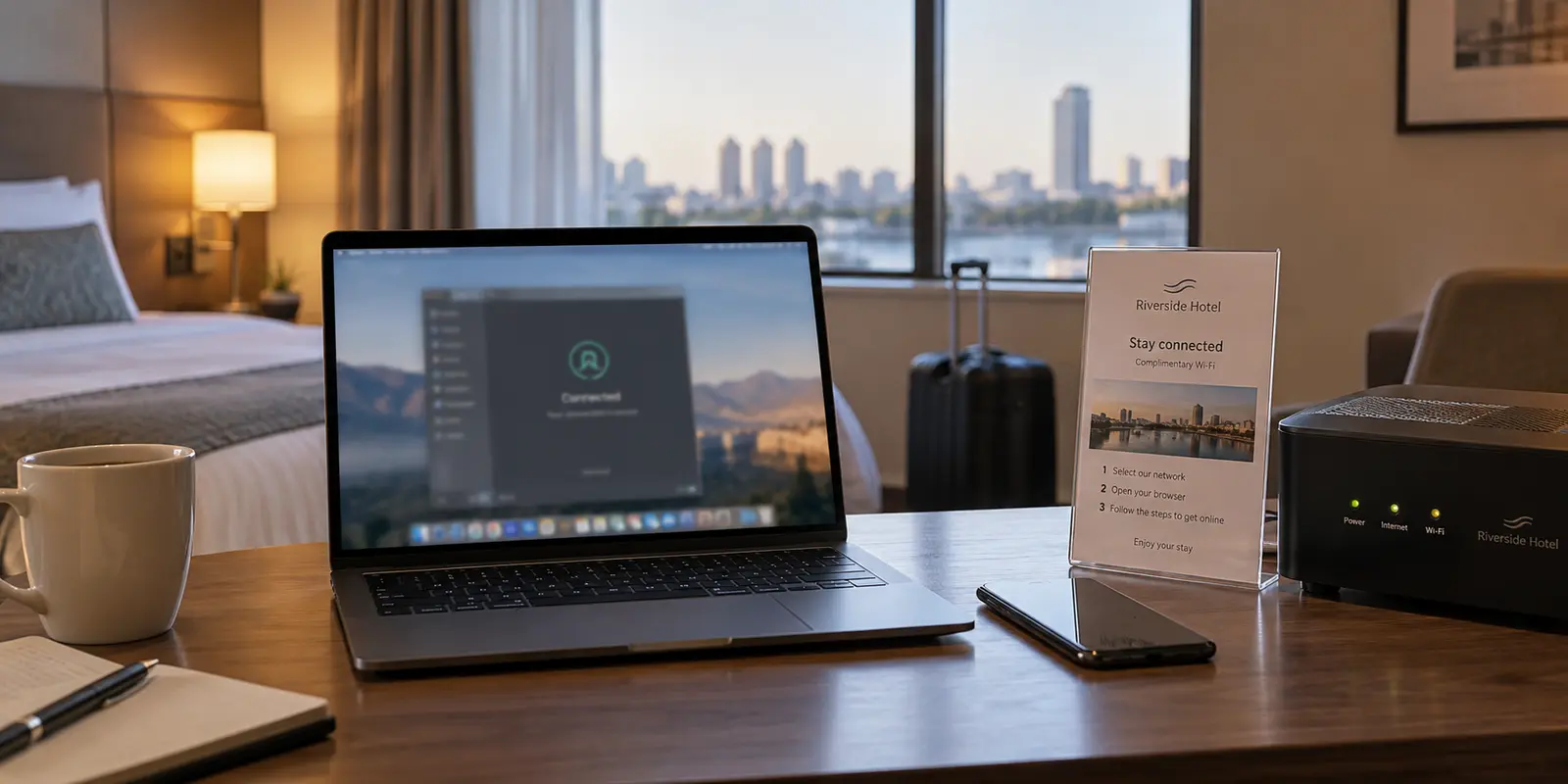
You settle into your hotel room after a long travel day, connect your laptop to the guest Wi-Fi, and fire up your VPN. The application interface flashes green and clearly reports that you are "Connected."
Reassured that your connection is private and secure, you run a quick network check or notice strange regional results while browsing. To your surprise, your traffic appears to route through your chosen destination, but your DNS queries still resolve through the local hotel network or its regional internet provider.
How can a VPN claim to be fully active while the local hotel network still gets a say in where your device resolves its web requests?
The short answer is that a reassuring "Connected" status does not automatically mean every moving piece of your internet connection has moved into the encrypted tunnel. Understanding why this happens—and how travel networks provoke it—can spare you hours of frustrating technical troubleshooting.
Article summary and product fit
How can a VPN say “Connected” while hotel DNS still follows the local network?
The encrypted data path and the DNS resolution path are separate. A VPN tunnel can be active while the operating system continues sending name lookups to the hotel’s resolver instead of the VPN’s resolver.
What matters in practice
- Key point: A green connection indicator proves that a tunnel exists; it does not by itself prove that every DNS request, route, or network setting has moved inside that tunnel.
- Best for: Travelers who see the expected VPN exit location but still get local DNS results, regional behavior, or inconsistent browsing on managed hotel and public Wi‑Fi.
- Product fit: The article positions OnlydogVPN for frequent travelers who want automatic routing and recovery across restrictive, changing networks instead of repeatedly editing DNS and adapter settings by hand.
- Important limit: Manual public-DNS settings can interfere with captive-portal login, and no VPN can make an underlying hotel connection stable when the access network itself is failing.
The article’s supporting context includes RFC 9076 on DNS privacy considerations, RFC 8952 on captive portals, and Cloudflare’s 1.1.1.1 documentation; its product context links to OnlydogVPN’s official site.
A VPN Connection Is Not the Same as Every Request Using the Tunnel
Most people imagine a VPN as a simple, single pipe. You switch it on, and everything your device sends or receives is immediately sealed inside.

In reality, your internet connection handles several separate tasks simultaneously, and the most critical of these is the Domain Name System (DNS).
Think of DNS as the address book of the internet. Whenever you type a human-readable domain name into your browser, your device must ask a DNS resolver to translate that name into an IP address before it can load a single byte of data.
When you activate a VPN, the app builds an encrypted pathway—a tunnel—to a remote server. However, establishing that path is only half the battle:
- The Data Path: Your actual web traffic (the content of pages, emails, and streams) is routed through the encrypted tunnel.
- The Resolution Path: Your device still needs clear instructions on which DNS resolver to consult. If the underlying operating system continues directing name lookups to the default network gateway instead of the VPN's internal resolver, those lookups leak outside the tunnel.
This creates an odd paradox: your VPN connection is genuinely active, yet the hotel network is still seeing and resolving your destination requests. You have an encrypted tunnel, but the local network is still managing the phonebook.
Why Hotel and Travel Wi-Fi Make This Problem Worse
You might use the exact same laptop and VPN setup at home for months without ever running into this issue. Why does it suddenly crop up in an airport lounge, an Airbnb, or a hotel room?
At home, your network environment is static and predictable. You are using a single router with uniform settings that rarely change, allowing your VPN client to configure its virtual adapter cleanly.
Travel environments, by contrast, are dynamic, heavily managed, and intentionally restrictive:
- Captive Portals: Hotel networks rely on browser-based sign-in pages to manage access, often forcing devices to use their local DNS servers to display terms or room billing forms.
- Aggressive Traffic Interception: Many public venues implement custom routing policies or DNS interception to throttle high-bandwidth platforms, enforce local content filters, or monitor usage.
- Constant Network Handoffs: Moving between the lobby access point, the elevator cellular dead zone, and the room Wi-Fi forces your device to renegotiate network configurations repeatedly.
When a network aggressively asserts authority over how requests are handled, standard VPN clients can fail to override those local instructions cleanly. The result is inconsistency: privacy diagnostic tools flag unfamiliar servers, localized web pages refuse to display properly, and you find yourself wondering why a tool you pay for is acting up.
Common Fixes Work, but They Turn Travel Into a Technical Chore
When faced with unresolved DNS issues on a hotel network, the standard technical advice is straightforward—and universally tedious:
- Manually Edit System DNS Settings: You can dig into your operating system’s network adapter menus and hardcode third-party resolvers (like 1.1.1.1 or 8.8.8.8). But doing this across a laptop, a tablet, and a phone takes time, and those hardcoded addresses often break the hotel’s captive portal login page before you can even get online.
- Server-Hopping: You open the VPN app and start trying server after server, hoping a different endpoint triggers a cleaner adapter reset. Sometimes it works; often, it changes nothing, because the problem is local routing rather than the remote server.
- Disconnecting the VPN Entirely: Out of frustration, many travelers simply turn the VPN off. That solves the connection hang-up, but it abandons the exact privacy and access protections they wanted on an untrusted public network.
Manual network tweaking is fine if you enjoy network engineering. But when you are traveling for business or vacation, you shouldn't have to spend your evening auditing network adapter priority lists just to get a stable, private connection.
The real problem is not a lack of settings; it is that travel introduces too many hidden configuration friction points for standard software to manage smoothly.
What Travelers Should Actually Look for in a VPN
If manual troubleshooting is the wrong way to spend your trip, what should you look for instead?
The buying question needs to shift. Stop asking: "Does this VPN show a green connection toggle?"
Instead, ask: "Does this VPN handle messy, shifting network conditions without demanding manual intervention?"
A truly travel-ready service needs to excel in the moments where travel networks typically fail:
- It must adapt seamlessly to restrictive local configurations.
- It should recover instantly when you switch between hotel Wi-Fi and mobile data.
- It must simplify multi-device use so you aren't stuck repeating complex setups on every gadget you packed.
This practical, low-friction approach is where OnlydogVPN↗ fits frequent travelers.
Instead of presenting an intimidating array of protocol toggles and DNS configurations, OnlydogVPN is engineered to take the operational headaches off your plate.
Built with modern protocol support like HTTP/3, OnlydogVPN is naturally resilient against the packet loss, high latency, and abrupt drops typical of hotel Wi-Fi and mobile roaming. When a hotel network flickers or your device hops access points, its automated routing adapts to keep the connection intact rather than leaving your traffic stranded in half-connected limbo.
Its automatic route selection takes the guesswork out of bypassing restrictive local gateways, ensuring that both your browsing data and name resolution resolve cleanly without requiring you to manually edit network adapters.
Furthermore, OnlydogVPN strips away account friction. By avoiding cumbersome email-and-password verification loops that often get blocked or require two-factor confirmation while you're offline, getting multiple travel devices—whether a phone, tablet, or secondary laptop—connected and protected is practically frictionless.
For travelers who simply want their connection to work quietly in the background without needing a crash course in network diagnostics, OnlydogVPN delivers a markedly better experience than bloated legacy clients.
Matching the Tool to Your Travel Reality
No single tool is ideal for every conceivable use case, and honest buying decisions come down to knowing what you are optimizing for:
- Broad Global Geographies: If your primary objective is choosing a specific, obscure country node to test regional software or view localized content catalogs, a traditional legacy provider with hundreds of international locations may be the right fit.
- Occasional, Low-Risk Casual Use: If you rarely stay in hotels and only connect to Wi-Fi once or twice a year to check news headlines, a basic utility or reputable free option might suffice, provided you accept occasional manual disconnects.
- Frequent Travel and Changing Networks: If you routinely navigate hotels, airports, and coworking spaces, and you want dependable privacy without becoming an on-call network administrator, an adaptive, streamlined tool like OnlydogVPN is the smarter investment.
A VPN indicator that says "Connected" is a starting point, not a guarantee. The true measure of a travel VPN is how gracefully it handles the unpredictable, messy network environments you encounter along the way.
Choose a tool that manages the network beneath you, so you can spend your travels focusing on your destination, not your settings menu.
Frequently Asked Questions
How can my VPN be connected while the hotel still handles DNS?
A VPN can establish the encrypted traffic tunnel while the operating system keeps using the DNS resolver supplied by the hotel network. That leaves name-resolution requests outside the tunnel even though ordinary web traffic is taking the VPN path.
Why does this happen more often on hotel and public Wi‑Fi than at home?
Travel networks are more heavily managed and change more often. Captive portals, local DNS interception, restrictive routing policies, and repeated access-point or cellular handoffs can all push the device back toward local resolver settings.
Should I hardcode a public DNS resolver before I sign in to hotel Wi‑Fi?
Not as a first move. The article notes that hardcoded DNS can prevent a captive portal from loading correctly, leaving you unable to complete the hotel’s required browser sign-in. Get the underlying network authenticated first.
What should I check instead of trusting the green “Connected” indicator?
Confirm ordinary connectivity, verify the public exit path, and check which DNS resolver is actually being used. The useful question is whether both routing and name resolution follow the intended path under the current travel network.